
Keyboard Input Using Scanner
1. Introduction
Taking input from the user is a common requirement in most Java applications.
Java provides several ways to read keyboard input, and the Scanner class is the most beginner-friendly and widely used method.
Scanner belongs to the java.util package and allows reading:
- Integers
- Floating values
- Strings
- Characters
- Boolean values
By the end of this lesson, you will know how to use Scanner effectively with all input types.
2. Importing Scanner
Before using Scanner, you must import it:
import java.util.Scanner;This tells Java you want to use the Scanner class available in the standard library.
3. Creating a Scanner Object
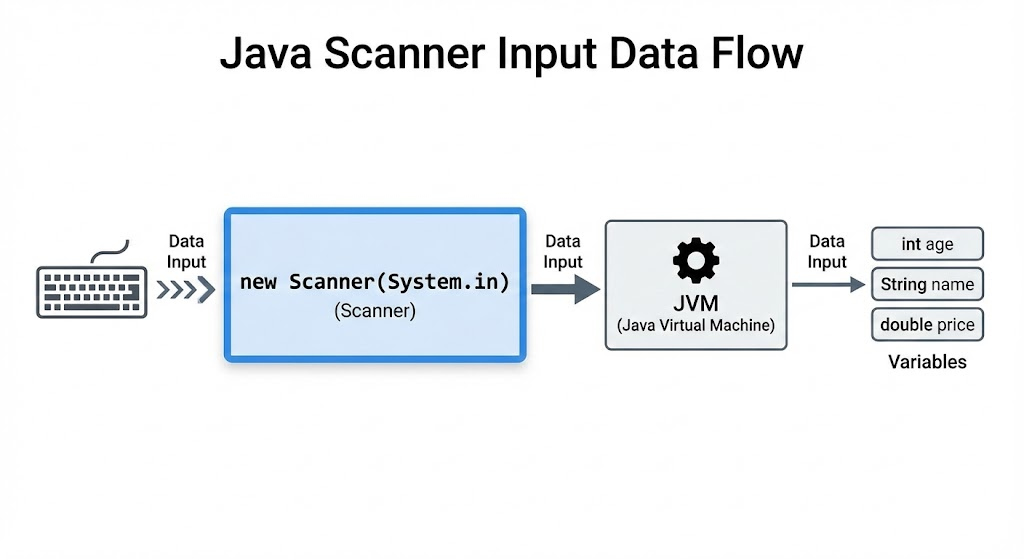
To read input from the keyboard, create a Scanner object using System.in.
Scanner sc = new Scanner(System.in);Here,
sc→ scanner referencenew Scanner(System.in)→ reads input from keyboard
This scanner object will now be used to read different types of data.
4. Reading Different Types of Input
Scanner provides several methods to read user input.
4.1 Reading an Integer
int age = sc.nextInt();Example:
System.out.print("Enter your age: ");
int age = sc.nextInt();
System.out.println("Your age is: " + age);
4.2 Reading a Double
double price = sc.nextDouble();4.3 Reading a Boolean
boolean isActive = sc.nextBoolean();4.4 Reading a Single Word (String)
To read a single word (without spaces):
String name = sc.next();Example:
System.out.print("Enter your name: ");
String name = sc.next();
System.out.println("Hello, " + name);
4.5 Reading a Full Line
To read a full line including spaces:
String sentence = sc.nextLine();Example:
System.out.print("Enter a sentence: ");
String sentence = sc.nextLine();
System.out.println("You entered: " + sentence);
5. Important Note: nextLine() Issue After nextInt()
When you use nextInt(), nextDouble(), etc., they do not read the newline character (\n).
This creates a common beginner problem where nextLine() gets skipped.
Example of problem:
int age = sc.nextInt();
String name = sc.nextLine(); // gets skipped!
Fix
Call an extra nextLine() to consume the leftover newline.
int age = sc.nextInt();
sc.nextLine(); // consume newline
String name = sc.nextLine();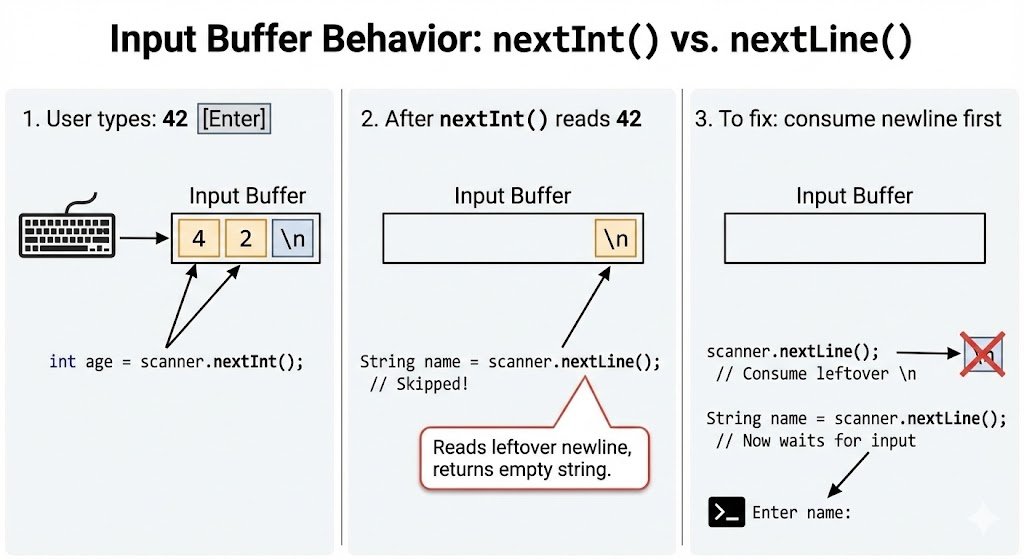
6. Closing the Scanner
Scanner uses system resources, so you should close it.
sc.close();Do NOT close Scanner if used inside large applications where System.in is needed later.
7. Full Example Program
import java.util.Scanner;

public class Main {
    public static void main(String[] args) {

        Scanner sc = new Scanner(System.in);

        System.out.print("Enter your age: ");
        int age = sc.nextInt();
        sc.nextLine(); // fix for nextLine()

        System.out.print("Enter your full name: ");
        String name = sc.nextLine();

        System.out.print("Enter your salary: ");
        double salary = sc.nextDouble();

        System.out.println("\n--- Output ---");
        System.out.println("Name: " + name);
        System.out.println("Age: " + age);
        System.out.println("Salary: " + salary);

        sc.close();
    }
}
8. Summary
- Scanner is a simple and powerful class for reading keyboard input.
- Use
nextInt(),nextDouble(),next(), andnextLine()for different input types. - Remember the nextLine() issue after numeric inputs.
- Always close the Scanner when done (unless
System.inis required later).
Written By: Shiva Srivastava
How is this guide?
Last updated on