
Introduction to Jenkins Pipeline
Learn what a Jenkins Pipeline is, why pipeline as code replaced click-configured jobs, the difference between declarative and scripted syntax, and write and run your first declarative pipeline.
Everything we built so far was configured by clicking through forms. That works, but it has real limits. The configuration lives only inside Jenkins, so nobody can review a change, you cannot see who changed a build step last week, and rebuilding the job on a new server means clicking through every screen again. A freestyle job also has no real concept of stages, so a long build is one big block of log.
A Jenkins Pipeline fixes this. It defines the complete CI/CD workflow as code instead of web forms. That code is usually stored in a file called Jenkinsfile in the same Git repository as the application, so the build process is versioned, reviewed and backed up exactly like the application code. This idea is called pipeline as code.
What a pipeline looks like
A pipeline is a series of stages, and each stage contains steps. Stages run one after another, in order:
Git clone -> Maven build -> Code analysis -> Docker image -> Push image -> Deploy to KubernetesIf a stage fails, the pipeline stops there. There is no point building a Docker image when the Maven build failed, and no point deploying an image that was never built. This sequential, stop-on-failure behaviour is exactly what you want in CI/CD.
Two syntaxes: declarative and scripted
Jenkins understands two ways of writing a pipeline:
| Declarative | Scripted | |
|---|---|---|
| Starts with | pipeline { } | node { } |
| Style | A fixed, readable structure with named sections | Plain Groovy code |
| Error checking | Jenkins validates the structure before running | Errors show up while running |
| When to use | Almost every pipeline you will write | Rare cases that need complex custom logic |
Both run on the same engine. Most teams, and most of this course, use declarative. We write a scripted pipeline in Building Pipelines with Groovy: Scripted Pipeline.
Create your first pipeline job
New Item
Click + New Item, name it First-pipeline, choose Pipeline (not Freestyle project), and click OK. Add a description such as Basic pipeline demonstration.
Find the Pipeline section
A pipeline job has far fewer fields than a freestyle job. Scroll to Pipeline. Definition is set to Pipeline script, which means you type the pipeline directly into the box. (The other option, Pipeline script from SCM, reads a Jenkinsfile from Git. That is what real projects use.)
The try sample Pipeline... drop-down offers ready examples: Hello World, GitHub + Maven, and Scripted Pipeline. They are a good way to see the syntax.
Write the pipeline
Paste this declarative pipeline. For now the stages only print messages, so you can see the flow before any real work happens:
pipeline {
    agent any

    tools {
        maven "maven"
    }

    stages {

        stage('Git Clone') {
            steps {
                echo 'Cloning Project from Git'
            }
        }

        stage('Maven Build') {
            steps {
                echo 'Building Project using Maven'
            }
        }

        stage('Deploy') {
            steps {
                echo 'Deploying Application'
            }
        }
    }
}
Leave Use Groovy Sandbox ticked. It runs your script with restricted permissions, which protects the Jenkins server.
Save and build
Click Save, then Build Now. The run finishes in a few seconds.
Read the pipeline structure
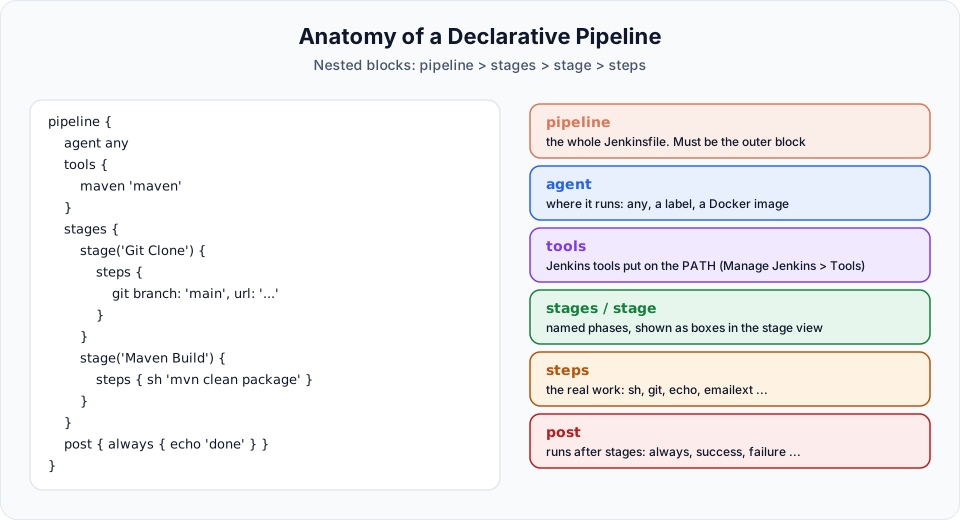
| Block | Meaning |
|---|---|
pipeline { } | Every declarative pipeline starts here. Everything else goes inside |
agent any | Run on any available node: the built-in node or any agent. agent { label 'slave-node' } would pin it to our SSH agent |
tools { maven "maven" } | Install the Jenkins tool named maven (from Manage Jenkins > Tools) and put it on the PATH for this pipeline. The name must match exactly |
stages { } | The list of all stages. There is exactly one stages block |
stage('Name') { } | One phase of the CI/CD process. The name appears in the stage view |
steps { } | The actual commands inside a stage: echo, sh, git, and many more |
Every { needs its matching }. Most beginner errors in pipelines are a missing or extra brace. Indent consistently and the editor's fold arrows make mismatches easy to spot.
Watch it run
The console output of a pipeline looks different from a freestyle job. Jenkins prints its own markers around each stage:
[Pipeline] stage
[Pipeline] { (Declarative: Tool Install)
[Pipeline] tool
...
[Pipeline] { (Git Clone)
[Pipeline] echo
Cloning Project from Git
...
[Pipeline] { (Maven Build)
[Pipeline] echo
Building Project using Maven
...
Finished: SUCCESS
Notice the extra Declarative: Tool Install stage. Jenkins adds it automatically because of the tools block.
The job page also has a Stages view that shows each stage as a box with its result and duration. It comes from the Pipeline Graph View plugin in the suggested plugins. On a failed run, it shows at a glance which stage broke.
Two useful buttons on a finished build:
- Restart from Stage: rerun a declarative pipeline starting at a chosen stage, reusing the earlier ones. Handy when only the deploy stage failed.
- Replay: edit the script for one run only, without saving the job. Great for experiments.
Pipeline as code in practice
Typing the script into the job is perfect for learning. In real projects, you commit the same code as a file named Jenkinsfile at the root of the repository, and set the job's Definition to Pipeline script from SCM with the repository URL, branch and script path (Jenkinsfile). Then:
- every change to the build is a Git commit that can be reviewed in a pull request,
- each branch can carry its own version of the pipeline,
- a Multibranch Pipeline job can create one pipeline per branch automatically.
Try It Yourself
- Create
First-pipelinewith the three echo stages and run it. Open the console output and find each[Pipeline] { (Stage name)marker. - Add a fourth stage
Testbetween build and deploy withecho 'Running tests'. Build again and look at the stage view. - Delete one closing brace on purpose and click Save. Read the error Jenkins shows, then fix it.
- Change
agent anytoagent { label 'slave-node' }(if your agent from the previous section is online) and check in the console which node ran the build. - Use Replay to change one echo message for a single run, and confirm the saved job is unchanged.
Official references
Written By: Shramik Masti
How is this guide?
Last updated on
Configure a Jenkins Agent Using SSH & Run Jobs on an Agent
Launch a second EC2 instance, install Java 21, connect it to Jenkins as a permanent SSH agent with a stored private key, fix the Java version error, and run the Maven job on the agent.
Building a Java Application Using Jenkins Pipeline
Turn the echo-only pipeline into a real one that clones the Spring Boot project from GitHub and builds it with Maven, using the Snippet Generator to write each step.