
Configuring Email Notifications in Jenkins
Configure the Email Extension plugin with Gmail SMTP and an app password stored as a Jenkins credential, then send success and failure emails from a pipeline post block.
Once you have many jobs and pipelines, nobody can keep watching the dashboard to see which build passed and which failed. Some builds take a long time: compiling a big application, building a Docker image, deploying to a cluster. You want Jenkins to tell you the result, wherever you are, and especially when something breaks.
The simplest way is email. Jenkins sends a message when a build succeeds or fails, with a link and the log attached.
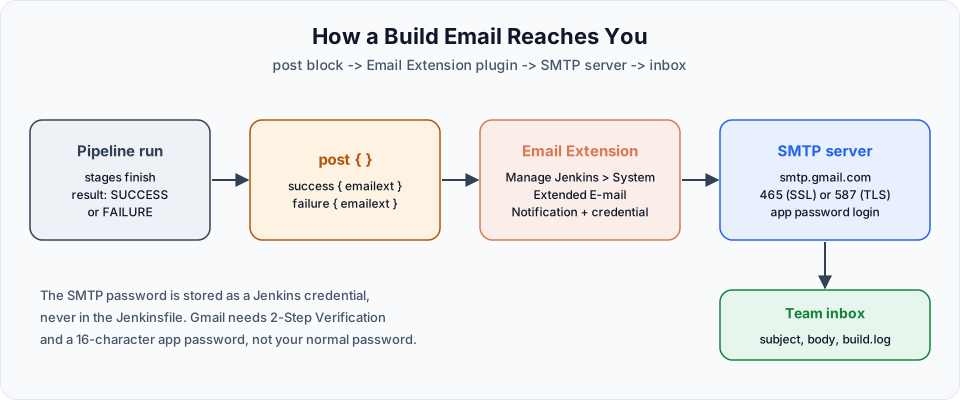
Two plugins handle email, and both come with the suggested plugins:
| Plugin | Config section in Manage Jenkins > System | Used by |
|---|---|---|
| Email Extension | Extended E-mail Notification | The emailext pipeline step and "Editable Email Notification" in freestyle jobs. This is the one we use |
| Mailer | E-mail Notification | The older, simpler mail step |
Step 1: get SMTP details and an app password
Jenkins does not send email itself. It hands the message to an SMTP server. In a company, the IT team gives you the SMTP host, port and an account. For practice, Gmail works:
| Setting | Gmail value |
|---|---|
| SMTP server | smtp.gmail.com |
| Port | 465 with SSL (or 587 with TLS) |
| Username | Your full Gmail address (the sender) |
| Password | A Google app password, not your normal password |
Google does not let apps like Jenkins sign in with your normal password. You create an app password instead:
- Turn on 2-Step Verification for the Google account. App passwords only exist for accounts with 2-Step Verification.
- In your Google Account, search for App passwords.
- Enter a name such as
Jenkins applicationand click Create. - Google shows a 16-character password once. Copy it.
Treat the app password like your real password
Anyone with it can send email as you. Paste it only into the Jenkins credential form. Never put it in a Jenkinsfile, a script, a screenshot or a chat. If it leaks, delete it on the App passwords page and create a new one. Work, school and Advanced Protection accounts may not offer app passwords at all; use a personal practice account or your company's SMTP relay.
Step 2: configure Extended E-mail Notification
Go to Manage Jenkins > System and scroll to Extended E-mail Notification.
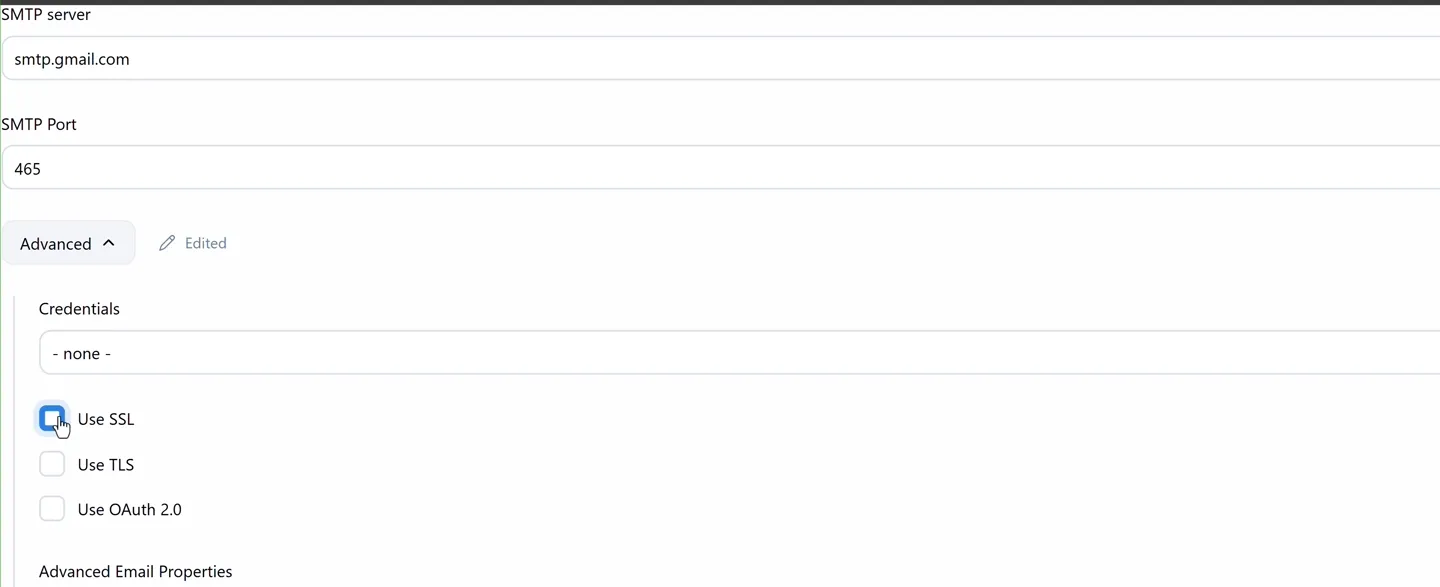
SMTP server and port, with the Advanced section open. The Credentials drop-down is still empty here; select the app password credential in it once you have created it.
| Field | Value |
|---|---|
| SMTP server | smtp.gmail.com |
| SMTP Port | 465 |
| Advanced > Credentials | Click + Add > Jenkins, kind Username with password: username = your Gmail address, password = the app password, ID = smtp-cred, description = SMTP credentials. Then select it |
| Advanced > Use SSL | Ticked (for port 465). For port 587 tick Use TLS instead |
| Default user e-mail suffix | Leave empty |
| Default Recipients | Optional: an address that gets every email by default |
Click Save.
To test before writing any pipeline, the E-mail Notification section (Mailer plugin) further down has Test configuration by sending test e-mail. Fill in the same server, SSL, port and login under its Advanced settings, enter a recipient, and click Test configuration. "Email was successfully sent" means the SMTP part works.
Step 3: send email from a pipeline
Create a new pipeline job sample-pipeline with the description Sample email notification:
pipeline {
    agent any

    tools {
        maven "maven"
    }

    stages {
        stage('Git Clone') {
            steps {
                echo 'Cloning Project from Git'
            }
        }

        stage('Maven Build') {
            steps {
                echo 'Building Project with Maven'
            }
        }

        stage('Deploy') {
            steps {
                echo 'Deploying Application'
            }
        }
    }

    post {
        success {
            emailext(
                subject: "Build Successful: ${currentBuild.fullDisplayName}",
                body: "The build ${currentBuild.fullDisplayName} completed successfully.",
                to: "your-team@example.com",
                attachLog: true
            )
        }

        failure {
            emailext(
                subject: "Build Failed: ${currentBuild.fullDisplayName}",
                body: "The build ${currentBuild.fullDisplayName} failed. Check the console: ${env.BUILD_URL}console",
                to: "your-team@example.com",
                attachLog: true
            )
        }
    }
}
Replace your-team@example.com with the real recipient. Separate several addresses with commas.
The post section
post sits after stages, inside pipeline. It runs once all stages are done, and its blocks decide what runs for which result:
| Condition | Runs when |
|---|---|
always | Every time, whatever the result |
success | The build succeeded |
failure | The build failed |
unstable | The build is unstable (for example, test failures recorded by a test report step) |
aborted | Someone stopped the build |
changed | The result differs from the previous build |
fixed | This build succeeded after a failed or unstable one |
regression | This build failed after a successful one |
unsuccessful | Anything other than success |
cleanup | After all other post conditions, always. Good for deleting files |
fixed and regression are worth knowing: many teams email only on those, so people are not flooded with "still green" messages.
The emailext parameters
| Parameter | Meaning |
|---|---|
subject | Email subject. Use double quotes so ${...} is filled in |
body | Email text. Plain text by default; add mimeType: 'text/html' for HTML |
to | Recipients |
attachLog | true attaches the console log as build.log |
from | Optional sender address. Gmail will use the authenticated account anyway |
recipientProviders | Optional, adds recipients automatically, such as [developers(), requestor()] (people who committed, person who started the build) |
currentBuild.fullDisplayName is the job name plus build number, for example sample-pipeline #1. env.BUILD_URL is the link to the build, which only works if the Jenkins URL in Manage Jenkins > System is correct.
You do not need to remember all this: the Snippet Generator has an emailext: Extended Email step that writes the call for you.
Step 4: run it
Save and click Build Now. The stage view shows the three stages and then Post Actions. A few seconds later, an email like this arrives:
Subject: Build Successful: sample-pipeline #1
The build sample-pipeline #1 completed successfully.
Attachment: build.log
To see the failure email, add error 'Simulated failure' to the Deploy stage and run again.
When no email arrives
Check the end of the console output first. The plugin logs what it did:
| Console or log message | Cause | Fix |
|---|---|---|
Sending email to: ... and nothing arrives | Spam folder, or wrong address | Check spam, check to |
535 5.7.8 Username and Password not accepted | Normal password used, or wrong app password | Create a new app password and update the credential |
Could not connect to SMTP host / timeout | Wrong port or SSL/TLS combination, or outbound port blocked | 465 + SSL, or 587 + TLS |
| No email line at all in the log | The post condition did not match, or post is inside a stage | Put post after stages at pipeline level |
An attempt to send an e-mail to empty list of recipients | to empty and no default recipients | Set to |
Try It Yourself
- Create a Gmail app password, store it as the
smtp-credcredential, and send a test email from E-mail Notification. - Build
sample-pipelineand check that the success email arrives withbuild.logattached. - Make the Deploy stage fail and confirm you get the failure email instead.
- Change
successtofixedandfailuretoregression, then run a failing build followed by a passing one. Which builds send email? - Add the same
postblock toFirst-pipelinefrom the earlier lessons.
Official references
- Email Extension plugin
- Jenkins Pipeline Syntax: post
- Google Account Help: Sign in with app passwords
Written By: Shramik Masti
How is this guide?
Last updated on
Building Pipelines with Groovy: Scripted Pipeline
Write a scripted Jenkins pipeline with node and stage blocks, use Groovy variables and the tool step to locate Maven, and decide when scripted is worth it over declarative.
Preparing Jenkins Server for CI CD Pipelines
Plan the final end-to-end project and install kubectl, the AWS CLI and Docker on the Jenkins server so the jenkins user can build images and talk to Amazon EKS.