
Github Actions Best Practices and Security
By now, you have learned how to create workflows, automate builds and deployments, reuse actions, and manage configuration, secrets, environments, and permissions.
The next step is learning how to make those workflows secure, efficient, reliable, and maintainable.
Why Best Practices Matter
A workflow may work correctly today but still create problems if it:
- Uses untrusted actions
- Has excessive permissions
- Exposes sensitive information
- Executes untrusted input unsafely
- Runs unnecessary jobs
- Allows outdated deployments
- Becomes difficult to maintain
Good practices help reduce these risks and keep automation reliable as the project grows.
The main areas are:
Security
   ↓
Efficiency
   ↓
Reliability
   ↓
Maintainability
Pin Third-Party Actions Carefully
GitHub Actions frequently use actions created by GitHub or third-party developers.
For example:
- uses: actions/checkout@v6The reference after @ determines which version or revision of the action is used.
There are different ways to reference an action:
# Commit SHA
- uses: actions/checkout@<full-commit-sha>

# Version tag
- uses: actions/checkout@v6

# Branch
- uses: actions/checkout@main
Why Avoid Moving Branches?
A branch such as main can change over time.
Therefore, the workflow could execute different action code at different points in time.
A full commit SHA points to a specific immutable revision and provides the strongest protection against unexpected changes.
Best Practice
Use trusted actions and pin them appropriately for the security requirements of the project.
For learning and normal maintenance, version tags are convenient. For security-sensitive production workflows, immutable commit SHAs provide stronger reproducibility.
Lecture connection: Action reuse and versioning were introduced in the Marketplace and Reusable Workflows lecture. Here, the focus is why version pinning matters from a security perspective.
Treat External Input as Untrusted
One of the most important security principles in GitHub Actions is:
Never assume user-controlled workflow data is safe.
GitHub context values can contain information supplied by users or external contributors.
Examples include:
- Pull request titles
- Issue descriptions
- Commit messages
- Branch names
If such values are inserted directly into shell commands, they can create a script injection risk.
Risky Example
- run: echo "PR title: ${{ github.event.pull_request.title }}"The concern is that the workflow is inserting untrusted data directly into a shell command.
Safer Approach
Pass the value as an environment variable:
- name: Print PR title
  env:
    PR_TITLE: ${{ github.event.pull_request.title }}
  run: echo "PR title: $PR_TITLE"
Now the command itself remains fixed while the external value is treated as data.
Simple Rule
User-controlled data
        ↓
     Untrusted
        ↓
Validate / handle safely
        ↓
Use in workflow
This is especially important when workflows process pull requests or other contributions from people outside the trusted development team.
Be Careful with Forks and External Contributions
Open-source projects often receive pull requests from forked repositories.
Code coming from a fork should be treated as untrusted code.
GitHub does not normally pass repository secrets to workflows triggered from forked repositories, which provides an important security boundary.
However, workflows using:
on:
  pull_request_target:
require additional care because they run in the context of the base repository.
Why Is This Important?
A workflow may have access to:
- Repository permissions
- Secrets
- Deployment environments
- Other protected resources
If untrusted code is allowed to interact with these resources, it can create a security risk.
Best Practice
Before allowing external contributions to interact with sensitive resources, carefully review:
- What code is being executed
- What permissions the workflow has
- Whether secrets are available
- Whether deployment access is possible
External code should never automatically be treated as trusted code.
Follow the Principle of Least Privilege
Workflows should have only the access they actually need.
For example:
permissions:
  contents: read
is preferable to granting broad write access when the workflow only needs to read repository contents.
Avoid unnecessarily broad permissions such as:
permissions: write-allWhy?
If a workflow is compromised, excessive permissions can increase the potential damage.
The principle is simple:
Required Access
      ↓
Grant only that access
      ↓
Nothing more
Detailed permission configuration and secret management were covered in the Secrets, Variables, Environments & Permissions lecture. Here, the important best practice is:
Start with minimal permissions and add access only when required.
Protect Secrets
Secrets should never be hard-coded into workflow files.
Avoid
run: ./deploy.sh --token="my-secret-token"Instead, use GitHub's secret management:
env:
  DEPLOY_TOKEN: ${{ secrets.DEPLOY_TOKEN }}
Also avoid intentionally printing sensitive values in workflow logs.
GitHub masks many secret values, but masking should not be treated as a guarantee that every transformed representation of a secret will be hidden.
Best Practices
- Store credentials as secrets
- Use environment-specific secrets where appropriate
- Give workflows only the access they need
- Never intentionally print credentials
- Rotate credentials when necessary
Secrets protect sensitive values; permissions control what the workflow can access.
Detailed secret and environment configuration belongs to Lecture 6, so there is no need to repeat it here.
Make Workflows Efficient
Security is important, but workflows should also avoid unnecessary execution.
Use Appropriate Triggers
A workflow should run when its work is actually needed.
For example, a documentation change may not require a complete application build.
Use the trigger and filtering techniques learned earlier to avoid unnecessary runs.
Use Caching Appropriately
Caching can improve workflow performance by reusing dependency data.
For example:
Workflow Run 1
      ↓
Download dependencies
      ↓
Create cache
Later:
Workflow Run 2
      ↓
Restore cache
      ↓
Less downloading
      ↓
Faster workflow
Caching was covered in detail in the Automating Builds, Tests & Deployments lecture.
The best-practice rule here is simply:
Use caching when it provides a meaningful performance benefit, but never store sensitive information in a cache.
Prevent Stuck or Outdated Runs
Workflows can sometimes consume resources longer than expected or continue running after newer changes make them unnecessary.
Two useful controls are timeouts and concurrency.
Set Timeouts
A job can have a maximum execution time:
jobs:
  build:
    runs-on: ubuntu-latest
    timeout-minutes: 15

    steps:
      - name: Run tests
        run: npm test
A timeout helps:
- Prevent stuck jobs
- Reduce unnecessary runner usage
- Detect unexpected problems
- Make workflow execution more predictable
A step can also have its own timeout:
- name: Integration tests
  timeout-minutes: 5
  run: npm run integration-test
Best Practice
Set reasonable timeouts for jobs or steps that could potentially run for an unexpected amount of time.
Control Concurrent Runs
Multiple commits can trigger multiple workflow runs:
Commit A → Running
Commit B → Running
Commit C → Running
For workflows where older runs are no longer useful, concurrency can prevent unnecessary execution.
concurrency:
  group: ${{ github.workflow }}-${{ github.ref }}
  cancel-in-progress: true
With this configuration, a newer run can cancel an older in-progress run from the same concurrency group.
When Useful?
- Frequently updated branches
- CI workflows
- Staging deployments
- Workflows where only the latest change matters
Remember:
needscontrols job dependencies, whileconcurrencycontrols simultaneous runs. Detailed workflow execution and dependencies were covered earlier.
Keep Workflows Simple and Maintainable
A workflow should be easy for another developer to understand.
Use Meaningful Names
Prefer:
name: Java CIinstead of:
name: workflow1Use Descriptive Step Names
Prefer:
- name: Run unit tests
  run: mvn test
instead of:
- name: Step 3
  run: mvn test
Keep Responsibilities Clear
Avoid turning one workflow into an unnecessarily large collection of unrelated tasks:
Build
+
Test
+
Deploy
+
Release
+
Documentation
+
Notifications
Separate workflows when doing so makes the project easier to understand and maintain.
For example:
CI Workflow
    ↓
Build + Test

Deployment Workflow
    ↓
Deploy

Release Workflow
    ↓
Release
There is no single structure that fits every project.
The goal is not to create more workflows. The goal is to give each workflow a clear purpose.
Protect Production Deployments
Production deployments require more control than ordinary CI checks.
Use appropriate:
- Branch restrictions
- Environment protection
- Required approvals
- Permissions
- Deployment credentials
A common production flow is:
Code Change
    ↓
Build
    ↓
Test
    ↓
Staging
    ↓
Approval
    ↓
Production
This creates a checkpoint before important changes reach production.
The detailed configuration of GitHub Environments and deployment protection was covered in Lecture 6.
Here, remember the principle:
Production should have stronger controls than ordinary development workflows.
Debug Workflows Safely
Even a well-designed workflow can fail.
GitHub Actions provides debugging options that can provide additional diagnostic information.
Two useful settings are:
| Setting | Purpose |
|---|---|
ACTIONS_RUNNER_DEBUG | Additional runner diagnostic information |
ACTIONS_STEP_DEBUG | Additional step-level debugging information |
Use debugging when investigating a problem rather than leaving verbose debugging enabled unnecessarily.
Important
Never debug by printing:
- Passwords
- Tokens
- API keys
- Private credentials
- Other sensitive information
Debug more information about the workflow - not more information about your secrets.
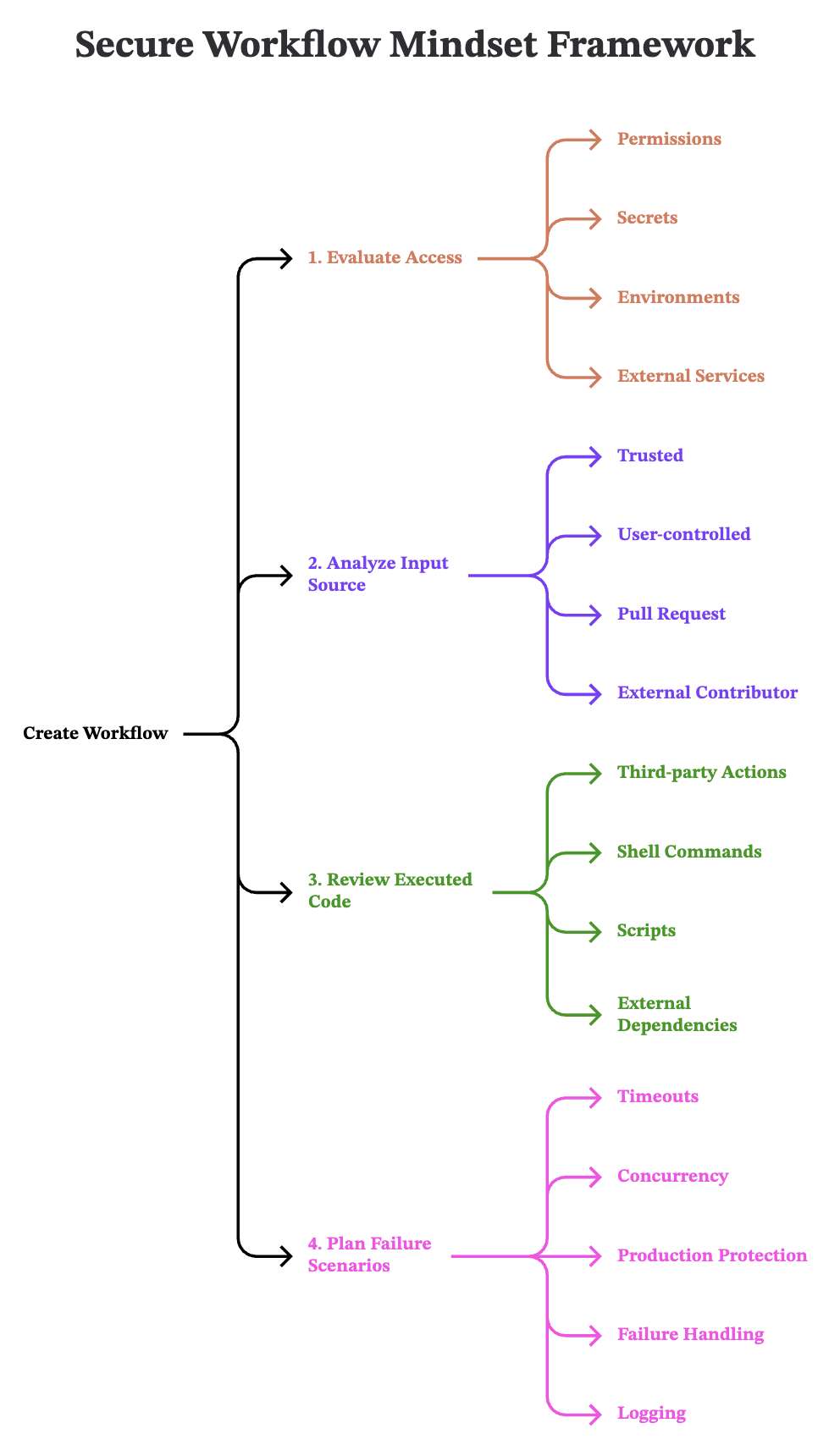
Quick Revision
| Best Practice | Why? |
|---|---|
| Pin trusted actions | Improve reproducibility and supply-chain security |
| Use least privilege | Limit potential damage |
| Protect secrets | Prevent credential exposure |
| Treat external input as untrusted | Reduce injection risks |
| Review fork workflows | Protect sensitive resources |
| Set timeouts | Prevent unnecessarily long jobs |
| Use concurrency appropriately | Avoid outdated or redundant runs |
| Keep workflows focused | Improve maintainability |
| Protect production | Reduce accidental or unauthorized deployments |
| Debug safely | Troubleshoot without exposing sensitive data |
Interview Perspective
1. Why should third-party GitHub Actions be pinned?
Pinning an action to a trusted version or immutable commit helps make workflow execution more predictable and reduces supply-chain risks.
2. What is the principle of least privilege?
It means giving a workflow or job only the permissions required to perform its task.
3. What is script injection in GitHub Actions?
Script injection can occur when untrusted user-controlled data is inserted into a command or executable context and is interpreted as code.
4. Why should pull requests from forks be treated carefully?
Forked repositories may contain code from external contributors. If that code gains access to secrets, permissions, or protected resources, it could create a security risk.
5. Why is pull_request_target potentially sensitive?
It runs in the context of the base repository, so workflows using it require careful review when handling untrusted code.
6. Why use workflow timeouts?
Timeouts prevent jobs or steps from consuming runner resources indefinitely because of unexpected or hanging processes.
7. What is the purpose of concurrency?
Concurrency controls how many matching workflow or job runs can execute at the same time and can be used to cancel outdated runs.
8. How can a GitHub Actions workflow be made maintainable?
Use meaningful names, descriptive steps, clear responsibilities, appropriate structure, and avoid unnecessary complexity.
9. What should you check before using a workflow in production?
Review its actions, permissions, secrets, external inputs, production access, timeouts, concurrency, and overall security.
Written By: Muskan Garg
How is this guide?
Last updated on