
Automating Builds, Tests, and Deployments
Automating Builds, Tests, and Deployments
CI/CD with GitHub Actions
One of the biggest advantages of GitHub Actions is that it can automate the software delivery process.
Instead of manually building, testing, and deploying an application after every change, GitHub Actions can perform these tasks automatically.
What is CI?
Continuous Integration (CI) is the practice of automatically building and testing code whenever changes are pushed or a pull request is created.
The goal is to detect problems early.
What is CD?
Continuous Delivery/Deployment (CD) automates the process of delivering or deploying validated code to an environment.
For example:
Code → Build → Test → Deploy to Staging → Deploy to Production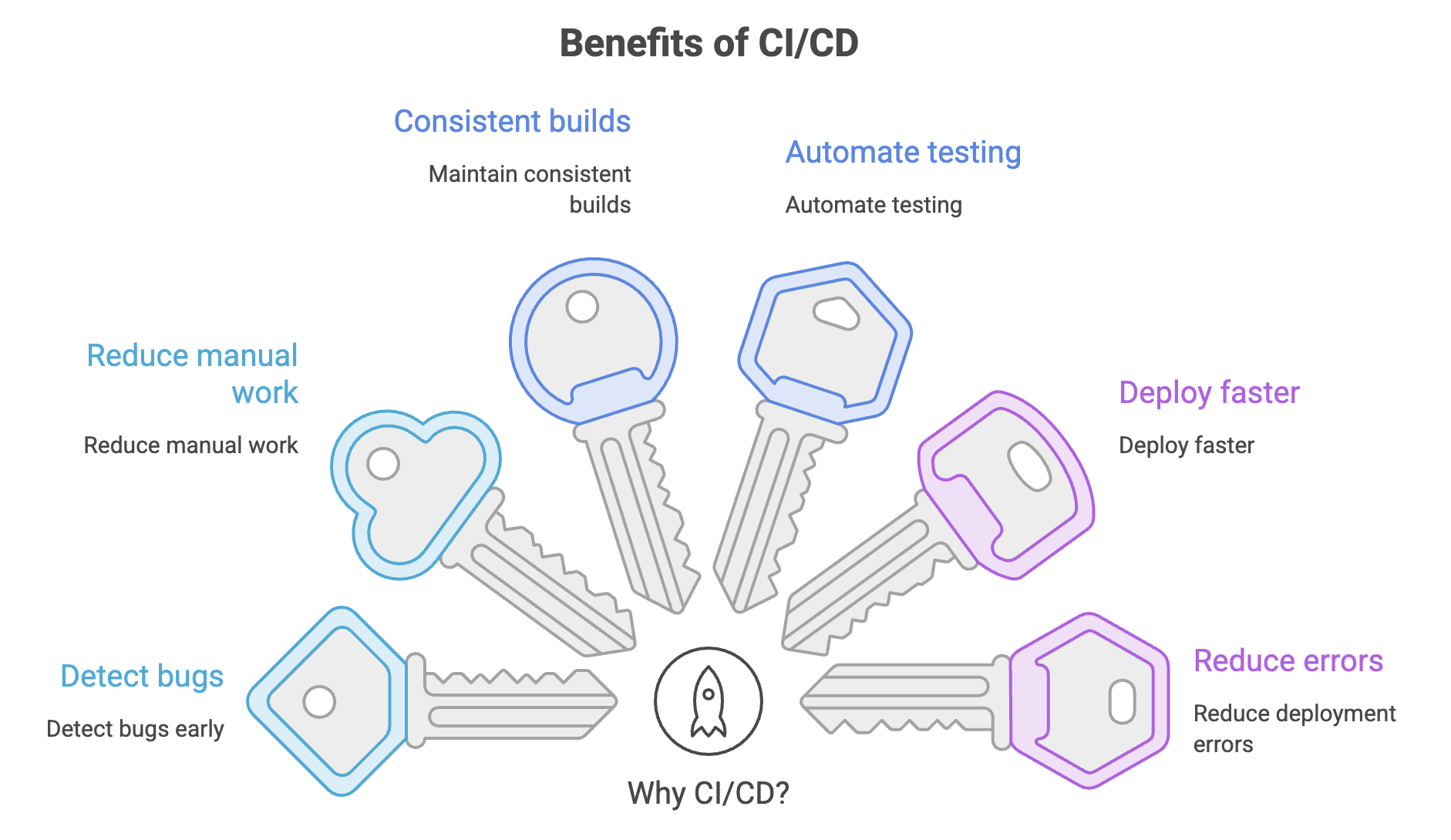
Automated Builds
What is a Build?
A build is the process of converting source code into something that can be tested or deployed.
Depending on the technology, a build may:
- Compile source code
- Download dependencies
- Bundle application files
- Generate binaries
- Create JAR/WAR files
- Create Docker images
- Generate frontend files
For example, a Java application might use:
mvn clean packageA Node.js application might use:
npm run buildThe actual command depends on the technology, but the GitHub Actions concept remains the same.
Example: Automated Node.js Build
name: Build

on:
  push:
    branches: [main]

jobs:
  build:
    runs-on: ubuntu-latest

    steps:
      - name: Checkout code
        uses: actions/checkout@v6

      - name: Setup Node.js
        uses: actions/setup-node@v6
        with:
          node-version: '20'

      - name: Install dependencies
        run: npm ci

      - name: Build application
        run: npm run build
What happens?
When code is pushed to main:
Push Code
   ↓
Checkout Repository
   ↓
Setup Node.js
   ↓
Install Dependencies
   ↓
Build Application
If the build fails, the workflow fails and the problem can be fixed before the code moves further through the pipeline.
Build Commands Depend on the Technology
The GitHub Actions structure stays similar, while the actual commands change.
| Technology | Example Build Command |
|---|---|
| Node.js | npm run build |
| Java + Maven | mvn clean package |
| Python | Depends on the project/build system |
| .NET | dotnet build |
The important idea is:
GitHub Actions provides the automation; your project's build tools perform the actual build.
Automated Testing
Building an application successfully does not mean that the application is correct.
The next step is to run automated tests.
Why Automate Tests?
Automated testing helps:
- Detect bugs early
- Prevent broken code from being merged
- Verify existing functionality
- Maintain consistent quality
- Give developers quick feedback
A typical CI process is:
Code Change
    ↓
   Build
    ↓
   Tests
    ↓
 Pass?
  ↙   ↘
No     Yes
↓       ↓
Fix    Continue
Code   Pipeline
Example: Automated Tests
name: Test

on:
  push:
    branches: [main]

  pull_request:
    branches: [main]

jobs:
  test:
    runs-on: ubuntu-latest

    steps:
      - name: Checkout code
        uses: actions/checkout@v6

      - name: Setup Node.js
        uses: actions/setup-node@v6
        with:
          node-version: '20'

      - name: Install dependencies
        run: npm ci

      - name: Run tests
        run: npm test

      - name: Run linting
        run: npm run lint
This workflow runs when:
- Code is pushed to
main - A pull request targets
main
The workflow automatically checks whether the application passes its tests and quality checks.
Matrix Testing
Applications often need to support multiple operating systems or software versions.
For example, a Node.js application may need to work with:
- Node.js 18
- Node.js 20
- Node.js 22
and:
- Ubuntu
- Windows
Instead of creating separate workflows, GitHub Actions can use a matrix strategy.
jobs:
  test:
    runs-on: ${{ matrix.os }}

    strategy:
      matrix:
        os: [ubuntu-latest, windows-latest]
        node-version: [18, 20, 22]

    steps:
      - uses: actions/checkout@v6

      - uses: actions/setup-node@v6
        with:
          node-version: ${{ matrix.node-version }}

      - run: npm ci
      - run: npm test
GitHub Actions creates a job for each combination.
Ubuntu + Node 18
Ubuntu + Node 20
Ubuntu + Node 22
Windows + Node 18
Windows + Node 20
Windows + Node 22
Why use Matrix Testing?
It helps verify that an application behaves consistently across supported environments.
Matrix testing = Run the same tests across multiple configurations.
Build Artifacts
After building an application, we often need to keep the generated files for later use.
These files are called artifacts.
Examples include:
- JAR files
- ZIP files
- Compiled binaries
- Frontend
dist/files - Test reports
- Log files
For example:
Source Code
     ↓
    Build
     ↓
dist/
app.jar
reports/
These generated files can be uploaded as workflow artifacts.
Uploading an Artifact
steps:
  - name: Build application
    run: npm run build

  - name: Upload build artifact
    uses: actions/upload-artifact@v4
    with:
      name: build-output
      path: dist/
The dist/ directory is saved as an artifact.
Downloading an Artifact
An artifact can be downloaded by another job.
jobs:
  deploy:
    runs-on: ubuntu-latest

    steps:
      - name: Download build artifact
        uses: actions/download-artifact@v5
        with:
          name: build-output
This is useful when one job creates a build and another job deploys it.
Dependency Caching
Installing dependencies can take significant time, especially for large projects.
GitHub Actions can cache dependency data so that future workflow runs can reuse it.
For example:
steps:
  - name: Checkout code
    uses: actions/checkout@v6

  - name: Setup Node.js
    uses: actions/setup-node@v6
    with:
      node-version: '20'
      cache: 'npm'

  - name: Install dependencies
    run: npm ci
A cache hit can reduce the time required to download dependencies.
Why Use Caching?
Without caching:
Workflow
   ↓
Download dependencies
   ↓
Install
   ↓
Build
With caching:
Workflow
   ↓
Restore cached dependency data
   ↓
Install
   ↓
Build
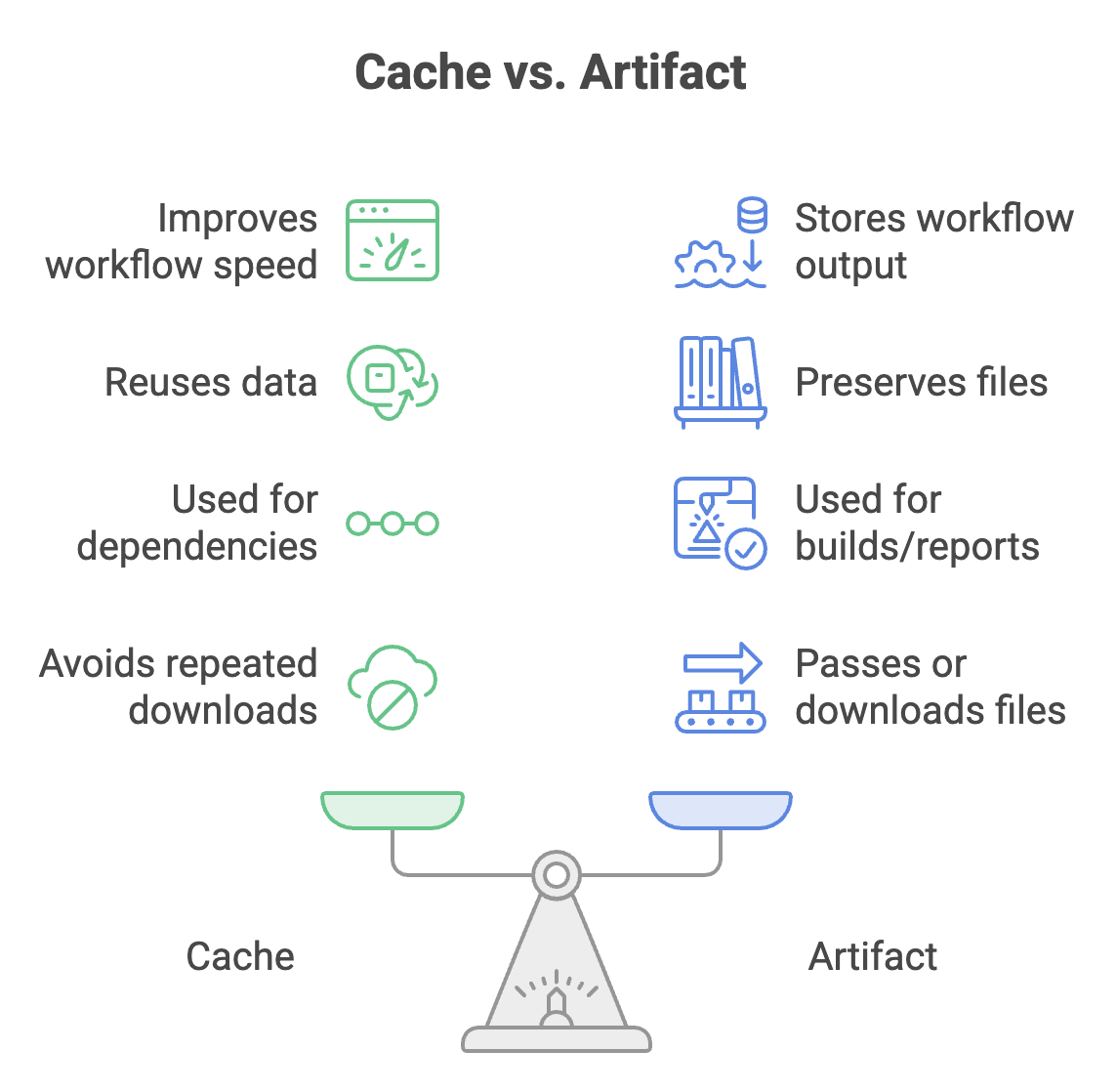
Caching is mainly a performance optimization. It does not replace installing or verifying the project's dependencies.
Automated Deployment
Once the application has been successfully built and tested, it can be deployed automatically.
A deployment may target:
- Development
- Testing
- Staging
- Production
- GitHub Pages
- Cloud platforms
- Servers
- Containers
A simplified deployment flow is:
Build
  ↓
Test
  ↓
Artifact
  ↓
Deploy
  ↓
Environment
Example: GitHub Pages Deployment
GitHub Actions can also automate deployment to GitHub Pages.
name: Deploy to GitHub Pages

on:
  push:
    branches: [main]

permissions:
  pages: write
  id-token: write

jobs:
  deploy:
    runs-on: ubuntu-latest

    environment:
      name: github-pages

    steps:
      - name: Checkout code
        uses: actions/checkout@v6

      - name: Build site
        run: npm run build

      - name: Upload Pages artifact
        uses: actions/upload-pages-artifact@v3
        with:
          path: ./dist

      - name: Deploy to Pages
        uses: actions/deploy-pages@v4
The important concept is not memorizing every line.
Understand the flow:
Code
 ↓
Build Website
 ↓
Create Deployment Artifact
 ↓
Deploy to GitHub Pages
Complete CI/CD Pipeline
A simplified workflow could look like:
name: CI/CD Pipeline

on:
  push:
    branches: [main]

  pull_request:
    branches: [main]

jobs:
  build:
    runs-on: ubuntu-latest

    steps:
      - uses: actions/checkout@v6

      - uses: actions/setup-node@v6
        with:
          node-version: '20'
          cache: 'npm'

      - run: npm ci
      - run: npm run build

      - name: Upload build artifact
        uses: actions/upload-artifact@v4
        with:
          name: build
          path: dist/

  test:
    needs: build
    runs-on: ubuntu-latest

    steps:
      - uses: actions/checkout@v6

      - uses: actions/setup-node@v6
        with:
          node-version: '20'
          cache: 'npm'

      - run: npm ci
      - run: npm test

  deploy:
    needs: test
    if: github.event_name == 'push' && github.ref == 'refs/heads/main'
    runs-on: ubuntu-latest

    environment: production

    steps:
      - name: Download build artifact
        uses: actions/download-artifact@v5
        with:
          name: build

      - name: Deploy application
        run: ./deploy.sh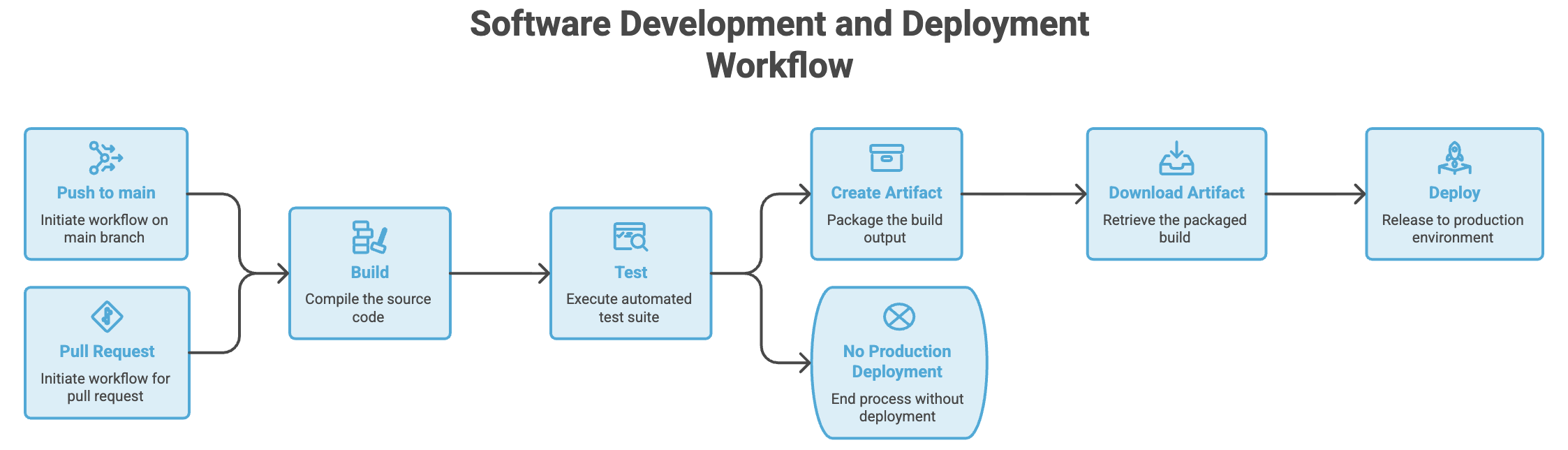
This creates a basic separation between validation and deployment.
Quick Revision
| Concept | Purpose |
|---|---|
| CI | Automatically build and test changes |
| CD | Automatically deliver or deploy validated changes |
| Build | Convert source code into usable output |
| Test | Verify application correctness |
| Matrix | Test across multiple configurations |
| Artifact | Store and share workflow output |
| Cache | Reuse data to improve workflow speed |
| Deployment | Deliver the application to an environment |
Remember
CI = Build + Test

CD = Deliver + Deploy

Artifact = Save/Share Output

Cache = Improve Speed

Matrix = Test Multiple Configurations
Interview Perspective
1. What is CI/CD?
CI/CD is a software development practice that automates building, testing, and delivering or deploying applications.
2. What is the difference between CI and CD?
CI focuses mainly on integrating, building, and testing code changes.
CD focuses on delivering or deploying validated changes.
3. What is a GitHub Actions artifact?
An artifact is a file or collection of files produced by a workflow that can be stored, downloaded, or shared between jobs.
4. What is caching in GitHub Actions?
Caching stores reusable data, such as dependency data, to reduce execution time in future workflow runs.
5. What is the difference between a cache and an artifact?
A cache improves workflow performance by reusing data, while an artifact preserves workflow output for later use.
6. Why is matrix testing useful?
It allows the same workflow to test an application across multiple operating systems, runtime versions, or other configurations.
7. Why should we build once and reuse the artifact?
It ensures that the same validated build is deployed instead of creating a different build during deployment.
Written By: Muskan Garg
How is this guide?
Last updated on