
GitHub Actions Workflows and Execution
A GitHub Actions workflow defines how an automated process is executed. While the previous lecture introduced workflows and their basic components, this lecture focuses on what happens inside a workflow - how jobs and steps execute, how dependencies are created, and how execution can be controlled.
Workflow Structure
A workflow is a YAML file stored inside:
.github/workflows/A repository can contain multiple workflow files, with each workflow designed for a specific purpose, for example, testing, deployment, or release automation.
my-project/
└── .github/
    └── workflows/
        ├── ci.yml
        ├── deploy.yml
        └── release.yml
Each workflow can have its own:
- Trigger conditions
- Jobs
- Execution environment
- Dependencies
- Steps
Think of a workflow as a pipeline, while jobs represent the major units of work inside that pipeline.
Workflow Anatomy
A typical workflow can look like this:
name: CI Pipeline

on:
  push:
    branches: [main]

env:
  NODE_ENV: production

jobs:
  build:
    runs-on: ubuntu-latest

    steps:
      - name: Checkout code
        uses: actions/checkout@v4

      - name: Setup Node.js
        uses: actions/setup-node@v4
        with:
          node-version: '20'

      - name: Install dependencies
        run: npm install

      - name: Run tests
        run: npm test
The important parts are:
| Key | Purpose |
|---|---|
name | Name displayed for the workflow |
on | Defines when the workflow should run |
env | Defines environment variables |
jobs | Defines the work to be performed |
runs-on | Specifies the runner for a job |
steps | Individual tasks within a job |
uses | Uses a reusable GitHub Action |
run | Executes a shell command |
with | Provides inputs to an action |
Remember: A workflow contains jobs, and each job contains steps.
How a Workflow Executes
GitHub identifies the workflow files associated with the commit or ref that triggered the event and runs workflows whose on configuration matches that event.
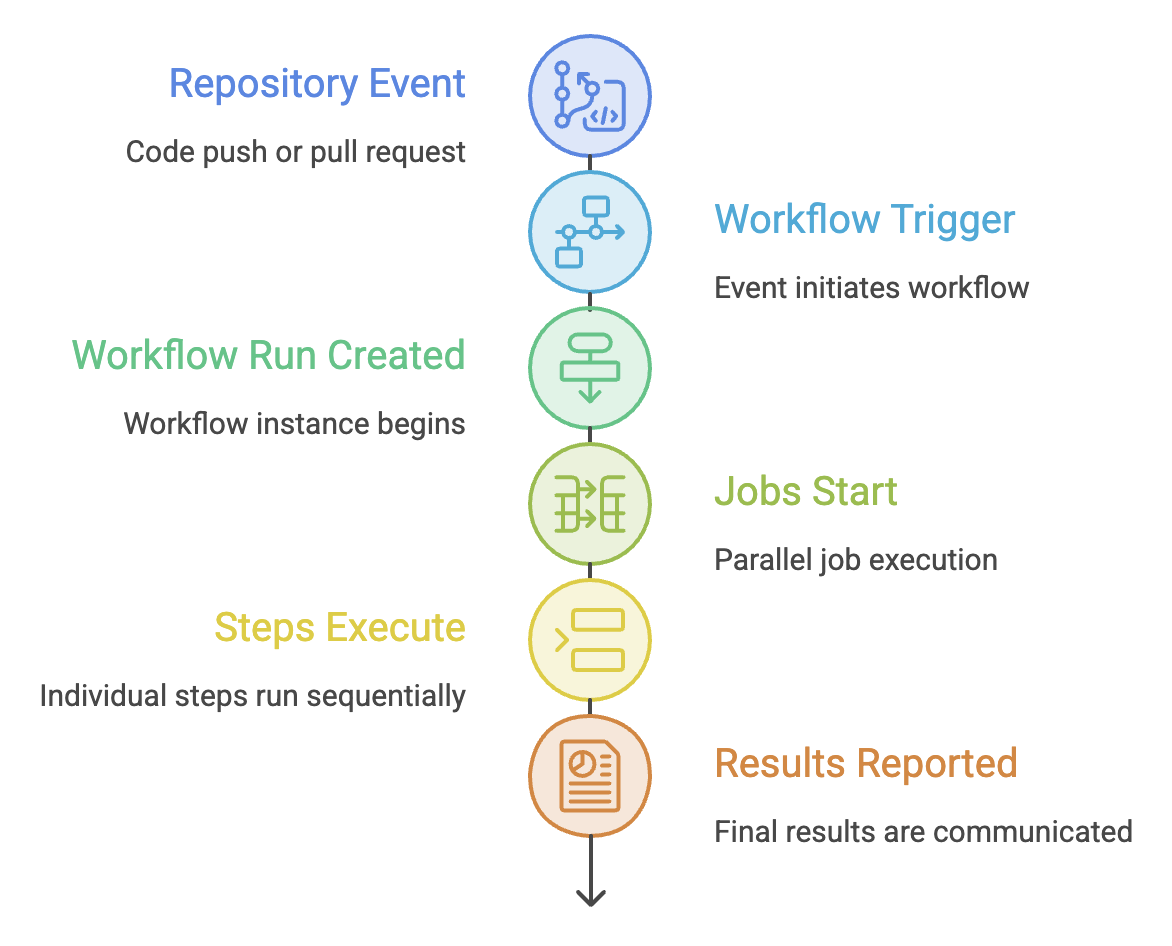
For example:
Developer pushes code
        ↓
      push event
        ↓
   CI workflow starts
        ↓
   ┌───────────────┐
   │ Build Job     │
   │ Step 1        │
   │ Step 2        │
   │ Step 3        │
   └───────────────┘
        ↓
      Tests
        ↓
     Result
Parallel vs Sequential Execution
Jobs
Jobs run in parallel by default when there are no dependencies between them.
             ┌── Build ──┐
             │            │
Workflow ────┼── Test ────┼──→ Results
             │            │
             └── Security ┘
Running independent jobs in parallel can reduce the overall execution time.
Steps
Steps within the same job execute sequentially.
Step 1
  ↓
Step 2
  ↓
Step 3
  ↓
Step 4
If an earlier step fails, later steps are generally skipped unless their execution conditions allow them to run.
Easy way to remember
Jobs → Parallel by default Steps → Sequential within a job
Controlling Job Order with needs
Sometimes jobs cannot run independently.
For example:
Build
  ↓
Test
  ↓
Deploy
The application should be deployed only after it has successfully passed the tests.
GitHub Actions provides the needs keyword for this purpose.
jobs:

  build:
    runs-on: ubuntu-latest
    steps:
      - run: echo "Building application"

  test:
    needs: build
    runs-on: ubuntu-latest
    steps:
      - run: echo "Running tests"

  deploy:
    needs: test
    runs-on: ubuntu-latest
    steps:
      - run: echo "Deploying application"
Multiple Dependencies
A job can depend on multiple jobs:
deploy:
  needs: [build, test]
This means:
Build ──┐
        ├──→ Deploy
Test ───┘
The deploy job waits until both dependencies complete successfully.
Conditional Execution with if
Sometimes a job or step should run only under certain conditions.
GitHub Actions provides the if keyword.
Example
- name: Deploy to production
  if: github.ref == 'refs/heads/main'
  run: echo "Deploying to production"
This step runs only when the workflow is running for the main branch.
Common Conditions
| Condition | Purpose |
|---|---|
success() | Runs when previous work succeeded |
failure() | Runs when a previous step failed |
always() | Runs regardless of previous result |
cancelled() | Runs when the workflow is cancelled |
github.ref == 'refs/heads/main' | Runs only for the main branch |
For example:
- name: Send failure notification
  if: failure()
  run: echo "Build failed"
This can be useful for cleanup, notifications, or failure handling.
Matrix Strategy
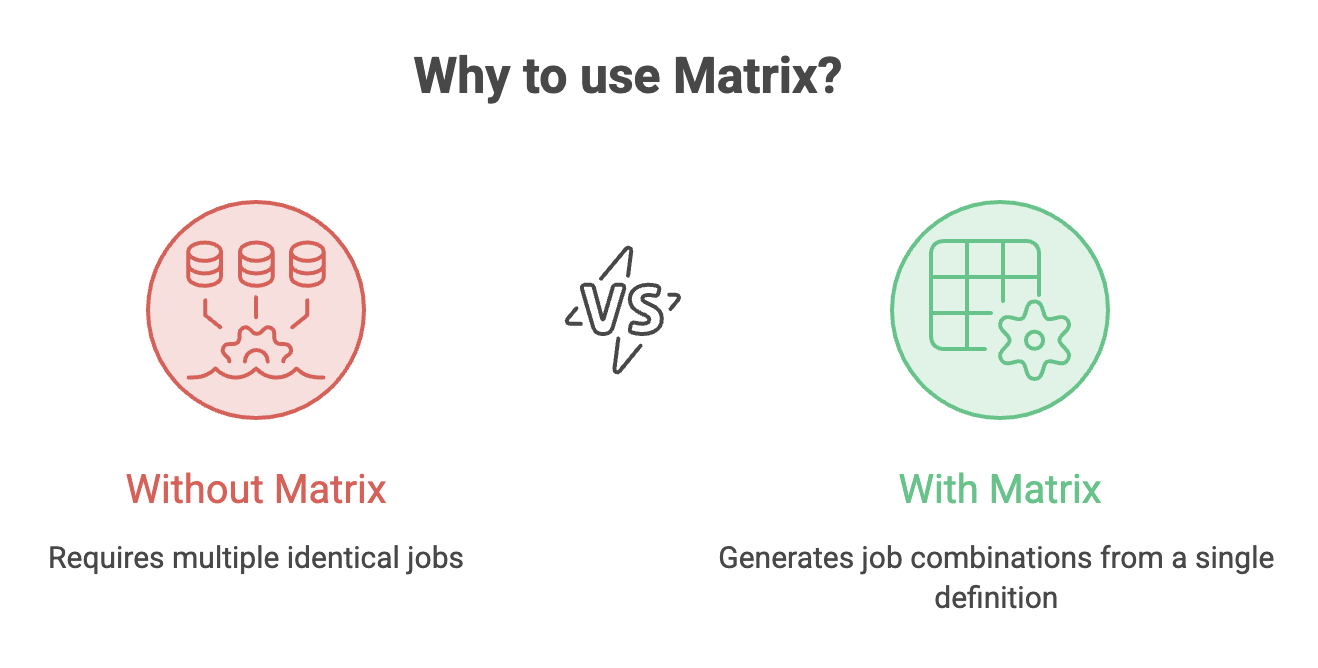
A matrix allows the same job to run across multiple configurations.
This is particularly useful when an application needs to support multiple:
- Operating systems
- Programming language versions
- Runtime versions
- Framework versions
Example
jobs:
  test:
    runs-on: ${{ matrix.os }}

    strategy:
      matrix:
        os: [ubuntu-latest, windows-latest, macos-latest]
        node-version: [18, 20, 22]

    steps:
      - name: Setup Node.js
        uses: actions/setup-node@v4
        with:
          node-version: ${{ matrix.node-version }}

      - name: Run tests
        run: npm test
This creates:
3 Operating Systems × 3 Node.js Versions
                 ↓
             9 combinations
Conceptually:
             Node 18   Node 20   Node 22
Ubuntu          ✓         ✓         ✓
Windows         ✓         ✓         ✓
macOS           ✓         ✓         ✓
The combinations can execute independently, making matrix testing useful for compatibility testing.
Concurrency Control
Imagine a developer pushes five commits within a short period.
Without concurrency control, several workflow runs may continue even though older runs are no longer useful.
GitHub Actions provides the concurrency feature to control this behavior.
concurrency:
  group: ${{ github.workflow }}-${{ github.ref }}
  cancel-in-progress: true
With:
cancel-in-progress: trueGitHub can cancel an older in-progress run when a newer run in the same concurrency group starts.
Example
Commit A → Workflow Run A ────────X
                                  ↓
Commit B → Workflow Run B ────────→ Running
This is particularly useful for CI workflows where only the latest commit needs to be tested.
GitHub documents concurrency as a mechanism for controlling how workflow runs and jobs execute simultaneously.
Complete Workflow Example
Here is a simplified CI pipeline using several of these concepts:
name: CI Pipeline

on:
  push:
    branches: [main]

concurrency:
  group: ${{ github.workflow }}-${{ github.ref }}
  cancel-in-progress: true

jobs:

  build:
    runs-on: ubuntu-latest

    steps:
      - name: Checkout code
        uses: actions/checkout@v4

      - name: Build application
        run: echo "Building..."

  test:
    needs: build
    runs-on: ubuntu-latest

    steps:
      - name: Run tests
        run: echo "Testing..."

  deploy:
    needs: test
    if: github.ref == 'refs/heads/main'
    runs-on: ubuntu-latest

    steps:
      - name: Deploy application
        run: echo "Deploying..."
This demonstrates how a workflow can combine:
- Jobs
- Steps
- Dependencies
- Conditions
- Concurrency
- Runners
Common Workflow Execution Mistakes
1. Assuming all jobs run sequentially
They don't.
jobs:
  build:
    ...

  test:
    ...
These jobs can run in parallel.
Use needs when one job depends on another.
2. Using needs unnecessarily
If two jobs are independent, forcing them into a sequence increases execution time.
Unnecessary:

Build → Test → Security
If they don't depend on each other:
Build ──┐
Test ───┼──→ Results
Security┘
Parallel execution is usually more efficient.
3. Confusing uses and run
Use uses when calling an existing action:
- uses: actions/checkout@v4Use run when executing your own command:
- run: npm testSummary
- A workflow is made up of jobs, and jobs contain steps.
- Independent jobs can run in parallel, while Steps within a job execute sequentially.
- Use
needswhen one job must wait for another. - Use
iffor conditional execution. - Use a matrix strategy to test multiple configurations efficiently.
- Use concurrency to control overlapping workflow runs.
usescalls a reusable action, whilerunexecutes a command.- Good workflow design balances correct execution order with parallelism.
Interview Perspective
Q: Do GitHub Actions jobs run sequentially by default?
No. Independent jobs run in parallel by default. Use needs to create dependencies between jobs.
Q: Do steps run in parallel?
No. Steps within a job normally execute sequentially.
Q: How do you make one job wait for another?
Use:
needs: buildQ: How can you run the same tests on multiple environments?
Use a matrix strategy.
Q: How can you prevent outdated workflow runs from continuing?
Use concurrency with an appropriate concurrency group and, when suitable, cancel-in-progress: true.
Written By: Muskan Garg
How is this guide?
Last updated on