
Maven Java Project
Generate your first Maven Java project on Windows with mvn archetype:generate, understand every -D parameter in the command, and explore the pom.xml and src folders it creates.
You could create the folders and the pom.xml for a Maven project by hand, but nobody does that. Maven can generate a ready-made project from a template with one command. In this lesson we generate a simple standalone Java project on Windows and look at what Maven created. (If you are working on the Linux VM, the next lesson does the same thing there.)
The command
mvn archetype:generate -DgroupId=com.telusko -DartifactId=telusko-app -DarchetypeArtifactId=maven-archetype-quickstart -DarchetypeVersion=1.5 -DinteractiveMode=falseIt is long, but every part has a simple job.
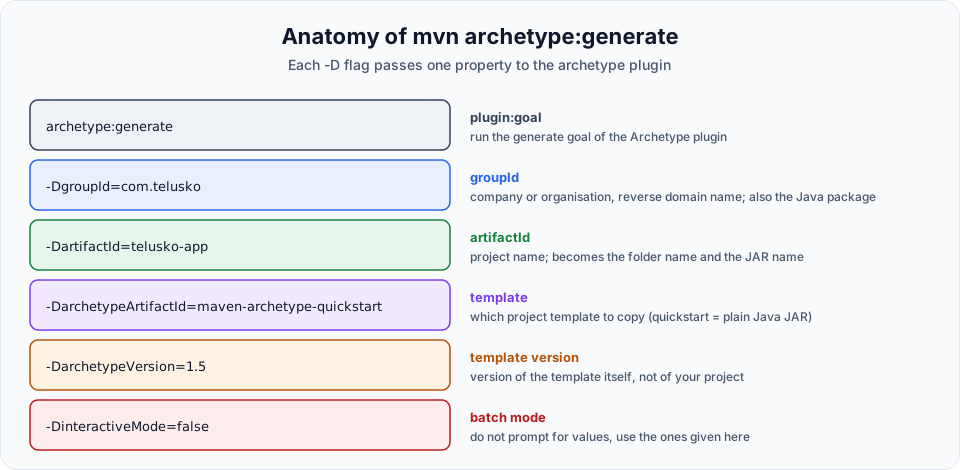
| Part | Meaning |
|---|---|
mvn | Run Maven |
archetype:generate | Run the generate goal of the Archetype plugin. A goal is one unit of work. Format: plugin:goal |
-D | Passes a property to Maven, as -Dname=value. Everything starting with -D is input for the plugin |
-DgroupId=com.telusko | The organisation that owns the project, written as a reversed domain name (telusko.com becomes com.telusko). It also becomes the Java package of the generated classes |
-DartifactId=telusko-app | The project name. It becomes the folder name and the start of the JAR file name, for example telusko-app-1.0-SNAPSHOT.jar |
-DarchetypeArtifactId=maven-archetype-quickstart | Which template (archetype) to use. quickstart is a plain standalone Java project that packages as a JAR |
-DarchetypeVersion=1.5 | The version of the template, not of your project |
-DinteractiveMode=false | Do not ask any questions while generating. Use the values given on the command line and defaults for the rest |
Correction: archetypeVersion is not your project version
The video uses -DarchetypeVersion=1.0 and describes it as the version of our project. It is actually the version of the quickstart template. Your project's version comes from the -Dversion property, which defaults to 1.0-SNAPSHOT. Template 1.0 is very old: it generates a POM with JUnit 3.8.1 and no Java version setting, which is why the next lessons have to add a compiler plugin. Version 1.5 (the latest) generates a modern POM with Java 17 and JUnit 5 already configured. Both work for following along.
Running it
Create an empty folder for your practice projects, for example D:\Maven Projects, open it in File Explorer, type cmd in the address bar and press Enter. That opens a Command Prompt in that folder. Check Maven, then paste the command:
mvn -v
mvn archetype:generate -DgroupId=com.telusko -DartifactId=telusko-app -DarchetypeArtifactId=maven-archetype-quickstart -DarchetypeVersion=1.5 -DinteractiveMode=false
The first time you run this, Maven downloads the Archetype plugin and its own dependencies, plus a catalog of templates. You will see many Downloading from central lines. This can take a minute. The next time it finishes in a few seconds, because everything is cached on your machine. It ends with:
[INFO] BUILD SUCCESSPaste the command on one line, or split it with ^ at the end of each line:
mvn archetype:generate ^
  -DgroupId=com.telusko ^
  -DartifactId=telusko-app ^
  -DarchetypeArtifactId=maven-archetype-quickstart ^
  -DarchetypeVersion=1.5 ^
  -DinteractiveMode=false
PowerShell treats dots in arguments specially, so wrap every -D argument in double quotes:
mvn archetype:generate "-DgroupId=com.telusko" "-DartifactId=telusko-app" "-DarchetypeArtifactId=maven-archetype-quickstart" "-DarchetypeVersion=1.5" "-DinteractiveMode=false"mvn archetype:generate \
-DgroupId=com.telusko \
-DartifactId=telusko-app \
-DarchetypeArtifactId=maven-archetype-quickstart \
-DarchetypeVersion=1.5 \
-DinteractiveMode=falseWhat Maven created
A new folder named after the artifactId appears: telusko-app. Inside it there are two important things: a pom.xml file and a src folder.
telusko-app/
├── .mvn/                      <- small Maven config folder (archetype 1.5 only)
├── pom.xml
└── src/
    ├── main/
    │   └── java/
    │       └── com/
    │           └── telusko/
    │               └── App.java
    └── test/
        └── java/
            └── com/
                └── telusko/
└── AppTest.java| Item | What it is for |
|---|---|
pom.xml | The Project Object Model. This is how you talk to Maven: what the project is, which libraries it needs, how to build it. We study it in detail in Maven POM.xml file |
src/main/java | Your application code. The package com.telusko (from the groupId) becomes the folders com/telusko |
src/test/java | Unit tests. Same package, so tests can see the classes they test |
App.java | A generated sample class with a main method that prints Hello World! |
AppTest.java | A generated sample unit test |
There is no src/main/resources folder yet. You can create it yourself whenever you need configuration files, and Maven will pick it up automatically because that path is part of its standard layout.
Open App.java in any editor and you will see the classic starter:
package com.telusko;

/**
 * Hello world!
 */
public class App {
    public static void main(String[] args) {
        System.out.println("Hello World!");
    }
}
Nobody told Maven to create these folders. The archetype did it, and the same structure appears whether you use the terminal, IntelliJ IDEA or Eclipse. That predictability is the whole point.
Common problems
Try It Yourself
- Generate
telusko-appwith the command above and open the folder in File Explorer. - Generate a second project with your own
groupId(for examplecom.yourname) andartifactId(for examplehello-maven). Check how the package folders change. - Run the command once with
-DinteractiveMode=true(or without it) and answer the prompts yourself, so you see what the batch mode was skipping. - Open the generated
pom.xmland find thegroupId,artifactIdandversionyou passed (or got as defaults).
Official references
- Apache Maven: Maven in 5 Minutes
- Apache Maven: Quickstart Archetype
- Apache Maven: Introduction to the Standard Directory Layout
Written By: Shramik Masti
How is this guide?
Last updated on
Maven Installation on Cloud Linux VM
Launch an Amazon Linux EC2 instance, connect over SSH, install Maven and Java with one dnf command, verify the versions, and clean up the instance after practice.
Maven Java Project Linux VM
Generate the same Maven Java project on the Amazon Linux VM, inspect it with ls and tree, and understand the Maven standard directory layout that every project follows.