
Maven Installation on Cloud Linux VM
Launch an Amazon Linux EC2 instance, connect over SSH, install Maven and Java with one dnf command, verify the versions, and clean up the instance after practice.
If you would rather not install anything on your laptop, a small Linux server in the cloud is a great place to practise Maven. It also matches reality: in most companies Maven runs on Linux build servers and CI agents, not on Windows desktops. This lesson is optional. If you already installed Maven locally, you can skip it.
Step 1: launch the EC2 instance
Log in to the AWS console, search for EC2, and click Launch instance. Fill in the form like this:
| Setting | Value used in the demo | Why |
|---|---|---|
| Name | maven-server | Any name you like. It only helps you find the instance |
| AMI (OS image) | Amazon Linux 2023 | Free, maintained by AWS, uses dnf/yum |
| Instance type | A free tier eligible type (t2.micro or t3.micro, the console marks it) | Enough for small Maven builds |
| Key pair | Create new, for example telusko-key-pair, type RSA, format .pem | The private key you use to log in. It downloads once, keep it safe |
| Network settings | Allow SSH traffic. Prefer My IP over Anywhere | Only you should be able to reach port 22 |
Click Launch instance, then open Instances. Wait until the state is Running and the status checks pass, usually under a minute.
If this is your first time with EC2, the Linux course has a full walkthrough with screenshots: Launching a Linux VM on AWS.
Large builds and micro instances
A micro instance has 1 GB of memory. That is fine for the projects in this course. A big multi-module project or a Spring Boot build with many tests can run out of memory on it. In that case use a larger type such as t3.medium, and remember it is not free.
Step 2: connect over SSH
Select the instance, click Connect, and open the SSH client tab. AWS shows you the exact commands. From the folder where your .pem file was downloaded, open Git Bash (Windows) or Terminal (macOS/Linux) and run:
# Make the key readable only by you. SSH refuses keys that others can read
chmod 400 telusko-key-pair.pem

# Connect. Replace the host with the Public DNS or public IP shown in the console
ssh -i "telusko-key-pair.pem" ec2-user@ec2-13-233-xx-xx.ap-south-1.compute.amazonaws.com
Type yes the first time to trust the host. Check where you are:
pwd       # /home/ec2-user
whoami    # ec2-user
The detailed version of this step, including common SSH errors, is in Connecting to EC2 Instance Using Git Bash.
Step 3: install Maven (and Java with it)
On Amazon Linux 2023 one command installs both:
sudo dnf install -y maven| Part | Meaning |
|---|---|
sudo | Run as root, because installing software changes system folders |
dnf | The package manager on Amazon Linux 2023. yum still works as an alias, which is what the video uses |
install maven | Install the maven package |
-y | Answer "yes" to the confirmation prompt automatically |
You do not need to install Java separately here. The Maven package depends on Java, so the package manager installs Amazon Corretto (AWS's free OpenJDK build) automatically.
Step 4: verify
mvn -v
java -version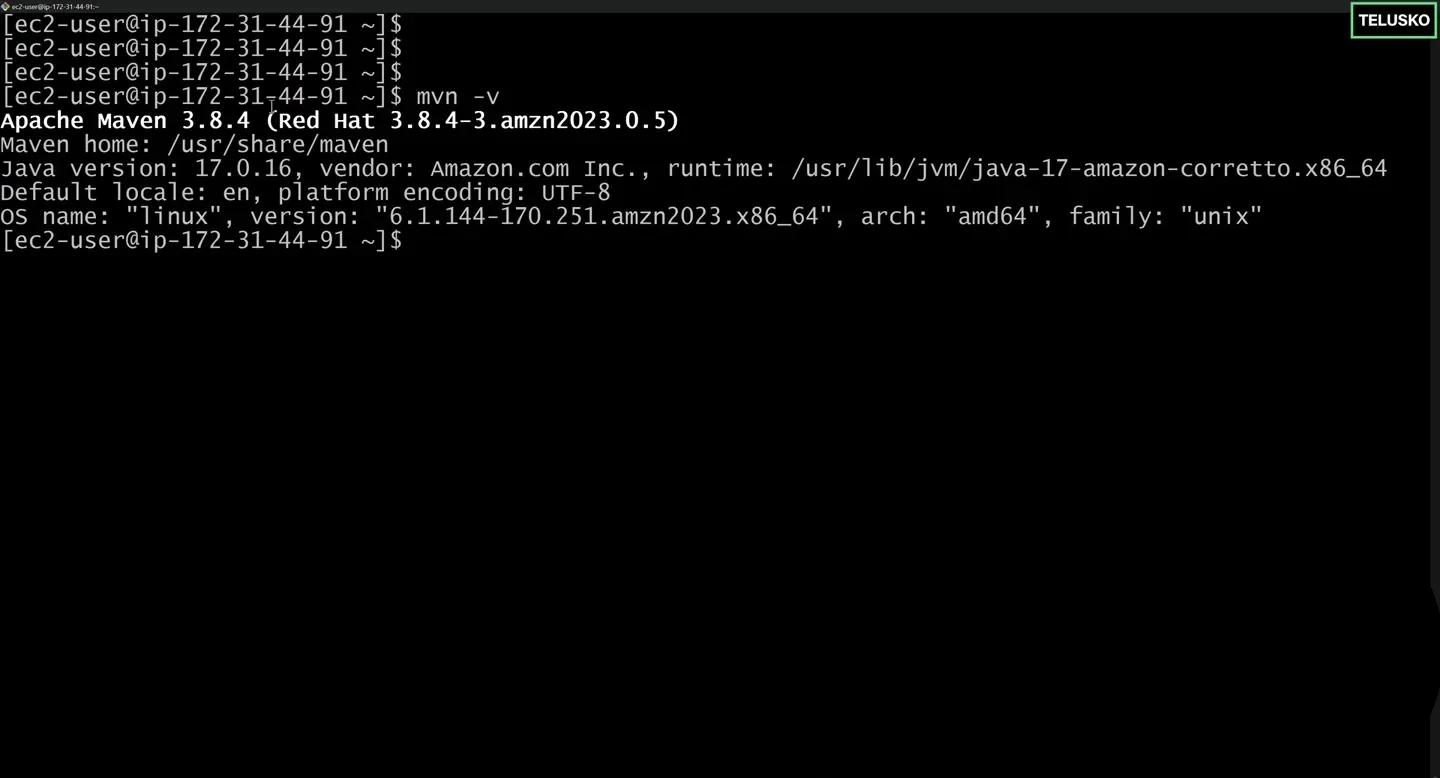
On the demo VM, the Amazon Linux package installed Maven 3.8.4 running on Java 17 (Amazon Corretto).
Notice the Maven version. The distribution package is behind the official latest release (3.10.0 at the time of writing). That is perfectly fine for this course. Older Maven versions use older default plugin versions, so your build logs may show slightly different plugin numbers than mine. The commands and results are the same.
Step 5: stop or terminate when you are done
A running instance can cost money once you are outside the free tier limits. When you finish a practice session:
| Action | What happens | When to use |
|---|---|---|
| Stop | The VM shuts down. Disk and installed software stay. Start it again later and Maven is still there | You will continue tomorrow |
| Terminate | The VM and its disk are deleted permanently | You are finished with this setup |
In the console: select the instance, then Instance state > Stop instance or Terminate (delete) instance. After a terminate, you would have to reinstall Java and Maven on a new instance.
Public IP changes after stop and start
Without an Elastic IP, the instance gets a new public IP and DNS name every time it starts. Copy the new address from the console before you SSH in again.
Try It Yourself
- Launch an Amazon Linux 2023 instance, connect with SSH and install Maven with
dnf. - Run
mvn -vand write down the Maven version, the Maven home and the Java runtime it shows. - Run
which mvnandreadlink -f $(which mvn)to see where the package placed Maven. - Stop the instance, start it again, reconnect with the new address and confirm
mvn -vstill works.
Official references
- Apache Maven: Installing Apache Maven
- AWS: Amazon Corretto as the default JVM on Amazon Linux 2023
- AWS: Connect to your Linux instance using SSH
Written By: Shramik Masti
How is this guide?
Last updated on
Maven Installation on Windows
Install a JDK and Apache Maven on Windows, set JAVA_HOME and Path correctly, verify with mvn -v, and fix the errors beginners hit most often.
Maven Java Project
Generate your first Maven Java project on Windows with mvn archetype:generate, understand every -D parameter in the command, and explore the pom.xml and src folders it creates.