
Maven Installation on Windows
Install a JDK and Apache Maven on Windows, set JAVA_HOME and Path correctly, verify with mvn -v, and fix the errors beginners hit most often.
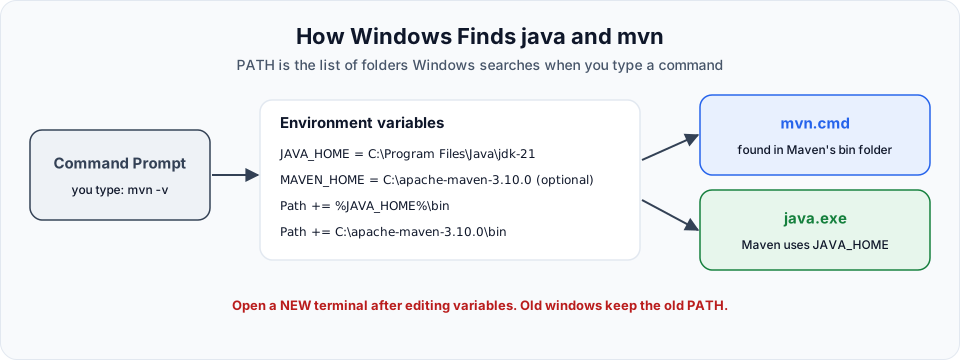
Maven is written in Java, so Java has to come first. The order on Windows is: install a JDK, tell Windows where it is, then download Maven and tell Windows where that is. Both "tell Windows" steps are about environment variables, and almost every installation problem comes from getting one of them slightly wrong.
Step 1: install a JDK
Any JDK from version 17 upwards works for this course (17, 21, 25 and so on). If java -version already shows one of those, skip to Step 2.
Download the installer
Search for "Java 21 download" and open Oracle's download page, or use a free OpenJDK build such as Eclipse Temurin or Amazon Corretto. Choose the Windows x64 MSI Installer.
Run it
Double click the downloaded .msi and click Next until it finishes. By default it installs to a folder like:
C:\Program Files\Java\jdk-21Set JAVA_HOME
Press the Windows key, search "Edit the system environment variables", open it and click Environment Variables. Under System variables click New:
| Field | Value |
|---|---|
| Variable name | JAVA_HOME |
| Variable value | C:\Program Files\Java\jdk-21 |
JAVA_HOME points to the JDK folder itself, not to its bin folder. Maven reads this variable to find Java.
If you are not allowed to edit system variables on your machine, create the same variables under User variables. That works too.
Add the JDK bin folder to Path
Still in the same window, select the Path variable, click Edit, then New, and add:
C:\Program Files\Java\jdk-21\binYou can also write %JAVA_HOME%\bin, which keeps working when you later upgrade Java and only change JAVA_HOME. Click OK on every dialog.
Verify
Open a new Command Prompt and run:
java -versionYou should see something like java version "21.0.7". If you see it, Java is ready.
Step 2: download and install Maven
Download the binary ZIP
Go to maven.apache.org/download.cgi and download the Binary zip archive, named like apache-maven-3.10.0-bin.zip. Do not download the -src file, that is Maven's own source code.
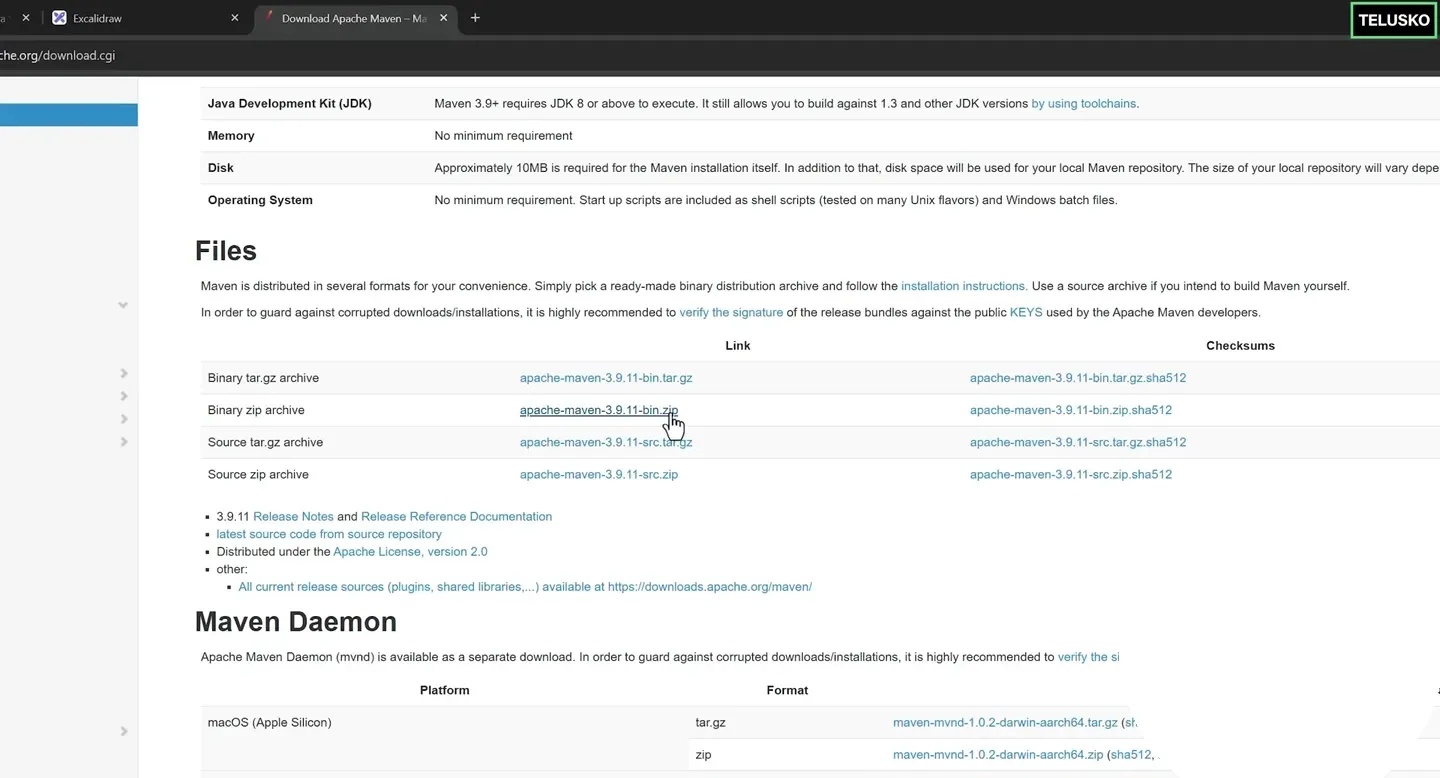
The download page lists the binary archives first. The video picked 3.9.11, which was current at recording time.
Extract it
Extract the ZIP anywhere you like. Keeping it at the root of C: keeps paths short. Right click the ZIP, choose Extract All, and then open the extracted folder until you see the bin, boot, conf and lib folders.
Watch out for the nested folder: Extract All usually creates C:\apache-maven-3.10.0-bin\apache-maven-3.10.0\. The folder you want is the inner one that contains bin.
Add Maven's bin folder to Path
Open Environment Variables again, edit Path, click New and paste the full path up to bin:
C:\apache-maven-3.10.0-bin\apache-maven-3.10.0\binOptional: set MAVEN_HOME
Some tools and older guides look for MAVEN_HOME. It is optional, and Maven itself does not need it. If you want it, create a system variable MAVEN_HOME that points to the Maven folder without bin:
C:\apache-maven-3.10.0-bin\apache-maven-3.10.0Verify
Open a new Command Prompt and run:
mvn -vExpected output (your versions and paths will differ):
Apache Maven 3.10.0 (...)
Maven home: C:\apache-maven-3.10.0-bin\apache-maven-3.10.0
Java version: 21.0.7, vendor: Oracle Corporation, runtime: C:\Program Files\Java\jdk-21
Default locale: en_IN, platform encoding: UTF-8
OS name: "windows 11", version: "10.0", arch: "amd64", family: "windows"
Read this output carefully. It tells you which Maven is running, where it lives, and which Java it is using. When a build behaves strangely later, mvn -v is the first thing to check.
What each variable does
| Variable | Points to | Needed? | Used by |
|---|---|---|---|
JAVA_HOME | JDK folder, for example C:\Program Files\Java\jdk-21 | Yes (strongly recommended) | Maven, IDEs, many Java tools |
Path entry for the JDK | ...\jdk-21\bin | Yes | So java and javac work in any terminal |
Path entry for Maven | ...\apache-maven-x.y.z\bin | Yes | So mvn works in any terminal |
MAVEN_HOME | Maven folder without bin | Optional | Some older tools and scripts |
Common errors and fixes
PowerShell or Command Prompt?
Both work for mvn -v. When you start passing -D options (next section), PowerShell can split values that contain dots. Command Prompt is the simplest choice for this course. In PowerShell, wrap each -D... argument in double quotes.
Try It Yourself
- Install a JDK 17 or newer and confirm
java -versionandjavac -versionboth work. - Install Maven and confirm
mvn -vshows the Maven home and the Java runtime you expect. - Break it on purpose: temporarily rename
JAVA_HOMEtoJAVA_HOME_X, open a new terminal and runmvn -v. Read the error, then fix it. - Run
echo %JAVA_HOME%andwhere mvnin Command Prompt to see exactly which folders Windows is using.
Official references
- Apache Maven: Installing Apache Maven
- Apache Maven: Download page
- Apache Maven: Maven on Windows prerequisites
Written By: Shramik Masti
How is this guide?
Last updated on
Maven Installation Guide
Choose how you will practise Maven in this course, either on your own Windows machine or on a Linux VM in AWS, and see what each setup needs before you install.
Maven Installation on Cloud Linux VM
Launch an Amazon Linux EC2 instance, connect over SSH, install Maven and Java with one dnf command, verify the versions, and clean up the instance after practice.