
Running Local Models with Ollama
Install Ollama, choose a model that fits your hardware, download it with ollama pull, chat with it in the terminal with ollama run, and understand the local server your Java code will call.
A hosted model charges you for every token. A local model runs on your own machine, so there is no usage bill. You pay in a different way: with electricity, and with hardware that is able to run the model.
The good news from the lecture is that you do not need a powerful workstation to start. Models come in many sizes, and there is a small one for almost every laptop. The only reliable way to know what your machine can handle is to try.
What Ollama is
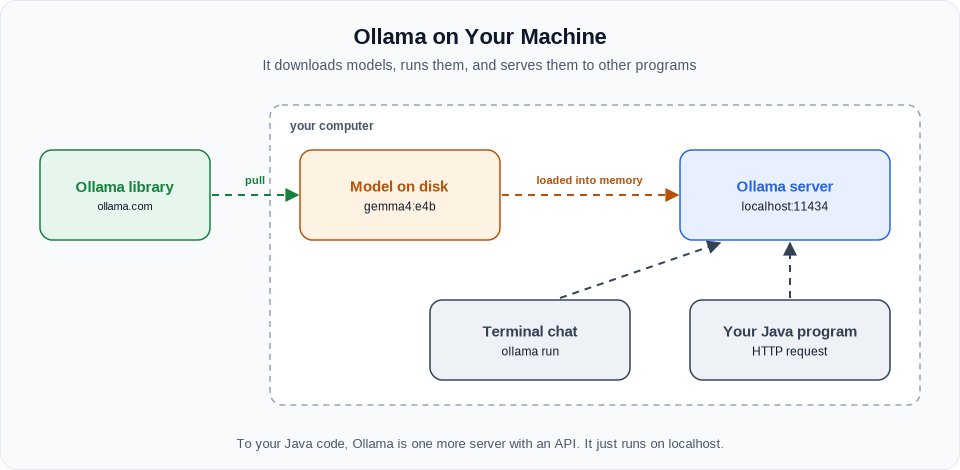
A model is a very large file of numbers. To use it you need a program that loads the file into memory, runs it on your GPU or CPU, and gives you a way to send text in and get text out.
Ollama is that program. There are others, such as LM Studio and vLLM, and experienced people often load models directly with libraries from Hugging Face. For a beginner, Ollama is the simplest place to start, and it is what this course uses.
It does three jobs for you:
| Job | Command |
|---|---|
| Downloads models from its library | ollama pull |
| Lets you chat with a model in the terminal | ollama run |
| Runs a local server that programs can call | Starts with Ollama, on http://localhost:11434 |
The third job is the one our Java code depends on. From Java's point of view, Ollama is just another server with an API, one that happens to be on your own computer.
Step 1: Choose a model
Open ollama.com and click Models. The list is long, and this is where beginners get lost. Three filters on that page help:
| Filter | What to choose |
|---|---|
| Where | Local. Ollama also offers cloud models that run on its own servers. Those are not what we want here |
| Capabilities | A normal text model. Tags such as tools, thinking and vision tell you what a model can do. Embedding models are a different kind of model, which you will meet in Embeddings and Cosine Similarity |
| Download size | A size your machine can hold in memory, for example "Up to 8 GB" |
Why size matters
A model's size is usually given as its number of parameters, in billions: 2B, 4B, 12B and so on. More parameters generally means a more capable model, a bigger file and more memory needed to run it.
The lecture shows a very large open model on Hugging Face as an example of the other extreme. Its file is far too big for a normal computer. Models like that are run on rented cloud machines, where you pay for the server and not per token.
The model used in this course: Gemma 4
The course uses Gemma 4, an open model from Google, because it comes in several sizes. This is the table from its page in the Ollama library at the time of recording:
| Tag | Download size | Context window | Notes from the lecture |
|---|---|---|---|
gemma4:e2b | 4.6 GB to 7.5 GB | 128K | The smallest. Should run on most machines with 16 GB of RAM |
gemma4:e4b | 6.6 GB to 9.5 GB | 128K | Used for most lessons in this course |
gemma4:12b | 7.7 GB to 8.0 GB | 256K | Better answers, heavier on the GPU |
gemma4:26b | 16 GB to 19 GB | 256K | Needs a strong machine |
gemma4:31b | 19 GB to 20 GB | 256K | Very good, and slow to answer on normal hardware |
You do not have to use Gemma. Any text model from the library works with the code in this course. If you choose another one, replace gemma4:e4b with its name wherever it appears.
If even the smallest model is too heavy
Look for a quantized version of the model. Quantization stores the model's numbers with less precision. The file becomes smaller and needs less memory, at the cost of some quality.
Step 2: Install Ollama
On ollama.com, click Download and pick your operating system: Windows, macOS or Linux. The page offers an installer to download and also a one-line install command for the terminal. Either way works.
Ollama comes with a small desktop application. You can chat in it, but the course uses the terminal, and so will we.
After the installation, close your terminal and open a new one. The ollama command is only found by terminals that were started after the install.
Step 3: See which models you have
ollama listOn a fresh installation the list is empty, because nothing has been downloaded yet. On the lecturer's machine it shows:
NAME             ID              SIZE      MODIFIED
gemma4:12b       6114515d63c1    8.0 GB    25 hours ago
gemma4:e4b       dc35e8d9c606    6.6 GB    25 hours ago
gemma4:latest    c6eb396dbd59    9.6 GB    5 months ago
The value in the NAME column is exactly what you will write in your Java code later.
Step 4: Download a model
On the model's page in the library, click the size you want. The page shows a command that starts with ollama run. You can use pull in its place to download without starting a chat:
ollama pull gemma4:e4bThe download is several gigabytes, so it takes a while. When it finishes, the model appears in ollama list.
| Command | What it does |
|---|---|
ollama pull <model> | Downloads the model and stops |
ollama run <model> | Downloads the model if it is missing, then opens a chat |
Step 5: Chat with the model
ollama run gemma4:e4bThe first start takes some time, because the model has to be loaded into memory. Then a prompt appears:
>>> Send a message (/? for help)The lecture asks it "Who is Telusko?". Two things are worth watching in the answer.
First, before the answer, the model prints its reasoning and ends it with a line that says ...done thinking. Gemma 4 is a thinking model. It works through the question before it replies.
Second, the answer itself:
I do not have specific information about an individual or entity named "Telusko" in my knowledge base.A follow-up question about the lecturer by name gets the same kind of reply. A small model has seen and kept far less of the world than a large hosted one. Keep this in mind for the whole course: when the local model and the hosted model answer the same question differently, the code is usually not the reason.
To leave the chat, type:
/byeWatch your GPU while it answers
Open Task Manager on Windows, or the activity monitor of your system, while the model is replying. GPU and memory usage jump. That is the model doing its work on your machine. The lecturer records video at the same time, which is why the terminal is slow to open in the lecture and why he prefers the smaller e4b model.
The server behind the commands
When Ollama is installed and running, it listens on:
http://localhost:11434ollama run is one client of that server. Your Java program will be another. There is nothing extra to start: if ollama list works, the server is running.
Two different paths on that server matter in this course:
| Address | What it is | Used by |
|---|---|---|
http://localhost:11434/v1 | An API that imitates OpenAI's | The OpenAI Java SDK, in the next three lessons |
http://localhost:11434 | Ollama's own API | LangChain4j's Ollama module, from ChatModel onwards |
Mistakes and fixes
| Problem | Cause | Fix |
|---|---|---|
ollama is not recognised as a command | The terminal was opened before the installation | Close it and open a new terminal |
ollama list shows nothing | No model has been downloaded yet | Run ollama pull with a model name |
| The first answer takes very long | The model is being loaded into memory | Wait. Later answers are faster while the model stays loaded |
| The machine becomes very slow, or answers take minutes | The model is too big for your memory or GPU | Use a smaller tag, such as e2b |
| The model does not know something a hosted model knows | It is a small model with less knowledge | Expected. Later lessons show how to give a model the facts it needs |
Try It Yourself
- Install Ollama, open a new terminal and run
ollama list. - Pull a Gemma 4 size that fits your machine and confirm that it appears in the list.
- Run the model, ask it a question about yourself or your company, and see what a model answers when it does not know.
- Ask a simple general question and watch the GPU or CPU usage while it answers.
- Leave the chat with
/bye. Then openhttp://localhost:11434in a browser and read what the server replies. - If your machine can handle it, pull a second size and ask both models the same question. Compare the answers and the time they take.
Official references
Written By: Shramik Masti
How is this guide?
Last updated on
OpenAI API Key and Models
Find the OpenAI API platform, add credit, create an API key, understand tokens and model tiers, and locate the official Java SDK dependency you will use in the first project.
First Java Project with the OpenAI SDK
Create a Maven project in VS Code, add the OpenAI Java SDK, load the API key from a .env file through launch.json, and send your first request to a model with the Responses API.