
Jenkins Dashboard Overview
Tour the Jenkins dashboard and the Manage Jenkins page, and learn what New Item, Build History, the build queue, executors, tools, plugins, nodes, credentials and users are for.
The first time you log in, Jenkins looks almost empty. Do not let that fool you: the dashboard is the place where you will create jobs, watch them run, read their logs, install plugins, store secrets and control who can do what. You do not need to master every screen today. You only need to know where things live, so that later lessons feel familiar.
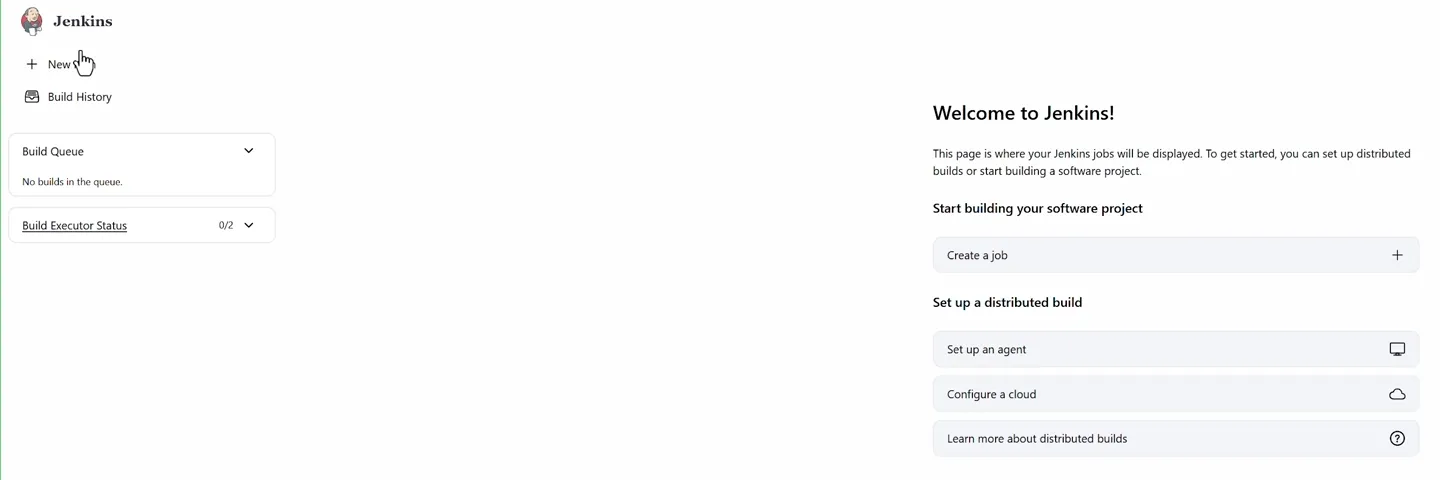
A fresh Jenkins dashboard. Jobs will appear in the empty middle area once you create them.
The left-hand menu
New Item
New Item (shown as + New in recent versions) is where every automation task starts. Jenkins asks for a name and a type:
| Item type | What it is | Where we use it |
|---|---|---|
| Freestyle project | A job configured through web forms: source code, triggers, build steps, post-build actions | Section 3 |
| Pipeline | A job defined as code in a Jenkinsfile | Section 5 |
| Multi-configuration project | Runs the same build across a matrix (for example several JDK versions) | Not covered |
| Folder | Groups jobs, like a folder on disk, with its own permissions | Useful once you have many jobs |
| Multibranch Pipeline | Creates one pipeline per branch that contains a Jenkinsfile | Common in companies |
| Organization Folder | Scans a whole GitHub organization for repositories with a Jenkinsfile | Large teams |
Build History
Every time a job runs, Jenkins records a build: its number, start time, duration and result. Build History lists them across all jobs. From any build you can open its Console Output, the full log, which is your first stop whenever something fails.
Build Queue and Build Executor Status
An executor is a slot that can run one build at a time. A fresh Jenkins has 2 executors on the built-in node, so the panel shows 0/2 (zero busy out of two).
If you trigger five builds at once, two start immediately and three wait in the Build Queue. As soon as an executor becomes free, the next queued build starts. You can change the number of executors under Manage Jenkins > Nodes > Built-In Node > Configure.
Set up a distributed build
The welcome panel offers Set up an agent and Configure a cloud. Jenkins can send builds to other machines called agents, while the main server only coordinates. The video calls this "master slave" architecture. Jenkins itself now uses the words controller and agent. We cover it properly in Jenkins Master Agent Architecture Introduction.
Manage Jenkins
The gear icon at the top right opens Manage Jenkins, the control room for the whole server.
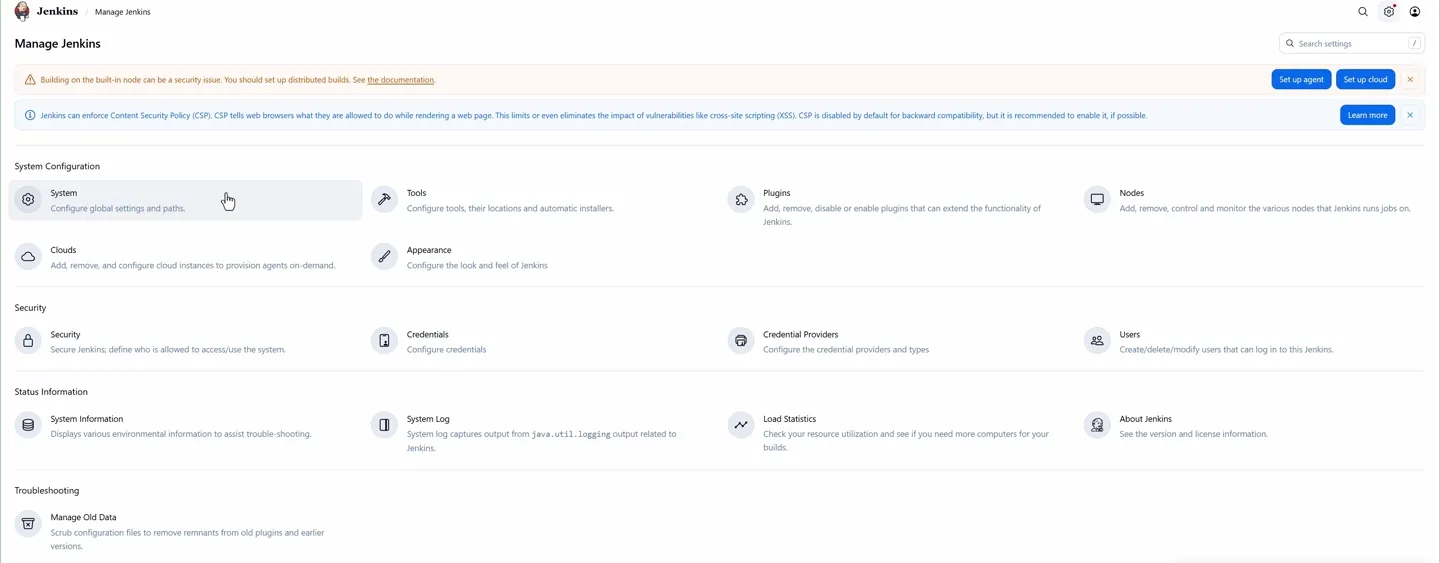
Manage Jenkins groups settings into System Configuration, Security, Status Information and Troubleshooting.
The sections you will use most:
| Section | What you do there | Used in |
|---|---|---|
| System | Global settings: Jenkins URL, number of executors, environment variables, email (SMTP) servers, shared libraries | Email notifications, shared libraries |
| Tools | Tell Jenkins where JDK, Git, Maven and Gradle are, or let it install them automatically | Building Java apps |
| Plugins | Install, update, disable and remove plugins (tabs: Updates, Available, Installed, Advanced) | Throughout the course |
| Nodes | Add and monitor agents, change executors on the built-in node | SSH agents |
| Clouds | Agents created on demand in Docker, Kubernetes or EC2 | Not covered in depth |
| Security | How users log in and what they are allowed to do | Users and authorization |
| Credentials | Store passwords, tokens, SSH keys, kubeconfig files in encrypted form | GitHub, Docker Hub, AWS, SSH agents |
| Users | Create, edit and delete Jenkins user accounts | Users and authorization |
| System Information / System Log | Java version, environment, logs | Troubleshooting |
| About Jenkins | The exact Jenkins version | Reporting issues |
The yellow warning at the top
Manage Jenkins shows "Building on the built-in node can be a security issue." It is right. A build running on the controller can read Jenkins' own files, including stored secrets. For learning it is fine to build on the built-in node. In real setups, builds run on agents and the built-in node has 0 executors.
Credentials deserve special attention
Later in the course, Jenkins needs to log in to GitHub, Docker Hub and AWS. Those passwords and tokens never go inside a job's configuration or a Jenkinsfile. They go into Credentials, where Jenkins stores them encrypted, and jobs refer to them by an ID. Right now the store is empty.
Users
Jenkins is a shared tool. Developers, testers and DevOps engineers all log in to the same server, and you decide who can only view jobs, who can run them, and who can change configuration. That is covered in Jenkins Users, Authentication & Authorization.
Views
Once you have jobs, the dashboard shows them in a table with their status icon, weather icon (health of recent builds), last success, last failure and last duration. A view is a tab that shows a filtered set of jobs, for example only the jobs of one team. Click + next to the All tab to create one.
Try It Yourself
- Open Manage Jenkins > About Jenkins and note your Jenkins version. Then open System Information and find the Java version Jenkins runs on.
- Open Manage Jenkins > Plugins > Installed plugins and find Git, Pipeline and Email Extension in the list.
- Change the built-in node to 3 executors, save, and check that the dashboard shows
0/3. Change it back to 2. - Click + New and read the short description under each item type without creating anything.
Official references
Written By: Shramik Masti
How is this guide?
Last updated on
Jenkins Installation and Initial Setup
Launch an Ubuntu 24.04 EC2 instance, install Java 21 and the Jenkins LTS from the official repository, open port 8080, enter the initial admin password and finish the setup wizard.
Creating Your First Jenkins Freestyle Job
Understand what a Jenkins job is, create a freestyle project that runs shell commands, read its console output and find the files it created in the workspace.