
Jenkins Users, Authentication & Authorization
Create separate Jenkins users, understand the difference between authentication and authorization, and limit what each user can do with matrix-based and role-based security.
Picture a team of ten developers, four testers and two DevOps engineers, all using one Jenkins. If everyone logs in with the same admin account, everyone can delete jobs, change credentials and reconfigure the server, and when something breaks, the logs only say "admin did it". That is risky and impossible to audit.
Jenkins lets you create a separate account for every person and decide exactly what each one is allowed to do. Two words describe this, and they are easy to mix up:
| Term | Question it answers | In Jenkins |
|---|---|---|
| Authentication | Who are you? | Logging in with a username and password. Jenkins checks them against its security realm |
| Authorization | What are you allowed to do? | After login, the authorization strategy decides whether you can read, build, configure or delete jobs, manage Jenkins, see credentials, and so on |
Both are configured under Manage Jenkins > Security.
Authentication: the security realm
The Security Realm setting decides where user accounts live:
| Security realm | When to use it |
|---|---|
| Jenkins' own user database | Accounts stored inside Jenkins. The default, and what we use here |
| LDAP | Company directory (Active Directory and similar) |
| Unix user/group database | Linux accounts on the Jenkins server |
| Plugins: GitHub OAuth, SAML / OpenID Connect SSO, Microsoft Entra ID | Log in with an existing company or GitHub identity |
Under Jenkins' own user database, leave Allow users to sign up unticked. With it ticked, anyone who can reach your Jenkins URL can create an account.
Create a user
Go to Manage Jenkins > Users > Create User and fill in:
| Field | Demo value |
|---|---|
| Username | dev-user |
| Password / Confirm password | a strong password |
| Full name | dev-user |
| Email address | devuser@telusko.com |
Click Create User. Repeat for as many people as you need. Each user's page shows their builds, their API tokens, appearance settings (light or dark theme) and security settings.
A new user can already log in, but with the default strategy ("Logged-in users can do anything") they would have full admin rights. Now we fix that.
Authorization strategies
Manage Jenkins > Security > Authorization offers these strategies:
| Strategy | Meaning | Verdict |
|---|---|---|
| Anyone can do anything | No security at all, even anonymous visitors are admins | Never on a reachable server |
| Legacy mode | Old behaviour: "admin" user has everything, others read only | Only for very old setups |
| Logged-in users can do anything | Every account is an admin | Fine for a single-person lab only |
| Matrix-based security | A grid of permissions per user or group, for the whole server | Good for small teams |
| Project-based Matrix Authorization Strategy | The same grid, plus extra permissions per job or folder | Good when teams own different jobs |
| Role-Based Strategy (plugin) | Define roles (admin, developer, viewer), give permissions to roles, assign users to roles | Best once you have many users |
Matrix-based and project-based matrix come from the Matrix Authorization Strategy plugin, which is in the suggested plugins. Role-based comes from the Role-based Authorization Strategy plugin.
Install the Role-based Authorization Strategy plugin
The video installs this plugin first. Go to Manage Jenkins > Plugins > Available plugins, search for Role-based Authorization Strategy, tick it and click Install. When you then pick Role-Based Strategy under Authorization and save, a new Manage Jenkins > Role Management page appears with Manage Roles and Assign Roles:
- Global roles: for example
adminwith everything,developerwith Overall/Read plus Job/Build and Job/Read. - Item roles: permissions on jobs whose names match a regular expression, such as
team-a-.*. - Agent roles: permissions on specific agents.
Then in Assign Roles you give each user (or group) one or more roles. When a new developer joins, you assign the developer role and you are done.
In the demo, after looking at Role Management, the instructor switches to the matrix strategy to set permissions directly. We follow the same path.
Give dev-user limited permissions with the matrix
Choose the strategy
In Manage Jenkins > Security, set Authorization to Project-based Matrix Authorization Strategy. You see rows for Anonymous and Authenticated Users, both with no permissions.
Make sure you keep admin rights
Before anything else, check that your own admin account (teluskouser in the demo) is in the list with Overall > Administer. If not, click Add user, type your admin username and tick Administer. Saving a matrix without any administrator locks everyone out of the settings.
Add dev-user
Click Add user, enter dev-user, and tick only these permissions:
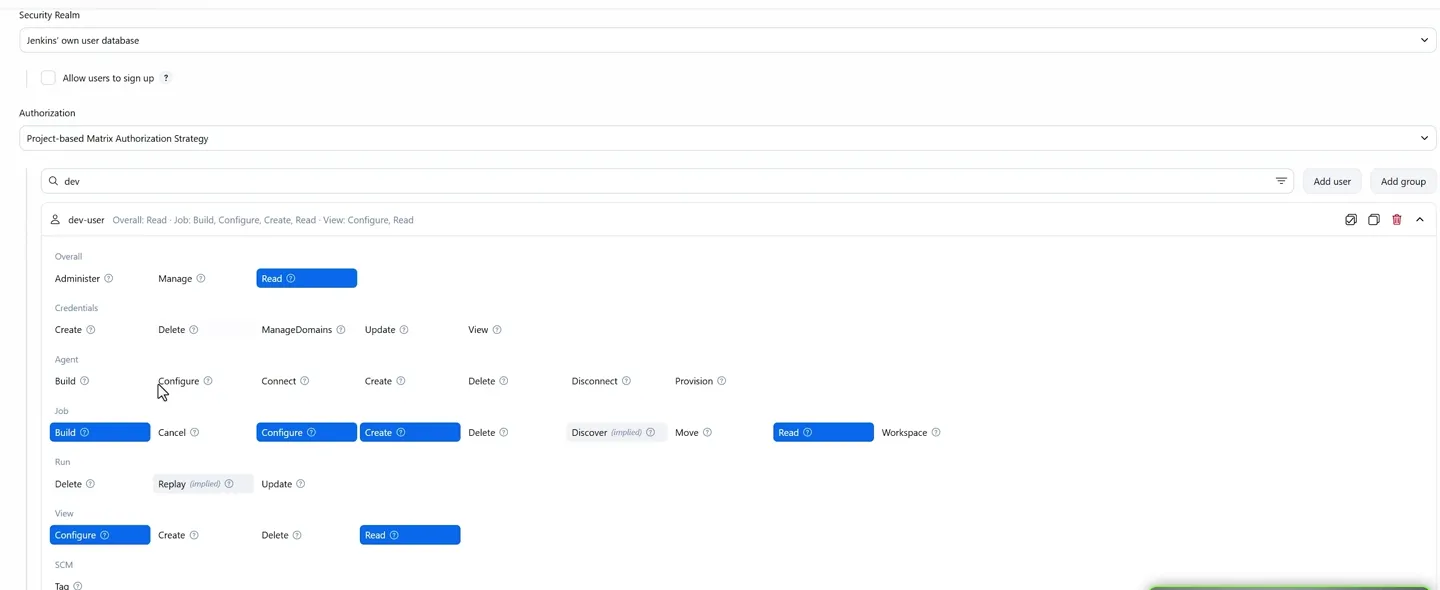
dev-user gets Overall/Read, Job/Build, Configure, Create and Read, and View/Configure and Read. Nothing else.
| Group | Granted | Not granted (and why) |
|---|---|---|
| Overall | Read | Administer, Manage: no access to Manage Jenkins |
| Credentials | nothing | Developers should never read stored secrets |
| Agent | nothing | Only admins add or remove build machines |
| Job | Build, Configure, Create, Read | Delete, Move: cannot remove other people's work |
| Run | nothing | Cannot delete build history |
| View | Configure, Read | Can organise their own dashboard tabs |
Without Overall/Read a user cannot see anything at all after login, so it is the minimum for any real user.
Save and test
Click Save. Sign out, then sign in as dev-user.

Logged in as dev-user: the jobs are visible and can be built, but the Manage Jenkins gear icon is gone.
What dev-user sees:
- The jobs, with the green run buttons. Building works.
- + New Item works, because of Job/Create.
- No gear icon, so no Manage Jenkins.
- Open a job: there is Configure, but no Delete Project.
Sign back in as the admin and everything is available again, including Delete Project.
Locked yourself out?
If you saved a matrix without an administrator, SSH into the server, stop Jenkins (sudo systemctl stop jenkins), edit /var/lib/jenkins/config.xml, change <useSecurity>true</useSecurity> to false and remove the <authorizationStrategy> and <securityRealm> blocks, then start Jenkins. It comes up with no security at all, so immediately set up security again and restrict port 8080 while you do it.
Good practice
- One account per person. Never share the admin login.
- Keep the number of administrators very small.
- Give people the least they need. Most developers need Read and Build, not Configure.
- For more than a handful of users, use roles (role-based strategy) or groups from LDAP or SSO instead of ticking boxes per user.
- Do not grant Credentials permissions to non-admins.
- Remember that Job/Configure is powerful: anyone who can edit a job can make it run any command on the build machine. Give it only to people you trust with that machine.
Try It Yourself
- Create
dev-userand a second userqa-user. - Switch to Project-based Matrix Authorization Strategy, keep your admin with Administer, and give
qa-useronly Overall/Read and Job/Read. Log in asqa-userand confirm there is no run button. - Give
dev-userthe permissions from the table, log in and try to delete a job. - Open one job's Configure page and find the Enable project-based security section. Give
qa-userBuild permission on that job only. - Install the Role-based Authorization Strategy plugin, create a global role
developer, assigndev-userto it, and compare how much faster this is than the matrix for many users.
Official references
- Jenkins: Managing Security (realms and authorization)
- Matrix Authorization Strategy plugin
- Role-based Authorization Strategy plugin
- Jenkins: Disable security (lockout recovery)
Written By: Shramik Masti
How is this guide?
Last updated on
Jenkins Build Parameters: Parameterized Jobs
Make one Jenkins job behave differently on each run by adding string and choice parameters, use them as environment variables in shell steps, and avoid common quoting mistakes.
Jenkins Master Agent Architecture Introduction
Understand why running every build on the Jenkins server becomes a problem, how the controller and agent architecture (formerly master and slave) spreads the work, and the vocabulary behind it.