
Build & Push Docker Images Using Jenkins Pipeline
Write a pipeline that clones a Java web app, builds the WAR with Maven, builds a Docker image, and pushes it to Docker Hub using a Jenkins credential and an access token.
Kubernetes does not run WAR files. It runs container images, and it pulls them from a registry. So before we can deploy anything to EKS, Jenkins must be able to turn source code into an image and put that image somewhere the cluster can reach. That somewhere is Docker Hub.
In this lesson we build the first half of the CI/CD flow: Git, Maven, Docker build, Docker push. Deployment comes in the next lesson.
You need a Docker Hub account. If you do not have one, sign up for free at hub.docker.com.
Step 1: create a Docker Hub access token
Never give Jenkins your Docker Hub password. Create a personal access token instead. It works like a password for docker login, but you can limit what it can do, give it an expiry date, and revoke it without changing your real password.
- Sign in to Docker Hub, click your avatar, and open Account settings.
- Open Personal access tokens and click Generate new token.
- Description:
jenkins. Expiration: for example 30 days. - Access permissions: Read & Write is enough to push. The video picks Read, Write, Delete, which also lets the token delete repositories. Give Jenkins only what it needs.
- Click Generate and copy the token. Docker Hub shows it only once.
Step 2: store it as a Jenkins credential
Go to Manage Jenkins > Credentials > System > Global credentials > Add Credentials and fill in:
| Field | Value |
|---|---|
| Kind | Username with password |
| Username | your Docker Hub username |
| Password | the access token from Step 1 |
| ID | dockerhub-creds |
| Description | Docker Hub token for Jenkins |
The pipeline refers to the credential only by its ID. The token itself stays encrypted inside Jenkins and is never written in the Jenkinsfile.
What the lecture did
In the video the token is saved as a Secret text credential with the ID Docker-pwd1, created from the Snippet Generator (Pipeline Syntax > withCredentials: Bind credentials to variables > Add > Secret text), and the Docker username is typed directly in the docker login command. That works too. Username with password is a little tidier because the username and the token live together in one credential.
Step 3: the pipeline
Create a new Pipeline job, for example pipeline-docker, with the description "this pipeline is for docker registry push". This is the pipeline from the lecture, with the changes explained below the code.
pipeline {
    agent any

    environment {
        DOCKERHUB_USER = 'your-dockerhub-username'
        IMAGE_NAME     = "${DOCKERHUB_USER}/my-web-app-telusko"
        IMAGE_TAG      = "${BUILD_NUMBER}"
    }

    tools {
        maven 'maven'
    }

    stages {
        stage('git clone') {
            steps {
                git branch: 'main', url: 'https://github.com/Haider7214/webapp.git'
            }
        }

        stage('maven build') {
            steps {
                sh 'mvn clean package'
            }
        }

        stage('Build Docker Image') {
            steps {
                // Dockerfile written by the pipeline (only for this demo)
                writeFile file: 'Dockerfile', text: '''
FROM tomcat:10.1-jdk17-temurin
LABEL maintainer="Telusko"
EXPOSE 8080
COPY target/web-app-0.0.1-SNAPSHOT.war /usr/local/tomcat/webapps/ROOT.war
'''
                sh 'docker build -t $IMAGE_NAME:$IMAGE_TAG -t $IMAGE_NAME:latest .'
            }
        }

        stage('Docker Push') {
            steps {
                withCredentials([usernamePassword(credentialsId: 'dockerhub-creds',
                                                  usernameVariable: 'DOCKER_USER',
                                                  passwordVariable: 'DOCKER_PASS')]) {
                    sh '''
                        echo "$DOCKER_PASS" | docker login -u "$DOCKER_USER" --password-stdin
                        docker push $IMAGE_NAME:$IMAGE_TAG
                        docker push $IMAGE_NAME:latest
                    '''
                }
            }
        }
    }

    post {
        always {
            sh 'docker logout || true'
            sh 'docker rmi $IMAGE_NAME:$IMAGE_TAG $IMAGE_NAME:latest || true'
        }
    }
}
Replace your-dockerhub-username with your own username. Click Save, then Build Now.
How it works, stage by stage
| Part | What it does |
|---|---|
environment | Variables for the whole pipeline. IMAGE_NAME includes your Docker Hub namespace, because Docker Hub only accepts images named <user>/<repo> |
IMAGE_TAG = "${BUILD_NUMBER}" | Jenkins numbers every build. Build 7 produces my-web-app-telusko:7 |
tools { maven 'maven' } | Puts the Maven installation registered in Manage Jenkins > Tools on the PATH |
git branch: 'main', url: ... | Clones the webapp project, a small Spring Boot app packaged as a WAR |
mvn clean package | Compiles, runs the tests and creates target/web-app-0.0.1-SNAPSHOT.war. The video runs mvn clean compile test package; package already includes compile and test |
writeFile | Creates a Dockerfile in the workspace. It copies the WAR into Tomcat as ROOT.war, so the app is served at / instead of /web-app-0.0.1-SNAPSHOT/ |
docker build -t ... -t ... . | Builds the image once and gives it two tags: the build number and latest |
withCredentials | Reads dockerhub-creds and exposes it as DOCKER_USER and DOCKER_PASS only inside the block. Jenkins masks the values as **** in the console log |
docker login --password-stdin | Logs in by reading the token from standard input |
docker push | Uploads the image layers. Layers Docker Hub already has are skipped |
post { always { ... } } | Runs even when a stage fails: log out and delete the local images so the Jenkins disk does not fill up |
If you have not used Dockerfiles before, Dockerfile Basics with a Hands-on Example and How to Tag Docker Images cover the basics.
Three things we changed from the lecture, and why
1. The token never appears on a command line
The lecture's push stage was:
sh "docker login -u <your-dockerhub-username> -p ${Docker_Hub_PWD}"It works, but it has two problems. The double quotes make Groovy insert the secret into the command string before the shell runs, which the Jenkins documentation warns against: the secret can leak through process listings, and Jenkins prints a warning in the log about insecure interpolation. And -p puts the token in the arguments of the docker process, where Docker itself warns that --password-stdin is safer.
The fixed version uses single quotes (the shell expands $DOCKER_PASS, not Groovy) and pipes the token into --password-stdin. Rule of thumb: inside withCredentials, always use single-quoted sh strings.
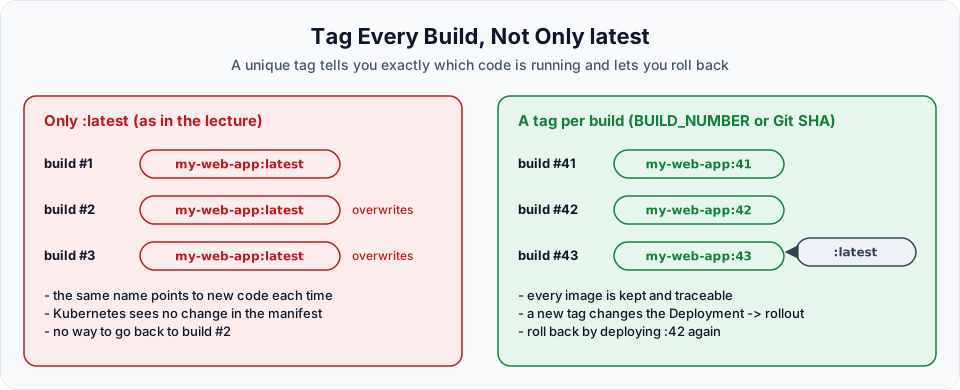
2. Every build gets its own tag
The lecture tagged everything latest. Each build overwrote the previous image, so you could never tell which code was running or go back to an older version. Tagging with BUILD_NUMBER keeps every version. We still push latest too, as a convenient pointer to the newest image. In the next lessons this tag is what makes Kubernetes roll out the new version.
Teams often use the short Git commit instead, so the image points straight at the code. Set it right after the clone, inside a script block:
script {
    env.IMAGE_TAG = sh(script: 'git rev-parse --short HEAD', returnStdout: true).trim()
}
Remove IMAGE_TAG from the environment block if you do this, because values set in environment cannot be overwritten from a script block. Every later stage then sees a tag like 3f9c2ab. Build numbers are simpler to read, Git SHAs are easier to trace back to code. Either is far better than latest alone.
3. The base image is pinned
FROM tomcat:latest changes whenever Tomcat releases a new major version, so the same pipeline can produce a different image next month. Pin a version you have tested. This project is Spring Boot 3 with Java 17, so tomcat:10.1-jdk17-temurin is a good fit, and it is the same image the instructor uses in the Dockerfile of the next project.
Check the result
The stage view should show all stages green:
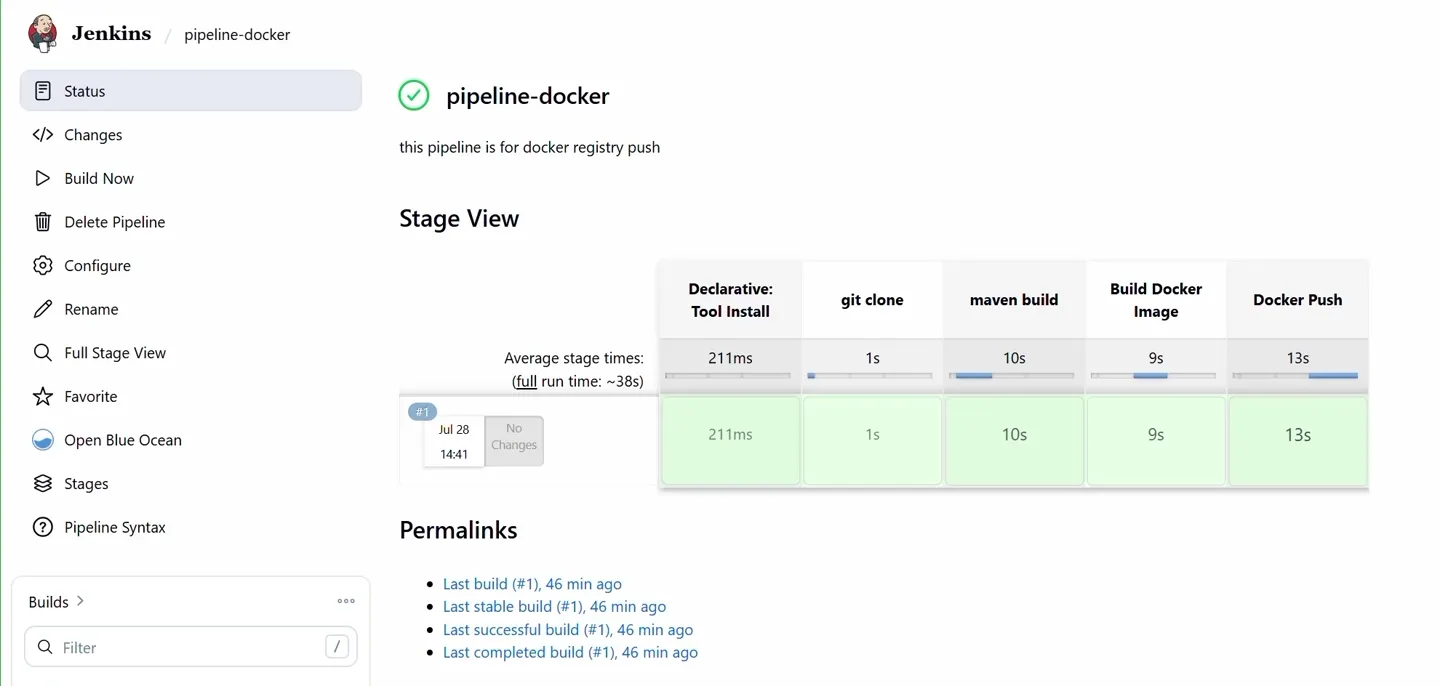
The pipeline from the lecture: tool install, clone, Maven build, Docker build and push all succeeded in about 38 seconds.
On Docker Hub, open Repositories. You should see my-web-app-telusko pushed "less than a minute ago". Open it and click the Tags tab: you will see the build number tag and latest, both with the same digest.
On the Jenkins server you can also list the images (the lecture did this before we added the cleanup in post):
sudo docker imagesIMAGE ID DISK USAGE CONTENT SIZE
<your-dockerhub-username>/my-web-app-telusko:latest c7221788906e 654MB 183MB
my-web-app-telusko:latest c7221788906e 654MB 183MBTwo names, one image ID: a tag is only a label pointing at an image, not a copy.
Optional: the Docker Pipeline plugin
If you install the Docker Pipeline plugin, you can write the same thing in Groovy instead of sh: def img = docker.build("${IMAGE_NAME}:${IMAGE_TAG}") and then docker.withRegistry('', 'dockerhub-creds') { img.push(); img.push('latest') }. It handles login and logout for you. Plain sh commands, as above, are easier to read for beginners and work without extra plugins.
Clean up the Jenkins server
Images pile up quickly. The post block removes this pipeline's images, and you can clear everything else that is unused by hand:
docker system df            # how much space images, containers and cache use
sudo docker system prune -a # remove ALL unused images, stopped containers and build cache
prune -a asks for confirmation and deletes every image that no container is using. It is fine on a practice Jenkins server. On a shared build server, prefer docker image prune with a filter such as --filter "until=72h".
Common errors
Try It Yourself
- Create a Read & Write Docker Hub token and a
dockerhub-credscredential, then run the pipeline. - Run it three times and confirm Docker Hub now shows tags
1,2,3andlatest(your numbers may differ). - Temporarily change the push step to double quotes, run it, and find Jenkins' warning about Groovy string interpolation in the console log. Change it back.
- Pull one of the older tags on your laptop and run it:
docker run -p 8080:8080 <user>/my-web-app-telusko:2. - Revoke the token in Docker Hub, run the pipeline, read the error, then generate a new token and update the credential.
Official references
- Docker Docs: Personal access tokens
- Docker Docs: docker login
- Jenkins: Credentials Binding steps (withCredentials)
- Jenkins: Using a Jenkinsfile (handling credentials and string interpolation)
- Jenkins: Using Docker with Pipeline
Written By: Shramik Masti
How is this guide?
Last updated on
Configuring Jenkins to Connect with Amazon EKS
Give the jenkins user a kubeconfig for the EKS cluster, attach an IAM role to the Jenkins server, and understand exactly how kubectl in a pipeline proves who it is to EKS.
Deploying Docker Applications to Amazon EKS
Add a Deploy to Kubernetes stage that writes a Deployment and a LoadBalancer Service, applies them to EKS from Jenkins, and open the running application through the AWS load balancer.