
Terraform Security Credentials
Give Terraform permission to work in your AWS account using an access key and environment variables, and learn the safer options such as profiles and IAM roles.
Terraform is now installed, but AWS has no idea who is running it. When Terraform asks AWS to create an EC2 instance or an S3 bucket, AWS checks two things: who are you, and are you allowed to do this. If Terraform cannot answer, every terraform apply fails with an authentication error.
The answer comes from security credentials. For programmatic access from outside the console, the classic credentials are an access key ID and a secret access key.
Where credentials can live
There are two broad places you could put them:
| Option | Verdict |
|---|---|
Inside the Terraform file (access_key and secret_key in the provider block) | Works, but never do this. Anyone who reads the file, or the Git repository it is pushed to, gets full access to your AWS account |
| Outside the code (environment variables, AWS CLI profile, IAM role) | The correct approach. The code stays the same and safe to share; only the machine running it knows the secret |
The lecture mentions the first option only to explain why it is wrong. Leaked AWS keys on GitHub are found by automated bots within minutes, and the usual result is someone running expensive crypto mining instances on your bill.
Never commit keys
Do not put access keys in .tf files, .tfvars files, scripts, screenshots or chat messages. If a key ever leaks, deactivate and delete it in IAM immediately, then create a new one.
How the AWS provider finds credentials
The AWS provider searches several places in a fixed order, the same order the AWS CLI uses. The first place that has credentials wins.
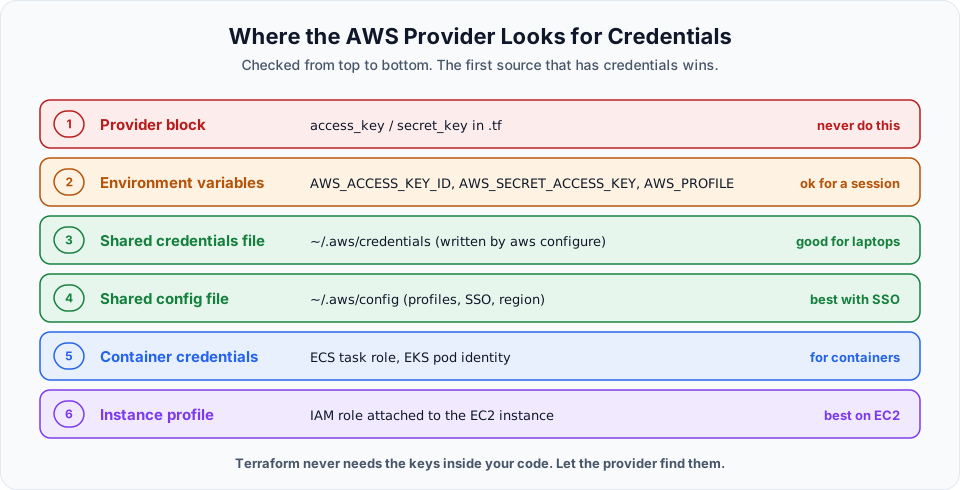
This is why we never need to mention credentials in our .tf files. We put them in one of the lower layers, and the provider picks them up automatically.
Step 1: Create an access key
The lecture creates the access key on the root user to save time and stay focused on Terraform. AWS itself warns against this, and you should not copy it. The root user can do anything, including closing the account, and its keys cannot be limited. Create an IAM user instead.
Create an IAM user
Open IAM > Users > Create user, name it something like terraform-user. You do not need console access for this user.
Give it permissions
For this course, attach the AWS managed policies AmazonEC2FullAccess and AmazonS3FullAccess. That covers every resource we create. In a real company the permissions would be tighter and usually given through a group or role. The IAM lessons in the AWS course explain this.
Create the access key
Open the user, go to Security credentials > Access keys > Create access key, choose Command Line Interface (CLI), and confirm. AWS shows the access key ID and secret access key. The secret is shown only once, so copy it now or download the .csv file and keep it somewhere safe.
Step 2: Give the credentials to Terraform
Pick the section that matches where you installed Terraform.
On your Windows laptop (environment variables)
This is what the lecture does. Open Edit the system environment variables > Environment Variables, and under User variables click New twice:
| Variable name | Value |
|---|---|
AWS_ACCESS_KEY_ID | your access key ID (starts with AKIA) |
AWS_SECRET_ACCESS_KEY | your secret access key |
Optionally add AWS_REGION with your region, for example ap-south-1. Click OK, then open a new terminal, because old terminals do not see new variables.
The names must be exactly these. The provider looks for AWS_ACCESS_KEY_ID, not AWS_ACCESS_KEY or ACCESS_KEY_ID.
On the Linux VM (export)
Connect to the VM over SSH as before and run:
export AWS_ACCESS_KEY_ID="AKIAxxxxxxxxxxxxxxxx"
export AWS_SECRET_ACCESS_KEY="xxxxxxxxxxxxxxxxxxxxxxxxxxxxxxxxxxxxxxxx"
export AWS_REGION="ap-south-1"
Check that they are set without printing the secret:
env | grep AWS_ | cut -d= -f1export sets the variable only for the current shell session. As the lecture points out, when you disconnect and reconnect, the variables are gone and you have to export them again. That is a little annoying, but it is also safer than writing them into a file. One extra tip: start the export lines with a space if your shell is configured with HISTCONTROL=ignorespace, so the secret does not land in ~/.bash_history.
Better options you should know
Environment variables are fine for learning. These are what most teams use day to day.
Install the AWS CLI and run aws configure. It stores the keys in ~/.aws/credentials (on Windows C:\Users\<you>\.aws\credentials), outside your project folder.
aws configure --profile terraform
aws sts get-caller-identity --profile terraform
Then tell Terraform which profile to use, either with export AWS_PROFILE=terraform or in the provider block. A profile name is not a secret, so this is safe to commit:
provider "aws" {
  region  = "ap-south-1"
  profile = "terraform"
}
If Terraform runs on an EC2 instance (like our Linux VM), you do not need keys at all. Create an IAM role for EC2 with the permissions you need, then in the console choose Actions > Security > Modify IAM role on the instance and attach it. The provider picks up temporary credentials from the instance profile automatically, and they rotate on their own. This is the best option for the Linux VM approach.
Companies using AWS IAM Identity Center log in with aws configure sso and aws sso login. The CLI stores short lived credentials, and Terraform uses them through AWS_PROFILE. No long lived keys exist on your laptop.
Keep secrets out of Git
Even when the keys are not in your code, Terraform creates files that can contain sensitive values (the state file, which we cover in the Terraform Statefile lesson). Add a .gitignore to every Terraform project from day one:
# provider plugins downloaded by terraform init
.terraform/

# state files can contain secrets and resource details
*.tfstate
*.tfstate.*

# variable files often hold real values
*.tfvars
*.tfvars.json

# crash logs
crash.log
Do commit .terraform.lock.hcl. It records the exact provider versions and is meant to be shared.
Check that it works
With the AWS CLI installed, this command tells you which identity your credentials belong to:
aws sts get-caller-identityIf it prints your IAM user ARN, Terraform will be able to authenticate too. If you see Unable to locate credentials or InvalidClientTokenId, the variable names are wrong, the terminal is old, or the key was deleted.
Try It Yourself
- Create an IAM user called
terraform-userwith EC2 and S3 permissions and generate an access key for it. Do not use root keys. - Set
AWS_ACCESS_KEY_ID,AWS_SECRET_ACCESS_KEYandAWS_REGIONon the machine where you installed Terraform, and confirm withaws sts get-caller-identityif you have the CLI. - On the Linux VM, disconnect and reconnect, then run
env | grep AWS_. Notice the variables are gone. - Bonus: attach an IAM role to the Linux VM instead, unset the variables, and confirm the CLI still works.
- Create the
.gitignoreabove in yourterraform-scriptsfolder.
Official references
- AWS provider: authentication and configuration
- Environment variables for the AWS CLI
- Manage access keys for IAM users
- IAM roles for Amazon EC2
Written By: Shramik Masti
How is this guide?
Last updated on
Terraform Installation Locally on Windows
Download the Terraform binary for Windows, add it to the PATH environment variable, and set up VS Code with a project folder for writing Terraform code.
Terraform Architecture and Terraform Commands
See how Terraform core, providers, the state file and cloud APIs work together, and learn the everyday commands init, fmt, validate, plan, apply and destroy.