
Terraform Installation Locally on Windows
Download the Terraform binary for Windows, add it to the PATH environment variable, and set up VS Code with a project folder for writing Terraform code.
If you would rather write Terraform on your own laptop with a proper editor, this lesson is for you. It is the alternative to the Linux VM approach. Both end up in the same place: a working terraform command.
The interesting part of a Windows install is that there is no installer wizard. Terraform is shipped as one single executable file, terraform.exe. "Installing" it simply means putting that file somewhere sensible and telling Windows where to find it.
Step 1: Download the Windows binary
Open the official install page, developer.hashicorp.com/terraform/install, and find the Windows section. You will see binary downloads for different processor types:
| Option | Choose it when |
|---|---|
| AMD64 | Your Windows is 64-bit on an Intel or AMD processor (almost every laptop) |
| ARM64 | Your laptop has an ARM processor (for example Snapdragon based Windows laptops) |
| 386 | Old 32-bit Windows only |
Not sure? Open Settings > System > About and look at System type.
Click Download and you get a zip file such as terraform_1.16.5_windows_amd64.zip. The lecture shows version 1.11.4. Any newer 1.x version works for this course.
Step 2: Extract and move it to a permanent folder
Right click the zip and choose Extract All. Inside you will find a file named terraform whose Type is Application. That is the whole of Terraform (a licence text file may sit next to it).
You could leave it in Downloads, but that folder tends to get cleaned up. A better place:
- Open
C:\Program Files - Create a new folder called
Terraform - Move
terraform.exeinto it, so the full path isC:\Program Files\Terraform\terraform.exe
Windows will ask for administrator permission to create a folder in Program Files. If you do not have admin rights, use a folder inside your user profile instead, for example C:\Users\<you>\tools\terraform.
Step 3: Add the folder to PATH
When you type terraform in a terminal, Windows searches every folder listed in the PATH environment variable. Our new folder is not in that list yet, so we add it.
Open environment variables
Press the Windows key, search for Edit the system environment variables, open it, and click Environment Variables...
Edit Path
Under System variables, select Path and click Edit. If you cannot edit system variables (no admin rights), edit Path under User variables instead. That works just as well for your own account.
Add the folder
Click New and paste the folder path, C:\Program Files\Terraform. Add the folder, not the file: no \terraform.exe at the end.
Save
Click OK on every dialog to save.
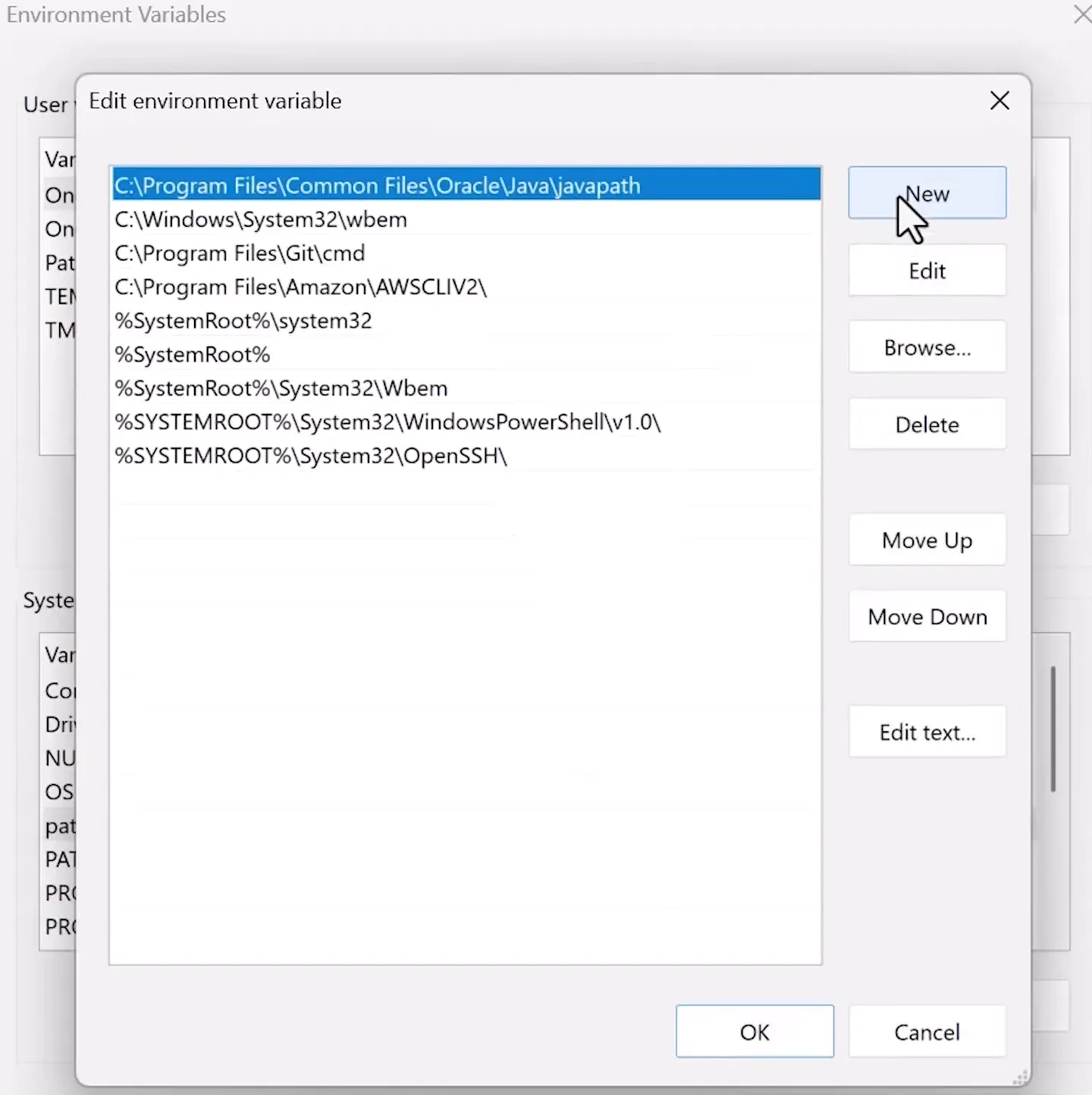
The Path editor. Click New and add the folder that contains terraform.exe.
Step 4: Verify
Environment variable changes only reach terminals opened after the change. Close any open Command Prompt or PowerShell window, open a fresh one, and run:
terraform -vTerraform v1.16.5
on windows_amd64If you see 'terraform' is not recognized as an internal or external command, check these three things:
| Check | Fix |
|---|---|
| Old terminal window | Open a new terminal after saving PATH |
| Wrong path entry | The entry must be the folder, for example C:\Program Files\Terraform, not the .exe file |
| File name | The file must be terraform.exe, not terraform (1).exe |
Shortcut with winget
Windows 10 and 11 include the winget package manager. winget install Hashicorp.Terraform installs Terraform and sets up PATH for you. The manual method above is still worth doing once, because it teaches you how PATH works, which you will need for many other DevOps tools.
Step 5: Set up VS Code
You need an editor to write .tf files. VS Code is free and has the best Terraform support.
- Download VS Code from code.visualstudio.com and install it.
- Open the Extensions view (
Ctrl+Shift+X), search for HashiCorp Terraform, and install the extension published by HashiCorp. It gives you syntax highlighting, auto completion for resource names and arguments, and formatting on save.
Now create a folder for your work. Keeping each Terraform project in its own folder is not compulsory, but it matters a lot later: Terraform treats every .tf file in a folder as one configuration.
mkdir D:\terraform-scripts
cd D:\terraform-scripts
code .
code . opens VS Code in the current folder. You can also use File > Open Folder... in VS Code and select terraform-scripts. Everything you write in the next lessons goes into this folder.
What is still missing
Terraform is installed, but it cannot create anything in your AWS account yet. AWS needs to know who you are and whether you are allowed to create resources. That is done with credentials, which is the topic of the next lesson, Terraform Security Credentials.
Try It Yourself
- Download the correct Windows binary for your processor, move it to a permanent folder and add that folder to PATH.
- Open a new PowerShell window and run
terraform -vandterraform -help. - Install VS Code and the HashiCorp Terraform extension.
- Create a
terraform-scriptsfolder and open it withcode .. Create an empty file calledmain.tfand check that VS Code shows the Terraform icon for it.
Official references
Written By: Shramik Masti
How is this guide?
Last updated on
Terraform Installation on Linux VM on AWS
Launch an Amazon Linux EC2 instance, connect to it over SSH from Git Bash, and install Terraform from the official HashiCorp repository.
Terraform Security Credentials
Give Terraform permission to work in your AWS account using an access key and environment variables, and learn the safer options such as profiles and IAM roles.