
Terraform Architecture and Terraform Commands
See how Terraform core, providers, the state file and cloud APIs work together, and learn the everyday commands init, fmt, validate, plan, apply and destroy.
Before we write our first script, it helps to know what actually happens when you type a Terraform command. Terraform is not magic. It reads text files, works out what needs to change, and makes ordinary API calls to your cloud provider, the same calls the AWS console makes when you click a button.
The pieces
You write code in HCL (HashiCorp Configuration Language) and save it in files with the .tf extension, just like Python uses .py and Java uses .java. Terraform reads every .tf file in the current folder and treats them as one configuration, so you can split code across main.tf, variables.tf and outputs.tf as the project grows.
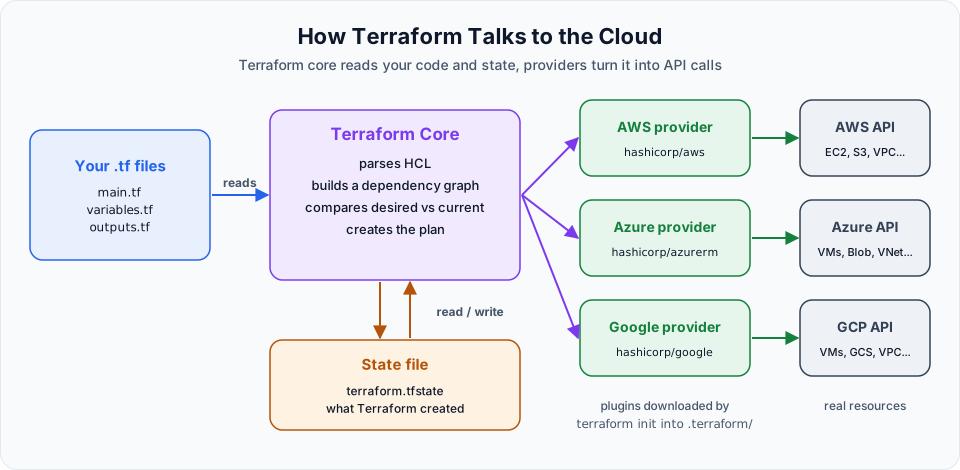
| Piece | What it does |
|---|---|
Configuration (.tf files) | Your description of the infrastructure you want, the desired state |
| Terraform core | The terraform binary you installed. Parses HCL, builds a dependency graph, compares desired state with current state and decides what to create, change or delete |
| Provider | A plugin that knows one platform's API, for example hashicorp/aws. Core does not know anything about EC2 or S3; the provider does |
| State file | terraform.tfstate, Terraform's record of what it has created. Covered in detail in Terraform Statefile |
| Cloud API | The real AWS, Azure or GCP endpoint that creates the resources |
The split between core and providers is what makes Terraform multi-cloud. Core stays the same; you just add a different provider.
The everyday commands
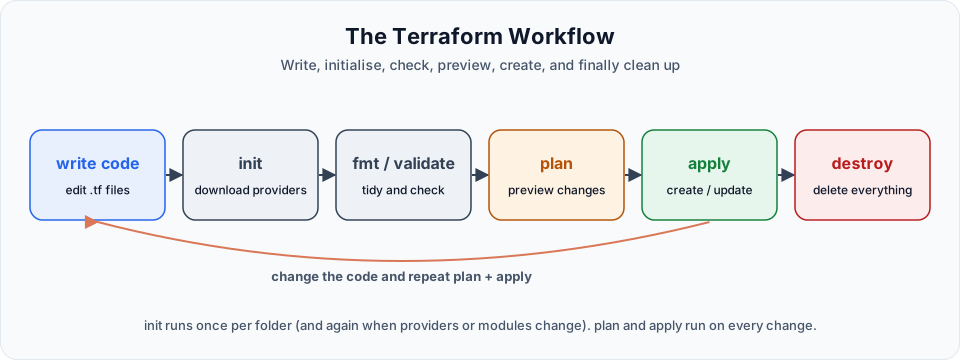
terraform init
terraform initThe first command you run in any new Terraform folder. It reads the provider and required_providers blocks and downloads the matching provider plugins into a hidden .terraform/ folder. It also writes .terraform.lock.hcl, which pins the exact provider versions. Nothing is created in the cloud.
Run it again whenever you add a provider, change a provider version, add a module, or change the backend. It is safe to run many times.
terraform fmt
terraform fmtRewrites your .tf files in the standard style: consistent indentation and aligned = signs. The lecture calls it "terraform format", but the actual command is terraform fmt. It is optional, but most teams run it before every commit. Useful flags:
| Flag | Meaning |
|---|---|
-recursive | Also format files in subfolders (for example modules) |
-check | Do not change files, just exit with an error if formatting is needed. Handy in CI pipelines |
-diff | Show what would change |
terraform validate
terraform validateChecks the configuration for syntax errors and internal mistakes: a missing bracket, a misspelled argument name, a reference to a resource that does not exist. It does not contact AWS, so it cannot tell you that an AMI ID is wrong. It needs the providers, so run it after init. Optional, but highly recommended.
terraform plan
terraform planBuilds the execution plan: what will be created (+), changed in place (~), destroyed (-), or destroyed and recreated (-/+). It reads current state and asks the provider about the real resources, but it changes nothing.
Plan: 1 to add, 0 to change, 0 to destroy.Always read this line before you apply. It is your last chance to catch a mistake, such as a plan that wants to destroy a database you did not mean to touch.
terraform apply
terraform applyThe command that actually creates, updates or deletes resources. It first shows the same plan and asks you to type yes. Only after that does it call the cloud APIs. When it finishes, it writes the result to the state file.
| Flag | Meaning |
|---|---|
-auto-approve | Skip the yes prompt. Use in automation only, never casually on production |
-var="name=value" | Pass a variable value (see Using Variables in Terraform) |
Is plan compulsory?
The lecture presents plan as a step you cannot skip. Strictly speaking, terraform apply runs its own plan and waits for your approval, so it works without a separate plan. Running plan first is still the right habit: it lets you review changes without any risk of typing yes by mistake, and in teams the plan output is what gets reviewed.
terraform destroy
terraform destroyDeletes everything this configuration created, using the state file to know what that is. It shows a plan full of - lines and asks for yes. Resources you created by hand in the console are not touched, because Terraform does not know about them.
When you practise, end every session with terraform destroy. It is the easiest way to keep your AWS bill at zero.
A useful summary
| Command | Talks to the cloud? | Changes anything? | When |
|---|---|---|---|
terraform init | Downloads providers from the registry | Local files only | New folder, new provider or module |
terraform fmt | No | Reformats your .tf files | Before committing |
terraform validate | No | No | After editing |
terraform plan | Reads only | No | Before every apply |
terraform apply | Yes | Creates or updates resources | To make it real |
terraform destroy | Yes | Deletes resources | Cleanup |
There are more commands (show, output, state list, apply -replace) and we will meet them in the lessons where they are needed.
Try It Yourself
- Run
terraform -helpand findinit,validate,plan,apply,destroyandfmtin the list. - Run
terraform plan -helpand read what-outdoes. Write one sentence about why saving a plan file could be useful. - Without looking, write the six commands of the workflow in the right order, and next to each one, say whether it can change real infrastructure.
- Draw the architecture diagram from memory: config, core, state, provider, cloud API.
Official references
Written By: Shramik Masti
How is this guide?
Last updated on
Terraform Security Credentials
Give Terraform permission to work in your AWS account using an access key and environment variables, and learn the safer options such as profiles and IAM roles.
First Terraform Script on Linux VM
Write a main.tf with a provider and an aws_instance resource on the Linux VM, fix a real validate error, then run init, fmt, validate, plan, apply and destroy.