
First Terraform Script locally on Windows
Run the same EC2 Terraform script from VS Code on Windows, use the integrated terminal for init, plan and apply, and fix credential errors without hardcoding keys.
The previous lesson created an EC2 instance from the Linux VM. Terraform behaves exactly the same on Windows, so this lesson is mostly about the Windows side: where the files go, which terminal to use, and what to do when the credentials do not work. That last part matters, because the lecture hits a credential error here, and how you fix it is an important habit.
You need Terraform and VS Code installed as in Terraform Installation Locally on Windows, and AWS credentials set as in Terraform Security Credentials.
Step 1: Create the project folder and file
Open your terraform-scripts folder in VS Code. In the Explorer panel:
- Click the New Folder icon and create
01-App - Select
01-App, click New File, and create01-tf-ec2.tf
The file name does not have to be main.tf. What matters is the .tf extension, because Terraform loads every .tf file in the folder. With the HashiCorp Terraform extension installed, VS Code shows the purple Terraform icon next to the file.
Step 2: Write the script
Paste the same code we used on the Linux VM. The lecture changes only the Name tag to Alien_Terraform_Linux_VM, so that in the console you can tell which machine was created from Windows.
provider "aws" {
  region = "ap-south-1"
}

resource "aws_instance" "linux-VM" {
  ami             = "ami-062f0cc54dbfd8ef1"
  instance_type   = "t2.micro"
  key_name        = "terraform_keypair"
  security_groups = ["default"]

  tags = {
    Name = "Alien_Terraform_Linux_VM"
  }
}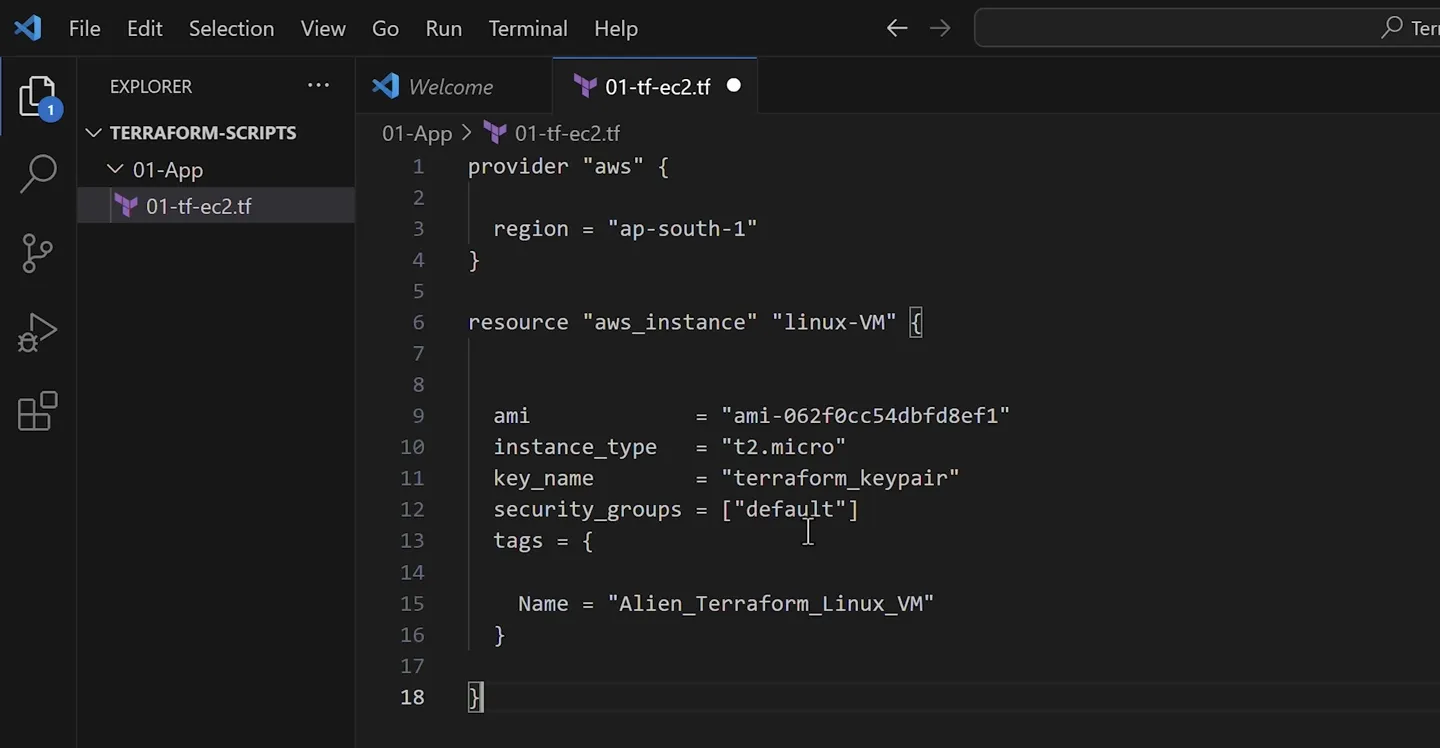
The project in VS Code: one folder, one .tf file, with the Terraform extension's icon and highlighting.
As before, use the AMI ID from your own region. Save with Ctrl+S. VS Code shows a dot on the tab while the file is unsaved, and Terraform only sees what is saved on disk.
Step 3: Open the integrated terminal
Choose Terminal > New Terminal (or press Ctrl+`). On Windows this opens PowerShell in the folder VS Code has open, which is terraform-scripts. Move into the project folder:
cd 01-AppAll Terraform commands must run from the folder that contains the .tf files. Running terraform plan one level up gives you an empty configuration and a confusing "no changes" message.
Step 4: init, fmt, validate
terraform init
terraform fmt
terraform validate
After init, the Explorer shows a new .terraform folder and a .terraform.lock.hcl file inside 01-App. validate should print Success! The configuration is valid.
Step 5: plan, and a credential error
terraform planIn the lecture, this failed:
Planning failed. Terraform encountered an error while generating this plan.

Error: Retrieving AWS account details: validating provider credentials:
retrieving caller identity from STS: ... StatusCode: 403 ...
api error InvalidClientTokenId: The security token included in the request is invalid.
InvalidClientTokenId means Terraform did find an access key, but AWS does not recognise it. The usual causes:
| Cause | How to check | Fix |
|---|---|---|
| The key was deleted or deactivated in IAM | IAM > Users > Security credentials. Is the key ID there and Active? | Create a new key and update the variable |
| A typo or extra space in the variable value | echo $env:AWS_ACCESS_KEY_ID in PowerShell (do not print the secret) | Re-enter the value carefully |
An old key in ~/.aws/credentials is being used | Look at C:\Users\<you>\.aws\credentials | Update or remove the old profile |
| The terminal was opened before the variables were set | Variables missing or old in this terminal | Close VS Code completely and reopen it. Its terminals inherit environment variables only at startup |
The lecture then solves the problem by pasting the access key and secret key directly into the provider block. It works, but do not do this. The .tf file is code: it gets committed to Git, shared with teammates, shown on screen. Keys in it are leaked keys. Find which of the causes above applies and fix that instead.
A quick way to see which identity your terminal is using is the AWS CLI:
aws sts get-caller-identityIf this fails with the same error, the problem is the credentials, not Terraform.
If you ever pasted keys into a file
Remove them from the file, then go to IAM and deactivate and delete that access key, and create a new one. Assume a key that has been in a file, a screenshot or a Git commit is compromised, even if you deleted it later.
If you prefer not to use environment variables on Windows, run aws configure once. It saves the keys in C:\Users\<you>\.aws\credentials, outside your project, and Terraform picks them up automatically.
Step 6: plan and apply
With working credentials:
terraform plan
terraform apply
Type yes at the prompt. After 30 seconds or so:
Apply complete! Resources: 1 added, 0 changed, 0 destroyed.Refresh EC2 > Instances in the console and you will see Alien_Terraform_Linux_VM running. A terraform.tfstate file also appears in 01-App. We look at that file closely in Terraform Statefile.
Step 7: Clean up
terraform destroyType yes, and confirm in the console that the instance is terminated.
Linux VM or Windows: which should you use?
Both work for the rest of the course. Pick one and stay with it.
| Linux VM on AWS | Windows with VS Code | |
|---|---|---|
| Editor | vi | VS Code with auto completion |
| Credentials | export each session, or an IAM role on the VM | Set once in environment variables or aws configure |
| Matches the lecture | Most lessons are recorded on the VM | Same commands, same output |
| Cost | The VM itself uses free tier hours | Nothing extra |
Try It Yourself
- Create
01-App/01-tf-ec2.tfin VS Code and runinit,fmt,validate,planandapplyfrom the integrated terminal. - Run
terraform planfrom the parentterraform-scriptsfolder and note how the output differs. Then go back into01-App. - Deliberately set
AWS_ACCESS_KEY_IDto a wrong value in your current PowerShell session only ($env:AWS_ACCESS_KEY_ID="AKIAWRONG"), runterraform plan, read the error, then close that terminal to reset. - Run
aws sts get-caller-identityand confirm which IAM user Terraform is acting as. - Destroy the instance and confirm in the console.
Official references
- terraform plan
- AWS provider: authentication and configuration
- Configuration and credential file settings in the AWS CLI
Written By: Shramik Masti
How is this guide?
Last updated on
First Terraform Script on Linux VM
Write a main.tf with a provider and an aws_instance resource on the Linux VM, fix a real validate error, then run init, fmt, validate, plan, apply and destroy.
Terraform Statefile
Learn what terraform.tfstate stores, why a second apply creates nothing, what goes wrong when the state file is deleted, and how the backup file and remote state work.