
Creating EC2 VM with user Data using Terraform
Use Terraform's user_data argument and the file() function to launch an EC2 instance that installs Apache and serves a static web page on first boot.
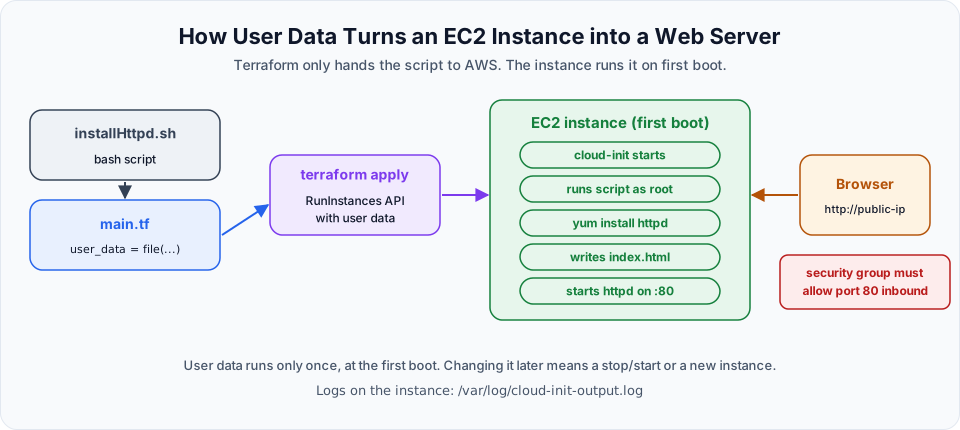
An EC2 instance that just sits there running Linux is not very useful. Most of the time you want it to do something the moment it starts: install a web server, pull your application, start a service. AWS has a feature for exactly this called user data, and Terraform can pass it to the instance for you.
If user data is new to you, the AWS course explains it from the console side in EC2 User Data Scripts. Here we do the same thing from code.
Step 1: A new project folder
Connect to your Linux VM, export your credentials, and create a fresh folder. One project, one folder, one state.
mkdir 02-tf-ec2webserver
cd 02-tf-ec2webserver
Step 2: The bash script
Create the script that turns a plain Amazon Linux machine into a web server:
vi installHttpd.shThis is the script from the lecture:
#! /bin/bash
sudo su
yum install httpd -y
cd /var/www/html
echo "<html><h1>Telusko Learning ...</h1></html>" > index.html
service httpd start
It works, but a few lines can be cleaner. Here is the version I recommend:
#!/bin/bash
yum install -y httpd
echo "<html><h1>Telusko Learning ...</h1></html>" > /var/www/html/index.html
systemctl enable --now httpd| Line | Why |
|---|---|
#!/bin/bash | Must be the very first line, so cloud-init knows to run the file with bash |
no sudo su | User data already runs as root. Also, sudo su in a script opens a new shell and does not affect the lines after it |
yum install -y httpd | Installs the Apache web server. -y answers yes, because nobody is there to type it |
echo ... > /var/www/html/index.html | Writes the home page into Apache's document root |
systemctl enable --now httpd | Starts Apache now and after every reboot. service httpd start only starts it once |
The lecture also runs chmod u+x installHttpd.sh. That is harmless, but not needed: Terraform reads the file as text and sends its contents to AWS. The file on your VM is never executed.
Step 3: main.tf
Now the Terraform file. It is the same EC2 configuration as before with one new line, user_data:
provider "aws" {
  region = "ap-south-1"
}

resource "aws_instance" "linux-VM" {
  ami             = "ami-062f0cc54dbfd8ef1"
  instance_type   = "t2.micro"
  key_name        = "terraform_keypair"
  security_groups = ["default"]
  user_data       = file("installHttpd.sh")

  tags = {
    Name = "Telusko_Webserver"
  }
}
What file() does
file("installHttpd.sh") is a built-in Terraform function. It reads the file from disk, relative to the folder you run Terraform in, and returns its contents as a string. So user_data receives the whole script as text, and AWS passes that text to the instance.
You could also write the script inline with a heredoc, which is handy for very short scripts:
user_data = <<-EOF
  #!/bin/bash
  yum install -y httpd
  systemctl enable --now httpd
EOF
Keeping it in a separate .sh file is cleaner once the script grows, and your editor gives you bash syntax highlighting.
The missing piece: port 80
The lecture uses the default security group and then opens the site in the browser. Be careful here. A fresh default security group only allows inbound traffic from other members of the same group. Unless port 80 was opened on it earlier, your browser will just spin and time out, even though Apache is running fine.
The clean fix is to let Terraform create a security group for this server. This is also where vpc_security_group_ids replaces security_groups:
terraform {
  required_providers {
    aws = {
      source  = "hashicorp/aws"
      version = "~> 6.0"
    }
  }
}

provider "aws" {
  region = "ap-south-1"
}

resource "aws_security_group" "web_sg" {
  name        = "telusko-web-sg"
  description = "Allow HTTP and SSH"
}

resource "aws_vpc_security_group_ingress_rule" "http" {
  security_group_id = aws_security_group.web_sg.id
  cidr_ipv4         = "0.0.0.0/0"
  from_port         = 80
  to_port           = 80
  ip_protocol       = "tcp"
}

resource "aws_vpc_security_group_ingress_rule" "ssh" {
  security_group_id = aws_security_group.web_sg.id
  cidr_ipv4         = "203.0.113.10/32" # replace with your own IP
  from_port         = 22
  to_port           = 22
  ip_protocol       = "tcp"
}

resource "aws_vpc_security_group_egress_rule" "all_out" {
  security_group_id = aws_security_group.web_sg.id
  cidr_ipv4         = "0.0.0.0/0"
  ip_protocol       = "-1"
}

resource "aws_instance" "linux-VM" {
  ami                    = "ami-062f0cc54dbfd8ef1" # use the Amazon Linux AMI ID from your region
  instance_type          = "t2.micro"
  key_name               = "terraform_keypair"
  vpc_security_group_ids = [aws_security_group.web_sg.id]
  user_data              = file("installHttpd.sh")

  tags = {
    Name = "Telusko_Webserver"
  }
}
A few new ideas in there:
| Code | Meaning |
|---|---|
aws_security_group.web_sg.id | A reference. It reads the id attribute of the security group created above. Terraform sees this and knows it must create the security group before the instance |
aws_vpc_security_group_ingress_rule | One inbound rule per resource. The AWS provider docs recommend this over the older inline ingress { } blocks |
egress rule with ip_protocol = "-1" | Allows all outbound traffic, so the instance can download httpd. When Terraform creates a security group, it removes AWS's default allow all outbound rule, so you must add it back |
vpc_security_group_ids | Attaches security groups by ID. Works in any VPC, unlike security_groups |
The security group has no vpc_id, so it is created in your default VPC, the same place the instance goes.
Step 4: Run it
terraform init
terraform fmt
terraform validate
terraform plan
terraform apply -auto-approve
With the lecture's version the plan says 1 to add. With the security group version it says 5 to add: the security group, three rules and the instance.
Open EC2 > Instances, find Telusko_Webserver, and wait until the status checks pass. Then copy the Public IPv4 address and open it in your browser using http:// (not https://, we have no certificate):
http://<public-ip>You should see the heading Telusko Learning .... A web server, created and configured without opening the console.
When it does not work
| Symptom | Likely cause | Fix |
|---|---|---|
| Browser times out | Port 80 not open in the security group | Add the HTTP ingress rule shown above |
| Browser times out right after apply | The script is still running | Wait one or two minutes after the instance shows Running |
https:// does not work | No TLS certificate on this server | Use http:// |
| Page never appears | Script error, or no outbound internet access | SSH in and read sudo cat /var/log/cloud-init-output.log |
Invalid function argument ... no file exists | Wrong file name in file() | Names are case sensitive: installHttpd.sh is not installhttpd.sh |
Changing user data later
User data runs once, at the first boot. If you edit installHttpd.sh and apply again, the AWS provider updates the user data by stopping and starting the instance, but the script does not run again on a normal restart. If you want a change to the script to give you a fresh instance, add:
user_data_replace_on_change = trueThen every change to user_data destroys the old instance and creates a new one, which runs the new script. That is usually what you want for web servers built this way.
Clean up
terraform destroy -auto-approveThis deletes the instance and, with the improved version, the security group and its rules.
Try It Yourself
- Build the web server with the improved
installHttpd.shand the security group version ofmain.tf, and open the page in your browser. - SSH into the new instance and read
/var/log/cloud-init-output.logto see your script's output. - Change the HTML heading, add
user_data_replace_on_change = true, and runterraform plan. Read the plan and find the wordsmust be replaced. - Remove the HTTP ingress rule, apply, and confirm the browser times out. Put it back.
- Run
terraform destroyand check that the security group is gone too.
Official references
- aws_instance (user_data, user_data_replace_on_change)
- aws_security_group
- file function
- Run commands when you launch an EC2 instance with user data
Written By: Shramik Masti
How is this guide?
Last updated on
Terraform Statefile
Learn what terraform.tfstate stores, why a second apply creates nothing, what goes wrong when the state file is deleted, and how the backup file and remote state work.
Using Variables in Terraform
Split a Terraform project into provider.tf, vars.tf and main.tf, define input variables for the AMI and instance type, and learn every way to pass variable values.