
Jenkins Build Triggers
Start Jenkins jobs automatically with Build periodically, Poll SCM and GitHub webhooks, write Jenkins cron expressions with the H symbol, and choose the right trigger for each job.
So far every build started because someone clicked Build Now. In a real team, nobody sits in front of the Jenkins dashboard waiting to click a button after every commit. If builds depend on a person remembering, they will be late or forgotten, and "continuous" integration stops being continuous.
A build trigger is a condition that tells Jenkins when to start a job by itself. Instead of waiting for a click, Jenkins waits for an event, and as soon as that event happens, it starts the build. Typical events:
- a developer pushes new code to GitHub,
- a scheduled time is reached,
- another Jenkins job finishes successfully,
- GitHub or another system sends Jenkins a request (a webhook).
The trigger options
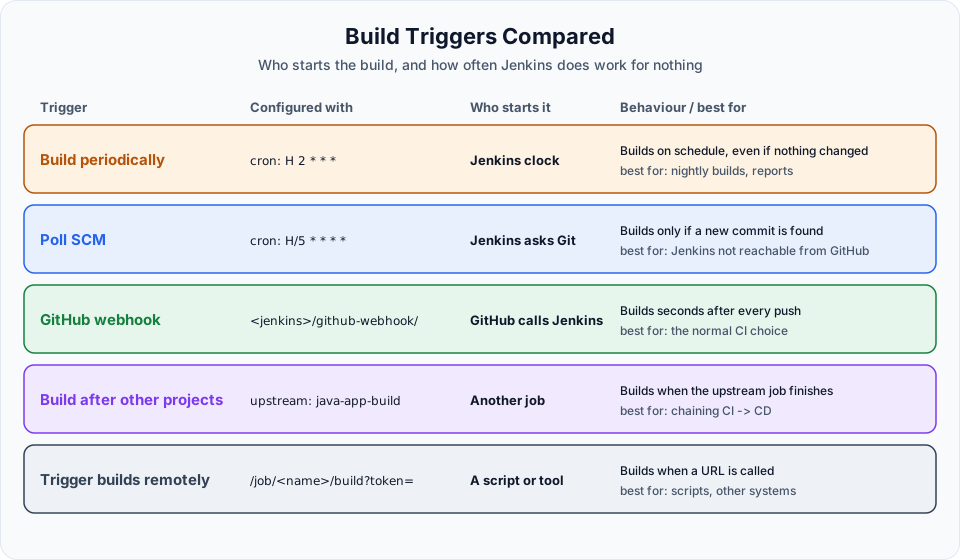
Open the java-app-build job from the previous lesson, click Configure and scroll to Triggers. A standard Jenkins with the suggested plugins shows five options:
| Option | What it does |
|---|---|
| Trigger builds remotely (e.g., from scripts) | Gives the job a URL with a secret token. Calling that URL starts a build |
| Build after other projects are built | Starts this job when another job (the upstream) finishes, for example "deploy after the build job succeeds" |
| Build periodically | Starts a build on a schedule written as a cron expression, whether or not anything changed |
| GitHub hook trigger for GITScm polling | GitHub notifies Jenkins on every push, and Jenkins builds if the push matches this job's repository |
| Poll SCM | Jenkins checks the Git repository on a schedule and builds only if there is a new commit |
Click the ? next to any option to read Jenkins' own help text. It is short and accurate.
Jenkins cron syntax
Both Build periodically and Poll SCM use a cron-style schedule with five fields separated by spaces:
MINUTE  HOUR  DOM  MONTH  DOW
0-59 0-23 1-31 1-12 0-7 (0 and 7 are Sunday)| Symbol | Meaning | Example |
|---|---|---|
* | Every value | * * * * * every minute |
M-N | A range | 0 9 * * 1-5 at 09:00 Monday to Friday |
*/X or M-N/X | Every X steps | */15 * * * * every 15 minutes |
A,B,C | A list | 0 9,18 * * * at 09:00 and 18:00 |
H | A "hash" value that Jenkins picks from the job name, so it stays the same for this job but differs between jobs | H * * * * once an hour, at a fixed minute per job |
@daily, @hourly, @weekly, @midnight | Shortcuts, which also use H internally | @daily once a day |
The shell scripting course explains cron in detail if you need a refresher. One Jenkins-specific thing deserves more attention: the H symbol.
Why Jenkins wants you to use H
Imagine 50 jobs all scheduled with 0 * * * *. At the top of every hour, all 50 start together, the server is flooded, and for the other 59 minutes it sits idle. H spreads them out. H * * * * means "once an hour, at a minute chosen from the job name". Job A might run at minute 17 and job B at minute 42, every hour, consistently.
Some useful patterns:
| Schedule | Meaning |
|---|---|
H/15 * * * * | Every 15 minutes, at an offset chosen per job |
H H * * * | Once a day at a hashed time |
H H(0-6) * * * | Once a day, sometime between 00:00 and 06:59 |
H 2 * * 1-5 | On weekdays, at 02:xx |
TZ=Asia/Kolkata on the first line, then H 9 * * * | 09:xx Indian time, regardless of the server's time zone (UTC on EC2) |
Demo 1: Build periodically
In the video, Build periodically is ticked with the schedule * * * * *. Jenkins immediately shows a warning:
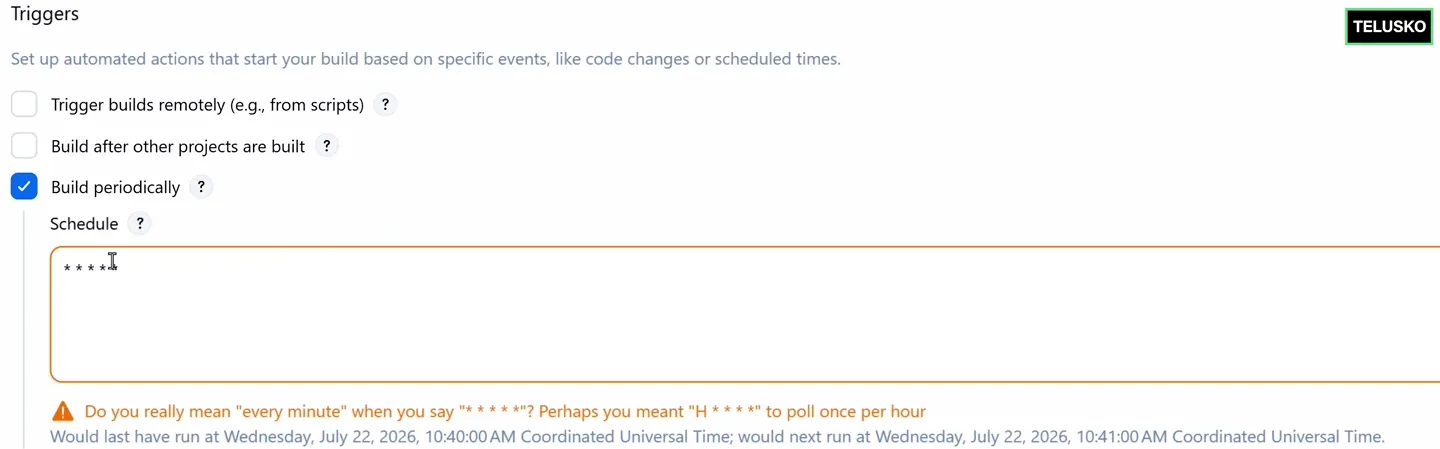
Jenkins warns about * * * * * and shows when the job would last and next run, in UTC.
The line under the warning ("would last have run at ... would next run at ...") is a handy check that your expression means what you think. Notice it is in UTC, the server's time zone.
Save, and wait. A new build starts every minute even though nobody clicked anything and nothing changed in the code. The build cause in the console says Started by timer.
That is exactly why Build periodically is the wrong trigger for CI: it rebuilds the same code over and over. It is the right trigger for things that should happen on a clock: a nightly full test run, a daily report, a weekly cleanup job.
Every-minute builds of a Maven project also fill the disk quickly on a small server. Untick the trigger as soon as you have seen it work, and clean the workspace as in the previous lesson.
Demo 2: Poll SCM
Now untick Build periodically, tick Poll SCM, and use the same schedule * * * * *.
The difference: Jenkins now checks the repository every minute, and it builds only if there is a new commit. To see it:
- Open the repository on GitHub (your fork), edit a file in the browser, and commit the change.
- Within a minute, a new build appears in the job. The console says
Started by an SCM change. - Wait another few minutes without committing. No new builds start.
The job page now also has a Git Polling Log link that shows each check and whether it found changes.
For real jobs, do not poll every minute. Use H/5 * * * * (every five minutes) or longer. Polling asks the Git server for changes each time, and with many jobs that becomes a lot of traffic, which is why Jenkins' help text calls it an "expensive operation".
GitHub webhooks: the push-based trigger
Polling still means Jenkins asking "anything new?" over and over. A webhook turns it around: GitHub tells Jenkins the moment someone pushes. No wasted checks, and builds start within seconds. This is how most teams trigger CI.
The video only describes this option, so here are the steps:
Tick the trigger in the job
In the job, under Triggers, tick GitHub hook trigger for GITScm polling and save. Keep the Git repository URL in Source Code Management, because Jenkins uses it to decide which jobs a push belongs to.
Add the webhook in GitHub
In your repository on GitHub, open Settings > Webhooks > Add webhook:
| Field | Value |
|---|---|
| Payload URL | http://<jenkins-public-ip>:8080/github-webhook/ (the trailing slash matters) |
| Content type | application/json |
| Which events | Just the push event |
| Active | Checked |
Click Add webhook.
Let GitHub reach Jenkins
GitHub's servers must be able to reach port 8080. If your security group allows 8080 only from My IP, the webhook delivery fails. Either add GitHub's webhook IP ranges (listed under hooks at https://api.github.com/meta) to the security group, or for a short practice session open 8080 more widely and close it again afterwards.
Test it
Push a commit. In GitHub, Settings > Webhooks > Recent Deliveries should show a green tick with response 200. In Jenkins, a new build starts with the cause Started by GitHub push by <your-user>.
Webhook troubleshooting
A red delivery in GitHub usually means one of three things: the security group blocks GitHub, the URL is missing /github-webhook/ with the trailing slash, or the Jenkins public IP changed after a stop and start. Fix the cause and use Redeliver to test again.
Which trigger should you use?
| Situation | Trigger |
|---|---|
| Build and test every push | GitHub webhook |
| Jenkins is in a private network GitHub cannot reach | Poll SCM with H/5 * * * * |
| Nightly full regression or a daily report | Build periodically with H H(0-6) * * * |
| Deploy only after the build job succeeds | Build after other projects are built |
| Start a job from a script or another tool | Trigger builds remotely (better: the Jenkins REST API with a user API token) |
You can combine them. Many jobs have both a webhook and a slow H H * * * poll as a safety net in case a webhook delivery is lost.
Try It Yourself
- Set Build periodically to
H/2 * * * *and note which minutes Jenkins actually picks. Then remove it. - Set Poll SCM to
* * * * *, commit a change in your fork, and confirm the build cause isStarted by an SCM change. Open the Git Polling Log. - Replace polling with a GitHub webhook and check Recent Deliveries in GitHub after a push.
- Create a second freestyle job
after-buildthat runsecho "build finished", and set it to Build after other projects are built withjava-app-build. Run the first job and watch the second start. - Write cron expressions for: every weekday at about 7 AM Indian time, and once every Sunday night. Test them by pasting into the schedule box and reading the "next run" line.
Official references
- Jenkins Pipeline Syntax: cron syntax and the H symbol
- Jenkins GitHub plugin (webhook setup)
- GitHub Docs: About webhooks
Written By: Shramik Masti
How is this guide?
Last updated on
Building Your First Java Application with Jenkins
Configure Maven as a Jenkins tool, create a freestyle job that clones a Spring Boot project from GitHub and runs Maven, then find the generated WAR file in the workspace.
Jenkins Build Parameters: Parameterized Jobs
Make one Jenkins job behave differently on each run by adding string and choice parameters, use them as environment variables in shell steps, and avoid common quoting mistakes.