
Github MCP and Developer Agents
Modern AI-assisted development is moving beyond code generation. AI tools can now interact with GitHub repositories, issues, pull requests, workflows, and other development tools to perform multi-step tasks.
Two concepts are important:
- MCP (Model Context Protocol) - connects AI applications with external tools and data.
- Developer Agents - use AI reasoning and connected tools to perform development tasks.
MCP provides the connection while the agent uses that connection to perform the work.
What is MCP?
Model Context Protocol (MCP) is an open standard that allows AI applications to connect with external tools, data sources, and services through a common interface.
Without a standard protocol, an AI application may require separate integrations for different services.
With MCP:
                ┌── GitHub
                │
AI Application ─ MCP ─ Database
                │
                └── Other Tools
This makes it possible for an AI application to use capabilities outside the AI model itself.
MCP Analogy
Think of MCP as a standard connection layer for AI.
Just as a standard interface can allow different devices to work together, MCP provides a common way for AI applications to communicate with external tools and services.
How Does MCP Work?
MCP follows a client-server architecture.
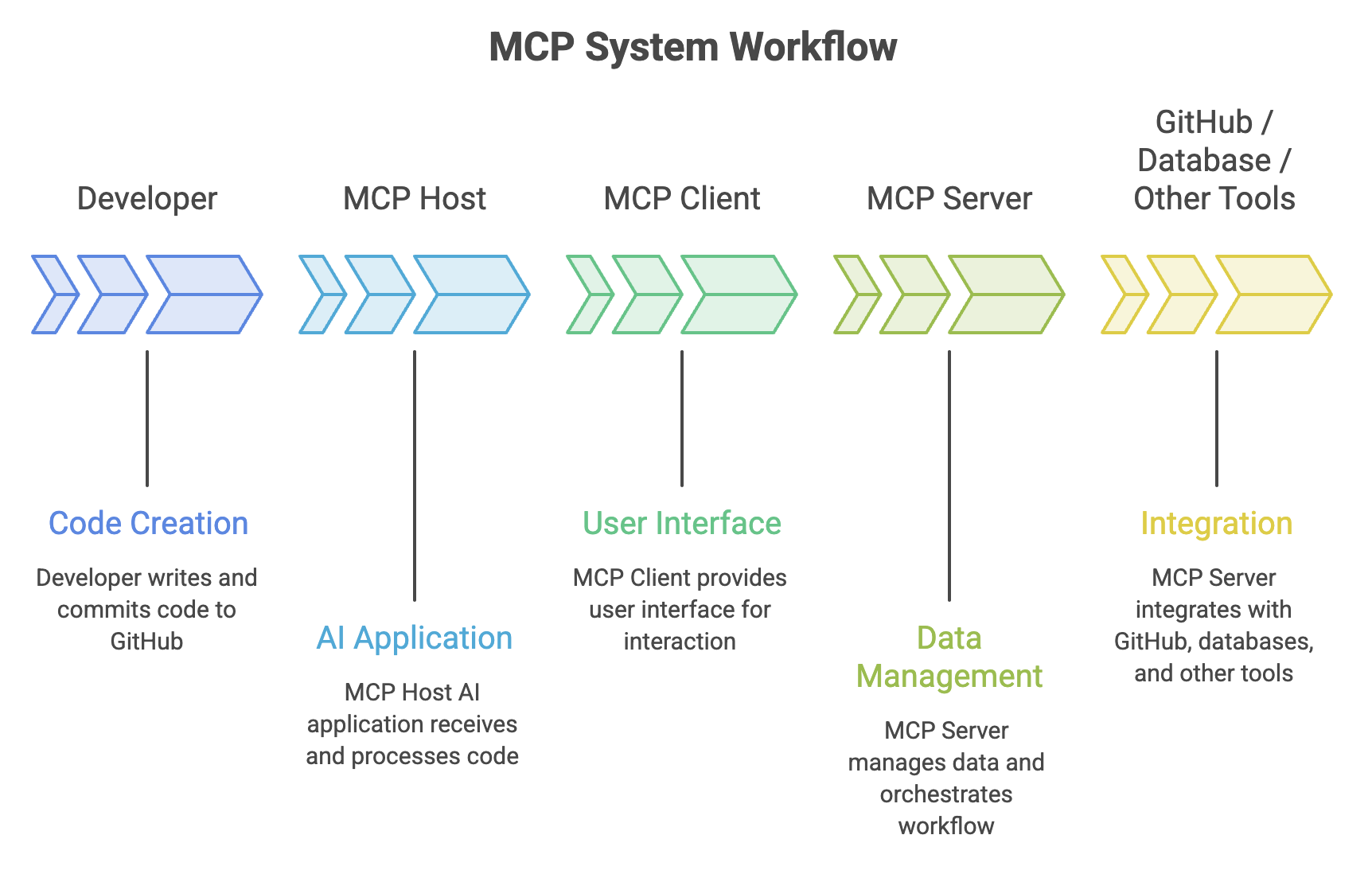
Main Components
| Component | Role |
|---|---|
| MCP Host | AI application used by the developer |
| MCP Client | Connects the host to an MCP server |
| MCP Server | Exposes tools and data to the AI application |
MCP Tools and Resources
MCP can expose capabilities that an AI application can use.
Tools
Tools allow an AI application or agent to perform actions.
For example, a GitHub MCP server may expose operations for:
- Search repository
- Read file
- Create issue
- Update issue
- Create pull request
- View pull request
- Inspect workflow
GitHub MCP Server
        │
        ├── Repository Tools
        ├── Issue Tools
        ├── Pull Request Tools
        ├── File Tools
        └── Actions Tools
Resources
Resources provide information that the AI application can read.
Examples:
- Repository files
- Issue information
- Pull request details
- Structured project data
Tools allow the AI to act while resources allow it to access information.
GitHub MCP Server
The GitHub MCP Server connects an MCP-compatible AI application with GitHub.
A simplified architecture is:
AI Application
      ↓
   MCP Client
      ↓
GitHub MCP Server
      ↓
   GitHub API
      ↓
    GitHub
This allows an AI application or agent to work with supported GitHub capabilities through MCP.
GitHub Capabilities
Depending on the available tools and permissions, an AI application may be able to:
- Read repository contents
- Search repositories
- Read and manage issues
- Work with pull requests
- Inspect pull request changes
- Work with files
- Inspect GitHub Actions workflow runs
- Access other supported GitHub operations
The exact capabilities depend on the MCP server configuration and permissions.
Using MCP with GitHub
The real value of MCP becomes clearer with a practical example.
Suppose a developer asks:
Find all open issues labeled "bug" in this repository and summarize the most important ones.A simplified workflow is:
Developer
    ↓
AI Application
    ↓
MCP Client
    ↓
GitHub MCP Server
    ↓
GitHub Issues
    ↓
Issue Data
    ↓
AI Application
    ↓
Summary
The AI does not need direct access to the GitHub interface itself.
Instead, it uses the capabilities exposed through the MCP server.
Using MCP with Git
MCP becomes more useful when an AI application can work with both GitHub and local development tools.
For example, a developer may ask:
Review the changes in my current branch, identify potential problems, and explain what I should commit.A tool-enabled AI workflow could involve:
Developer
    ↓
AI Agent
    ↓
Git Tools
    ↓
Check Branch / Diff / Status
    ↓
Analyze Changes
    ↓
Suggest Improvements
The important point is that an AI agent can combine repository context with development tools rather than only generating code.
Adding MCP to a Developer Tool
Understanding MCP is only the first step. To actually use MCP, the MCP server must be configured in an MCP-compatible AI application or developer tool.
The general setup process is:
Choose an MCP-compatible Tool
            ↓
      Add MCP Server
            ↓
 Configure Authentication
            ↓
   Grant Permissions
            ↓
   Start / Enable Server
            ↓
    Discover Available Tools
            ↓
       Use with Agent
The exact configuration depends on the developer tool.
Examples of MCP-compatible hosts include:
- Visual Studio Code
- GitHub Copilot
- GitHub Copilot CLI
- Cursor
- Claude
- Codex
- Other MCP-compatible developer tools
The setup process varies by MCP host, so GitHub provides installation guidance for different developer tools.
Adding the GitHub MCP Server in VS Code
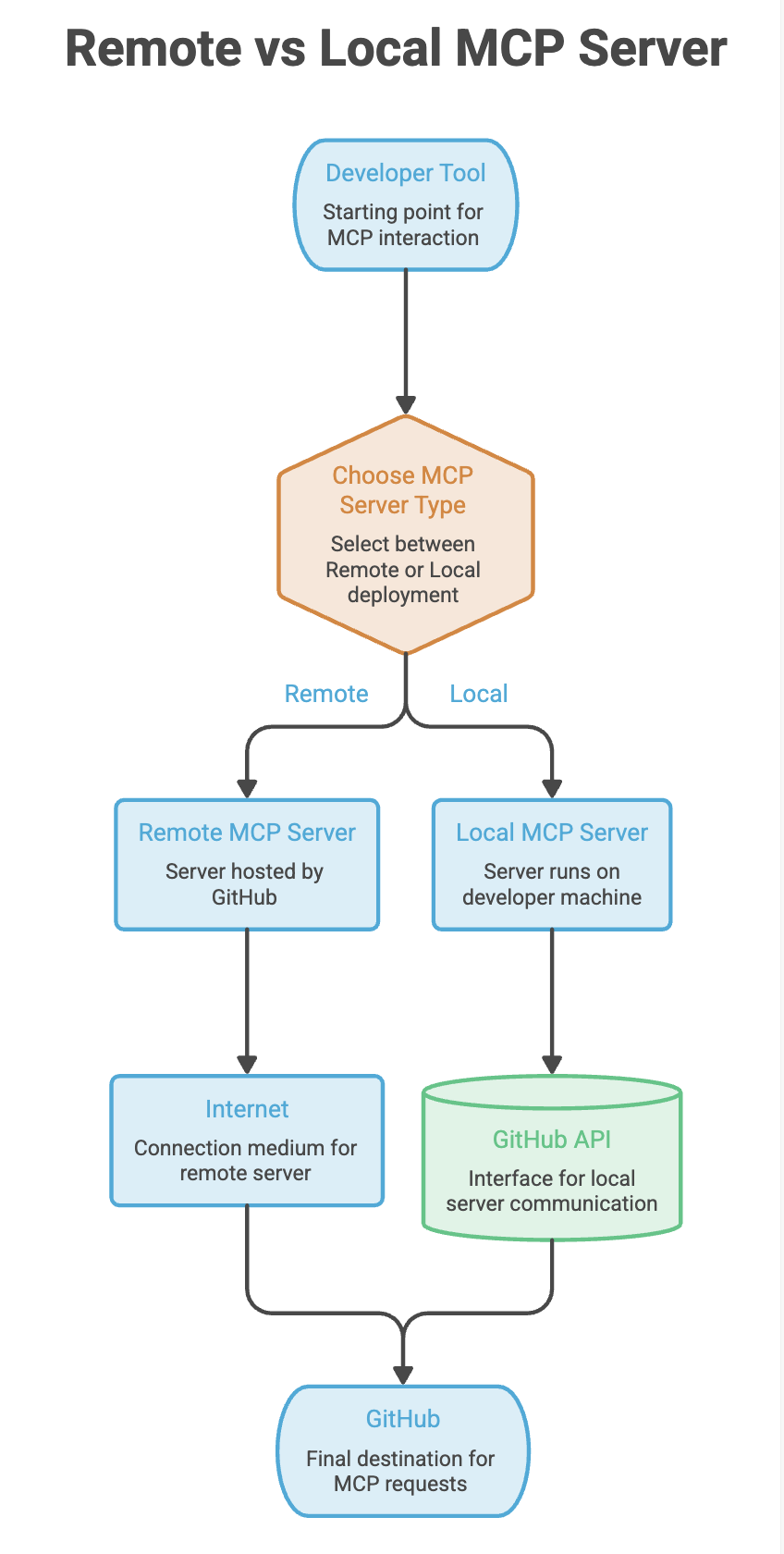
For most developers, the remote GitHub MCP Server is the simplest setup.
GitHub currently recommends the remote server for most users.
Step 1: Open VS Code
Open your project in Visual Studio Code.
Step 2: Open the Extensions Panel
Open the Extensions panel and search for:
@mcp githubGitHub's current documentation provides the GitHub MCP Server through the MCP Registry.
Step 3: Install the GitHub MCP Server
Select the GitHub MCP Server and click Install.
If prompted, confirm that you trust the server.
Step 4: Verify the Server
Open the Command Palette:
Command + Shift + Pon macOS, or:
Ctrl + Shift + Pon Windows/Linux.
Search for:
MCP: List ServersThe GitHub MCP Server should appear in the configured servers.
Manual MCP Configuration
MCP-compatible developer tools can also allow servers to be configured manually.
For example, the GitHub remote MCP Server can be configured in VS Code using:
{
  "servers": {
    "github": {
      "type": "http",
      "url": "https://api.githubcopilot.com/mcp/"
    }
  }
}
The remote server uses Streamable HTTP.
The exact configuration format depends on the host application, so students should always follow the configuration format supported by their particular tool.
Authentication and Permissions
Connecting an MCP server to GitHub may require authentication.
The authentication method depends on the MCP host and server configuration.
A simplified flow is:
Developer Tool
      ↓
MCP Server
      ↓
Authentication
      ↓
GitHub
Permissions determine what the connected AI tool is allowed to do.
For example:
| Access | Possible Operations |
|---|---|
| Repository read access | Read repository information and files |
| Issues access | Read or manage issues |
| Pull Request access | Read or manage pull requests |
| Actions access | Inspect workflow runs |
| Write access | Modify supported GitHub resources |
What is a Developer Agent?
A developer agent is an AI system that can perform a sequence of development tasks instead of simply returning an answer or code suggestion.
Traditional AI Assistance
Developer
    ↓
Ask Question
    ↓
AI Suggestion
    ↓
Developer Performs the Work
Agentic Development
Developer
    ↓
Define Task
    ↓
Agent Analyzes Project
    ↓
Creates Plan
    ↓
Modifies Files
    ↓
Runs Commands / Tests
    ↓
Analyzes Results
    ↓
Makes Corrections
    ↓
Reports Result
The key difference is task execution.
An agent can reason about a goal and use available tools to complete multiple steps.
Developer Agents with GitHub
A developer agent can fit naturally into the GitHub development workflow.
Consider an issue:
Issue:
"Add validation for user registration."
An agent could work through the task:
Issue → Agent → Code Changes → Tests → Pull Request → Review → MergeThe agent automates parts of the existing development process while the developer remains responsible for reviewing and merging the changes.
GitHub Coding Agents
A coding agent can work on development tasks in a cloud environment rather than requiring the developer to drive every step from an IDE.
A typical workflow is:
GitHub Issue
     ↓
Coding Agent
     ↓
Implementation
     ↓
Pull Request
     ↓
Developer Review
This is particularly useful for well-defined tasks such as:
- Bug fixes
- Unit tests
- Documentation updates
- Routine refactoring
- Dependency maintenance
- Small feature changes
MCP + Developer Agents
MCP and developer agents solve different problems.
Developer
    ↓
AI Agent
    ↓
   MCP
    ↓
┌──────────┬──────────┬──────────┐
↓          ↓          ↓
GitHub     Git        Other Tools
The agent provides the reasoning and task execution.
MCP provides a standardized way for the agent to access external capabilities.
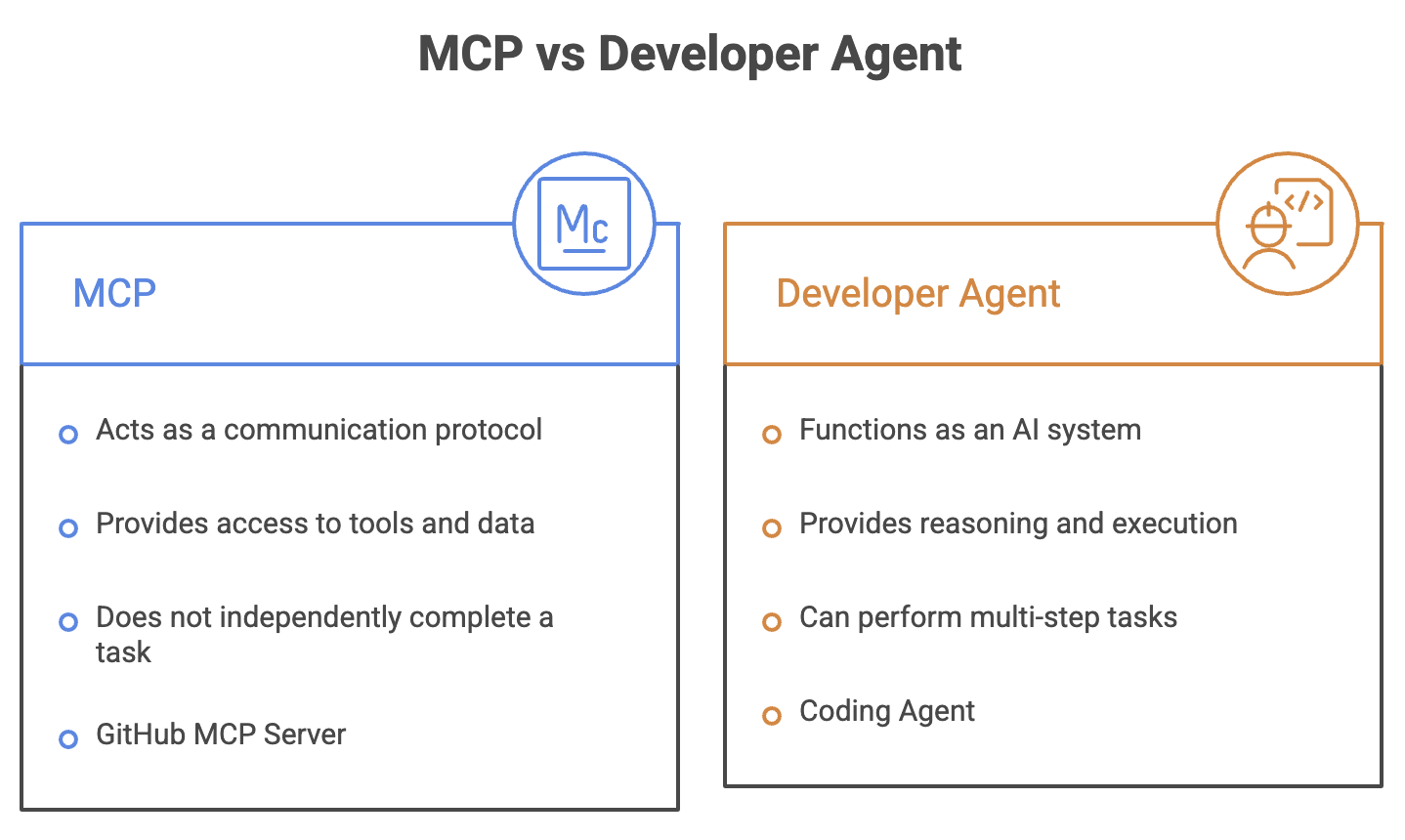
MCP does not replace the agent instead it gives the agent a standardized way to access tools and data.
Practical Git + GitHub + MCP Workflow
A modern developer workflow can combine Git, GitHub, MCP, agents, and automation.
              Developer
                  ↓
             GitHub Issue
                  ↓
              AI Agent
                  ↓
                 MCP
                  ↓
       ┌──────────┼──────────┐
       ↓          ↓          ↓
      Git       GitHub     Tools
       ↓          ↓          ↓
       └──────────┼──────────┘
                  ↓
             Code Changes
                  ↓
              Git Commit
                  ↓
                Push
                  ↓
           Pull Request
                  ↓
          GitHub Actions
                  ↓
            Build & Test
                  ↓
          Human Code Review
                  ↓
                Merge
The important shift is:
AI generates code
       ↓
AI uses tools
       ↓
AI performs tasks
       ↓
Human reviews the result
AI becomes part of the development workflow rather than simply being a code-generation tool.
When Should You Use MCP and Agents?
MCP is useful when:
- An AI application needs access to external tools.
- You want standardized tool connectivity.
- AI needs GitHub or other service data.
- Multiple tools need to be connected to an AI application.
Developer Agents are useful when:
- A task requires multiple steps.
- The task is well-defined.
- Several files need to be changed.
- Tests or commands need to be executed.
- The agent can iterate based on results.
Avoid giving agents broad tasks without clear requirements.
For example:
Good:
"Fix the failing UserService test."

Less suitable:
"Improve the entire application."
Summary
- MCP is a standard for connecting AI applications with external tools and data.
- An MCP server exposes capabilities that an AI application can use.
- The GitHub MCP Server connects compatible AI applications with GitHub capabilities.
- Developer agents can reason about a task and perform multiple development steps.
- MCP provides connectivity; agents provide reasoning and execution.
- Agents can work with Git, GitHub, repositories, issues, pull requests, and other tools.
- GitHub Actions can provide automated build and test feedback to agent-driven workflows.
- Agents should use minimum required permissions.
- AI-generated changes must be reviewed and tested by developers.
Written By: Muskan Garg
How is this guide?
Last updated on