
Synchronizing Repositories
Once a local repository is connected to a remote repository, developers need a way to keep both repositories synchronized.
Synchronization happens in two directions:
              Remote Repository
               (GitHub)
                  ↕
        ┌─────────┴─────────┐
        │                   │
     Download             Upload
   fetch / pull            push
        │                   │
        ▼                   ▼
           Local Repository
The three commands you'll use most often are:
git fetch- download remote changes without integrating themgit pull- download and integrate remote changesgit push- upload your local commits
git fetch - Download Without Integrating
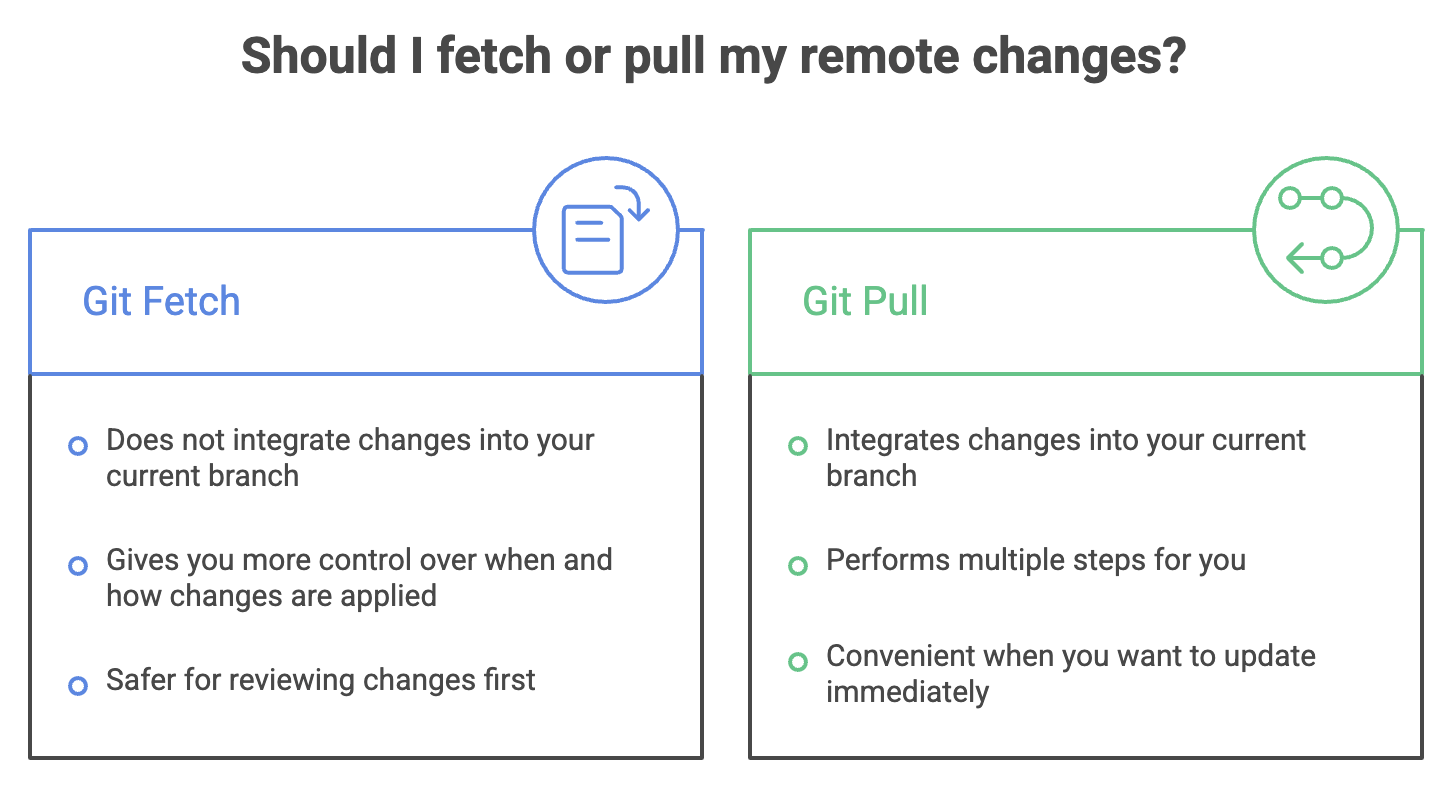
The git fetch command downloads the latest information from the remote repository without changing your current working files or branch.
git fetch originThink of it as:
"GitHub has new changes. Download the information so I can inspect them first."
GitHub
   │
   │ git fetch
   ▼
Local Repository
Your working directory remains unchanged.
This makes git fetch useful when you want to inspect remote changes before deciding whether to integrate them.
Example
Suppose another developer pushed three commits to GitHub.
You can run:
git fetch originGit downloads those commits, allowing you to examine the updated remote history before merging or rebasing them into your current branch.
git pull - Download and Integrate
If you want to download remote changes and integrate them into your current branch in one step, use:
git pull origin mainConceptually, a typical git pull is:
git pull
   │
   ├── git fetch
   │
   └── integrate changes
By default, the integration step is typically a merge, although Git can also be configured to use rebase.
When to use git pull
Use it when:
- You want the latest remote changes immediately.
- You are ready to integrate those changes into your current branch.
- You don't need to inspect the remote updates separately first.
git push - Upload Local Commits
While fetch and pull bring changes from the remote, push sends your local commits to the remote.
git pushOr explicitly:
git push origin mainLocal Repository
│
│ git push
▼
GitHubRemember that git push sends commits, not uncommitted changes.
You normally need to:
Edit → Stage → Commit → PushOnly after a change has been committed can it be pushed to the remote repository.
Synchronization in a Team
Consider a team where two developers work on the same project.
                 GitHub
                /      \
               /        \
        Developer A   Developer B
Developer A pushes new changes:
git pushDeveloper B can then retrieve those changes:
git fetchand inspect them before integrating, or use:
git pullto retrieve and integrate them directly.
This cycle allows developers to keep their local repositories synchronized with the shared remote repository.
Working with Multiple Remotes
A repository is not limited to one remote.
You can connect multiple remote repositories when your workflow requires it.
A common example is contributing to an open-source project.
Your GitHub Fork
     origin
        │
        │
     Local Repository
        │
        │
     upstream
        │
Original GitHub Repository
Here:
origin→ your forkupstream→ the original project
This allows you to download updates from the original project while pushing your own work to your fork.
Adding Another Remote
Use:
git remote add upstream git@github.com:original-owner/project.gitNow the repository has two remotes:
git remote -vExample:
origin    git@github.com:your-name/project.git (fetch)
origin    git@github.com:your-name/project.git (push)

upstream  git@github.com:original-owner/project.git (fetch)
upstream  git@github.com:original-owner/project.git (push)
You can work with each remote independently.
For example:
git fetch upstreamdownloads changes from the original project.
Renaming a Remote
If you want to change the name of an existing remote:
git remote rename origin new-nameFor example:
git remote rename origin githubThe remote URL remains the same; only its local alias changes.
Common Commands
| Command | Purpose |
|---|---|
git remote -v | View configured remote URLs |
git fetch origin | Download updates from origin without integrating them |
git pull origin main | Fetch and integrate changes from main |
git push origin main | Push local main commits to the remote |
git push | Push to the configured upstream branch |
git remote add upstream <URL> | Add another remote |
git remote rename origin <name> | Rename an existing remote |
Summary
originis the conventional name for the primary remote.git remote -vshows the configured fetch and push URLs.- Fetch downloads remote information without integrating it.
- Pull downloads and integrates remote changes.
- Push uploads your local commits to the remote repository.
- A repository can have multiple remotes, such as
originandupstream. fetchis useful when you want to inspect remote changes before integrating them.
Written By: Muskan Garg
How is this guide?
Last updated on