
Cloning Repositories & Gitignore
Once a project is available on a remote repository, you don't need to create it from scratch on your computer. You can clone the repository and get a working local copy.
At the same time, real projects often contain files that should never be committed, such as environment variables, build output, logs, and IDE settings. Git provides the .gitignore file to handle these files.
Cloning a Repository
What is Git Clone?
Cloning means creating a local copy of an existing remote Git repository.
When you clone a repository, Git downloads the project's files along with its Git history and sets up the remote connection automatically.
Remote Repository
       │
       │ git clone
       ▼
Local Repository
This allows you to immediately start working on an existing project.
Basic Command
git clone <repository-url>For example:
git clone https://github.com/torvalds/linux.gitYou can use either an HTTPS or SSH repository URL.
# HTTPS
git clone https://github.com/user/project.git

# SSH
git clone git@github.com:user/project.git
What Happens During git clone?
When you run:
git clone <repository-url>Git performs several tasks automatically:
- Creates a directory for the project.
- Downloads the repository's files.
- Downloads the repository's Git history.
- Initializes a local Git repository.
- Configures the remote repository as
origin. - Checks out the appropriate starting branch.
For example:
git clone https://github.com/user/project.gittypically produces:
project/
├── .git/
├── src/
├── README.md
└── ...
You can then enter the project directory:
cd projectand start working normally.
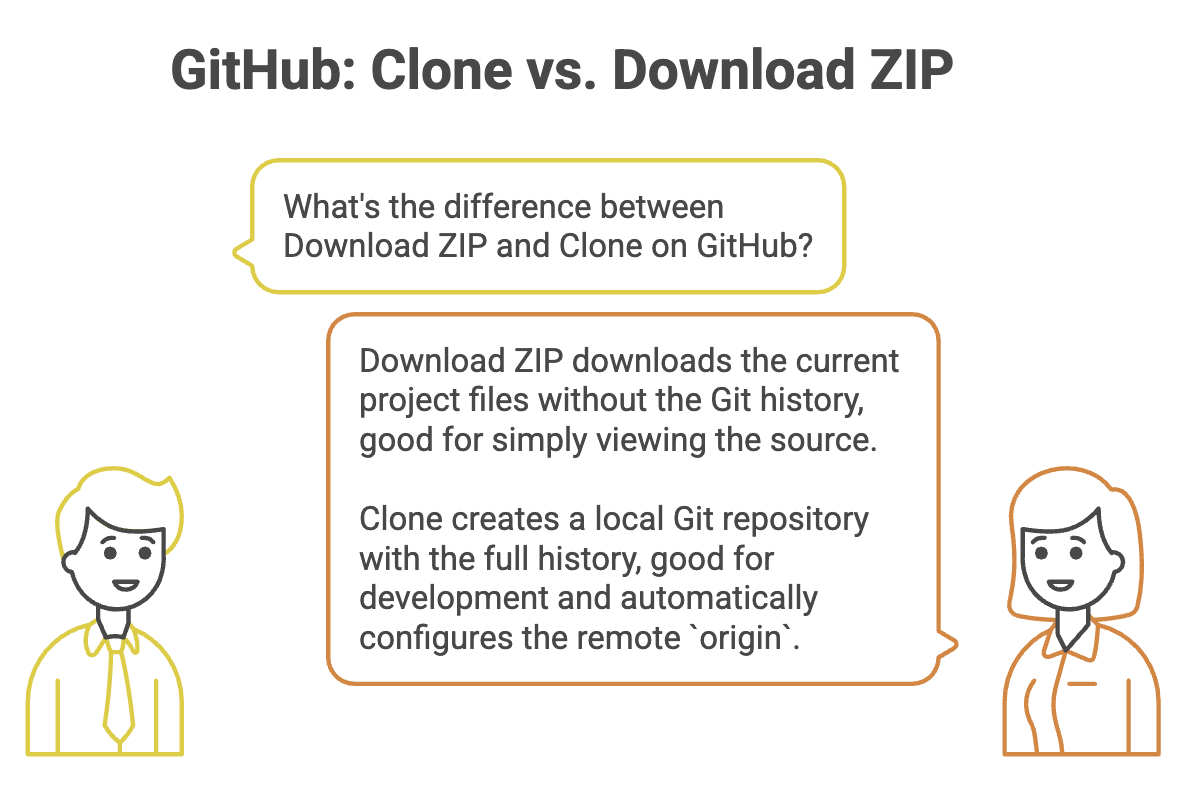
Use ZIP when you only need the source code. Use
git clonewhen you intend to work with the Git repository.
Viewing Compact Commit History
After cloning a repository, you may want to quickly inspect its history.
Use:
git log --pretty=onelineExample:
a91f2c8 Fix authentication issue
72bc4d1 Add user registration
31af9e2 Initial project setup
Each commit appears on a single line, making it easier to scan a large history.
Understanding .gitignore
Not every file in a project should be committed to Git.
Projects commonly generate files such as:
- Environment configuration
- Log files
- Build output
- Temporary files
- IDE settings
- Dependency directories
- Operating-system files
The .gitignore file tells Git which untracked files and directories should be ignored.
Why Do We Need .gitignore?
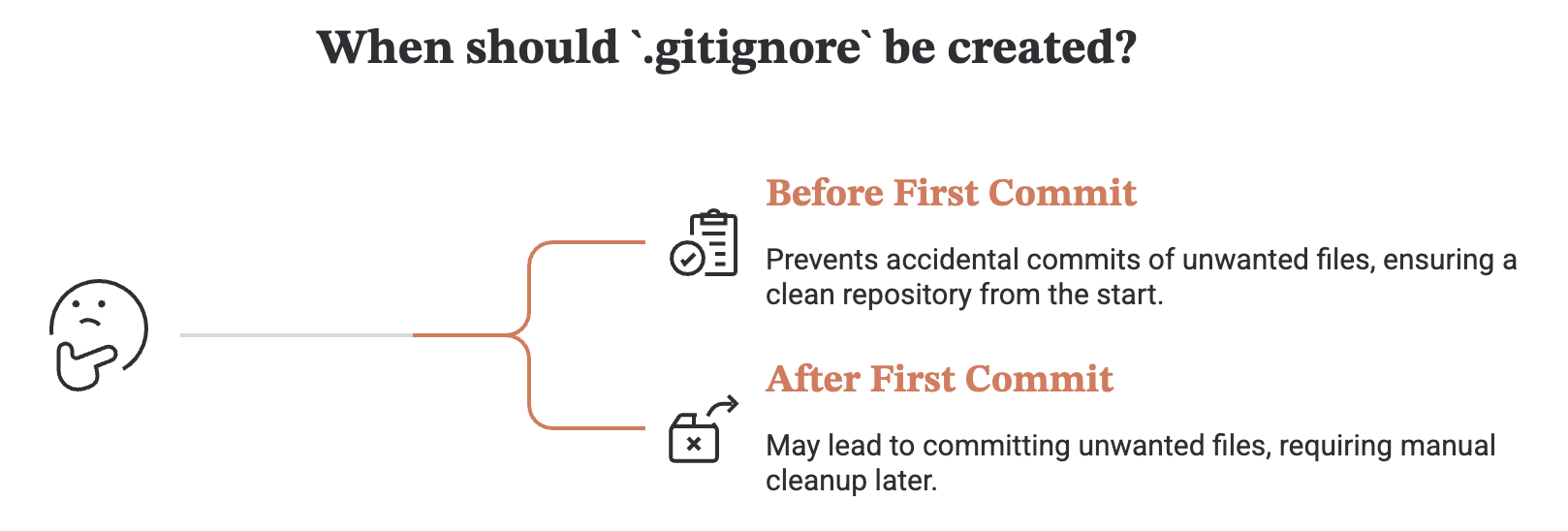
Without .gitignore, unwanted files can easily end up in your repository.
For example, a Java project might generate:
target/
*.class
A Node.js project might contain:
node_modules/A project using environment variables might contain:
.envThese files usually don't belong in source control.
A .gitignore file keeps them out of the normal staging workflow.
Creating a .gitignore File
Create a file named:
.gitignoreUsually, it is placed in the root directory of the repository.
Example:
MyProject/
├── .git/
├── .gitignore
├── src/
├── README.md
└── ...
You can then add patterns for files and directories that Git should ignore.
Common .gitignore Patterns
A .gitignore file might look like this:
# Environment variables
.env
.env.*

# Dependencies
node_modules/

# Build output
build/
target/

# Log files
*.log

# Temporary files
*.tmp

# Java compiled files
*.class

# macOS files
.DS_Store

# Windows files
Thumbs.db

# IDE settings
.idea/
.vscode/
The patterns determine what Git should ignore.
Understanding .gitignore Patterns
Here are some commonly used patterns:
| Pattern | Meaning |
|---|---|
*.log | Ignore files ending in .log |
*.tmp | Ignore files ending in .tmp |
.env | Ignore a file named .env |
node_modules/ | Ignore the node_modules directory |
build/ | Ignore the build directory |
*.class | Ignore Java .class files |
.idea/ | Ignore the IntelliJ IDEA configuration directory |
Important: .gitignore Does Not Remove Tracked Files
This is one of the most important things to understand.
Adding a file to .gitignore does not automatically stop Git from tracking it if the file was already committed.
For example:
1. Commit .env
        ↓
2. Add .env to .gitignore
        ↓
3. Git continues tracking .env
If the file is already tracked, remove it from Git's index:
git rm --cached <filename>For example:
git rm --cached .envThen commit the change.
The file remains on your computer but is no longer tracked by Git.
Important: If a secret such as an API key or password has already been committed, adding it to
.gitignoredoes not make that secret safe. The exposed credential should be revoked or rotated, and the repository history may also need to be cleaned.
Summary
git clonecreates a local Git repository from an existing remote repository.- Cloning downloads the project's files and Git history and configures the remote as
origin. - Public repositories can generally be cloned without write permission.
.gitignoretells Git which untracked files and directories to ignore.- Common ignored files include environment files, logs, build output, dependencies, and IDE settings.
- Adding an already tracked file to
.gitignoredoes not stop Git from tracking it.
Quick Revision
git clone
    ↓
Get an existing repository locally
    ↓
.gitignore
    ↓
Keep unwanted local files out of Git
    ↓
Make changes
    ↓
Commit the files you actually want to track
Clone to get the project.
.gitignoreto control what should stay out of the repository.
Written By: Muskan Garg
How is this guide?
Last updated on