
Git Stash
During development, you often need to pause your current work and switch to another task before your changes are ready to be committed. Git Stash provides a simple way to temporarily set aside those changes and return to them later.
What Is Git Stash?
While working on a feature, you may have changes that are not ready to commit, but you suddenly need to switch tasks.
Git stash temporarily stores your uncommitted changes and gives you a clean working directory. You can restore those changes later and continue where you left off.
Think of it as pausing your current work without creating a commit.
Uncommitted Work
      ↓
  git stash
      ↓
Clean Working Directory
      ↓
Do other work
      ↓
Restore Stashed Work
Important: A stash is temporary work storage, not a replacement for a commit or backup.
When Should You Use Stash?
Stash is useful when you need to temporarily put your current work aside.
| Situation | Why Stash Helps |
|---|---|
| Need to switch branches | Clears the working directory without losing your changes |
| Urgent bug needs attention | Pause your feature and work on the bug |
| Need a clean working directory | Temporarily removes your local modifications |
| Need to update your branch | Save unfinished work before synchronizing |
Example
You are halfway through a login feature when a critical bug needs immediate attention:
Login Feature (unfinished)
        ↓
    git stash
        ↓
Fix Bug
        ↓
Return to Login Feature
        ↓
Restore Stash
This avoids creating a commit containing incomplete code just to switch tasks.
Saving Changes
Stash Current Changes
git stashGit saves your local modifications and cleans the working directory.
Add a Message
A descriptive message makes it easier to identify the stash later:
git stash push -m "WIP: login page"
git stash push -mis preferred over the oldergit stash savesyntax.
Add Untracked Files
By default, git stash handles changes to tracked files.
To include untracked files as well:
git stash -uor:
git stash push -u -m "WIP: login page"This is useful when you have created new files that have not yet been added to Git.
Viewing Saved Stashes
Use:
git stash listExample:
stash@{0}: On feature-login: WIP: login page
stash@{1}: On main: WIP: navbar changes
Git stores stashes in a stack-like structure.
stash@{0}→ most recent stashstash@{1}→ previous stash- Higher numbers → older stashes
Restoring Stashed Work
There are two common ways to restore a stash.
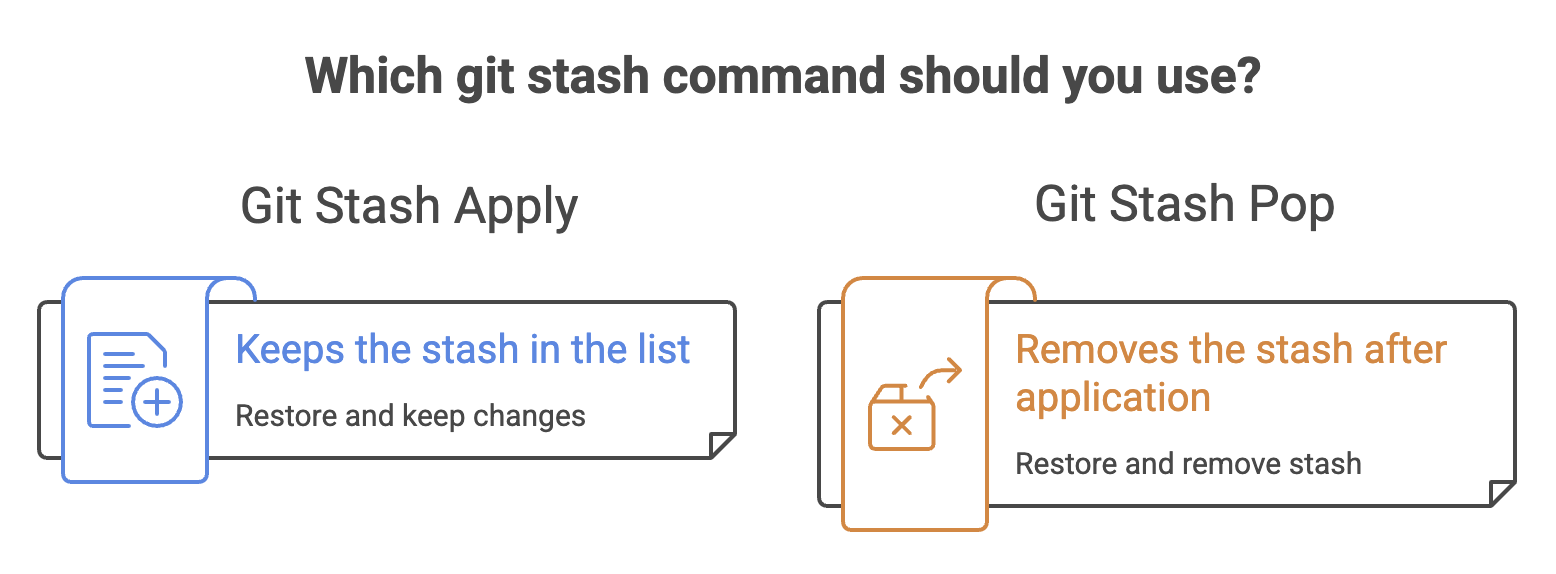
git stash apply
git stash applyRestores the latest stash but keeps it in the stash list.
You can also select a specific stash:
git stash apply stash@{1}Use apply when you may want to reuse the same stash again.
git stash pop
git stash popRestores the latest stash and removes it from the stash list if the operation succeeds.
Use pop when you are finished with that stash.
Managing Stashes
Delete One Stash
git stash drop stash@{0}Removes the specified stash without restoring it.
Delete All Stashes
git stash clearRemoves every stash from the repository.
Warning:
git stash clearpermanently removes all stash entries. Use it carefully.
Quick Reference
| Command | Purpose |
|---|---|
git stash | Temporarily save tracked-file changes |
git stash push -m "message" | Save changes with a description |
git stash -u | Include untracked files |
git stash list | View saved stashes |
git stash apply | Restore latest stash and keep it |
git stash apply stash@{n} | Restore a specific stash |
git stash pop | Restore and remove latest stash |
git stash drop stash@{n} | Delete a specific stash |
git stash clear | Delete all stashes |
Summary
- Stash lets you temporarily pause unfinished work.
- Use it when you need a clean working directory without creating an unnecessary commit.
applyrestores changes and keeps the stash.poprestores changes and removes the stash.- Use
-uwhen untracked files also need to be saved. - Stashes are local temporary storage, not a substitute for commits or remote backups.
Written By: Muskan Garg
How is this guide?
Last updated on