
Undoing Changes in Git
Mistakes are a normal part of development. You may modify the wrong file, stage something accidentally, commit too early, or discover that a previous commit needs to be undone.
Git provides different commands for these situations. The important thing is to first identify what you want to undo and where that change currently exists.
Discarding Uncommitted Changes
Suppose you modify a file but decide that you don't want those changes.
git restore <filename>Example:
git restore Login.javaGit restores the file to the version from the latest commit.
Be Careful
Any uncommitted changes in that file are discarded.
Before:

Working Directory
      ↓
Modified Login.java

git restore Login.java

      ↓

Last committed version
Older Syntax
You may also see:
git checkout -- Login.javaThis works, but git restore is preferred because modern Git separates file restoration from branch/commit switching.
Unstaging a File
Sometimes you stage a file with git add and then realize it shouldn't be part of the next commit.
git restore --staged <filename>Example:
git restore --staged config.txtThis does not delete your changes.
It simply moves the file out of the staging area:
Staging Area
     ↓
git restore --staged
     ↓
Working Directory
Your modifications remain available for further editing.
Older Syntax
You may encounter:
git reset HEAD config.txtThis also unstages the file.
Fixing the Most Recent Commit
Sometimes the latest commit is almost correct, but you need to make a small correction.
For example:
- The commit message contains a typo.
- You forgot to include a file.
- You need to make a small adjustment to the commit.
Use:
git commit --amendTo change the commit message directly:
git commit --amend -m "Add user authentication"Add a Forgotten File
git add UserService.java
git commit --amend --no-edit
--no-edit keeps the existing commit message.
Important
Amending creates a new version of the latest commit. Avoid amending commits that have already been pushed and shared with other developers unless you understand the consequences of rewriting history.
Reverting a Commit
What if a commit has already been shared and you want to undo its changes?
Use:
git revert <commit-id>For example:
git revert a1b2c3dGit creates a new commit that reverses the changes introduced by the selected commit.
Before:

A ─── B ─── C
          ↑
       unwanted


After revert:

A ─── B ─── C ─── D
                  ↑
             reverse of C
The original commit C remains in the history.
Why Is Revert Considered Safe?
Because it does not remove existing commits or rewrite the branch's history.
This makes it the usual choice for shared branches such as main.
Resetting to an Earlier Point
git reset is different from git revert.
Instead of creating a new commit, reset moves the current branch's HEAD to another commit.
Suppose you have:
A ─── B ─── C ─── DYou reset to B:
git reset <options> BThe effect depends on the option you choose.
git reset --soft
git reset --soft <commit-id>Moves HEAD back but keeps the changes from the removed commits staged.
HEAD moves
    ↓
A ─── B

Changes from C and D
remain staged
Useful when you want to reorganize or combine recent commits.
git reset --mixed
git reset --mixed <commit-id>Moves HEAD back and removes the changes from the staging area, but keeps them in the working directory.
HEAD → B

Changes from C and D
remain as unstaged modifications
This is the default reset mode if no option is specified:
git reset <commit-id>git reset --hard
git reset --hard <commit-id>Moves HEAD back and removes changes from both:
- Staging area
- Working directory
HEAD → B

Changes after B
      ↓
   Discarded
This can permanently discard uncommitted work.
Avoid using
--hardcasually, as this can permanently discard uncommitted work. Especially on branches containing work that others depend on.
Reset Comparison
| Mode | HEAD | Staging Area | Working Directory |
|---|---|---|---|
--soft | Moves | Changes remain staged | Changes remain |
--mixed | Moves | Changes become unstaged | Changes remain |
--hard | Moves | Changes removed | Changes removed |
Easy Way to Remember
Think of the three levels as:
HEAD
 ↓
Staging Area
 ↓
Working Directory- Soft → Move
HEAD, keep everything else. - Mixed → Move
HEADand unstage. - Hard → Move
HEADand discard changes.
Revert vs Reset
git revert | git reset |
|---|---|
| Creates a new commit | Moves the branch to another commit |
| Preserves existing history | Can rewrite history |
| Usually safer for shared branches | Better suited to local/private work |
| Original commit remains | Commits may become unreachable from the branch |
| Preferred for undoing shared changes | Useful for reorganizing local history |
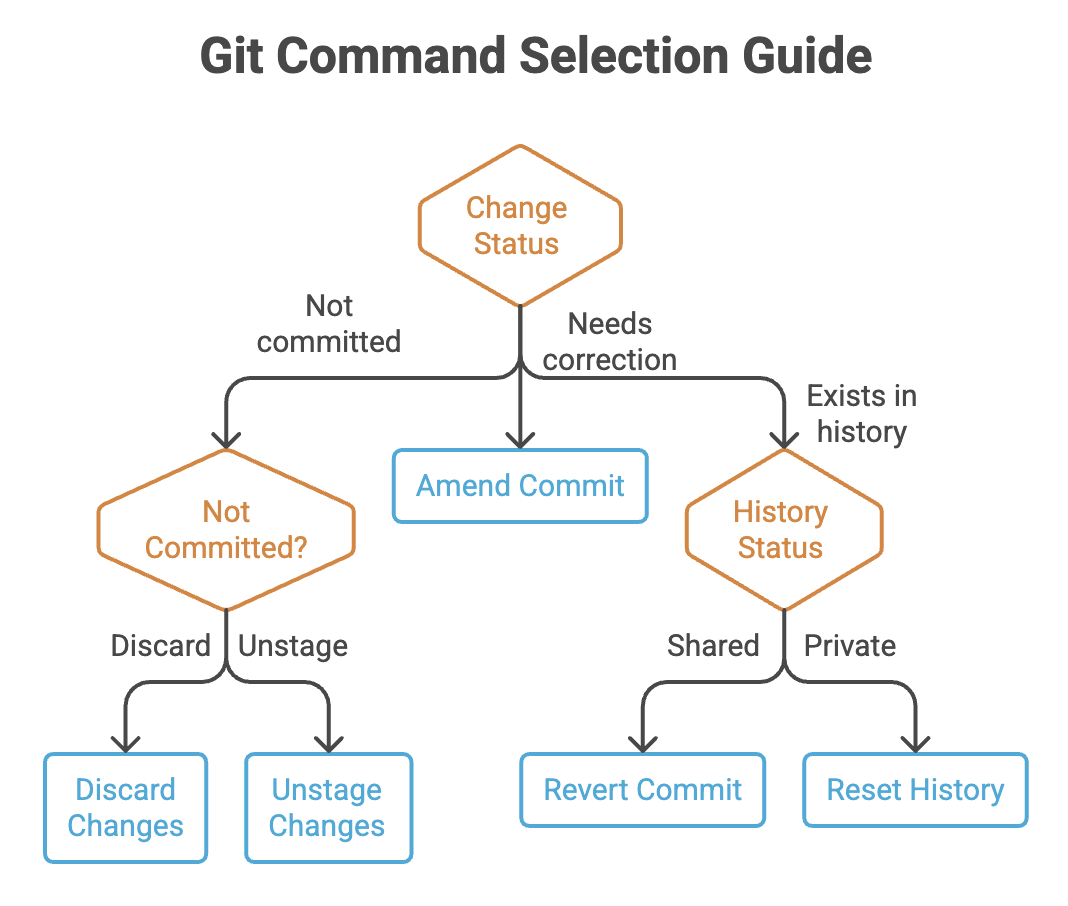
Quick Reference
| Command | Purpose |
|---|---|
git restore <file> | Discard uncommitted changes in a file |
git restore --staged <file> | Unstage a file without losing its changes |
git commit --amend | Modify the latest commit |
git revert <commit> | Create a new commit that undoes another commit |
git reset --soft <commit> | Move HEAD, keeping changes staged |
git reset --mixed <commit> | Move HEAD, keeping changes unstaged |
git reset --hard <commit> | Move HEAD and discard changes |
Written By: Muskan Garg
How is this guide?
Last updated on