
Git Commit Workflow
Now that you understand how a Git repository is organized and how changes move through the Working Directory → Staging Area → Local Repository, it's time to learn how to record those changes permanently.
Every file in Git follows a lifecycle, from creation to inclusion in your project's history. Understanding this workflow will help you use Git confidently and create a clean, meaningful commit history.
Understanding the File Lifecycle
Every file in Git exists in one of several states.
As you work on your project, files transition between these states.
Untracked
    │
git add
    ▼
 Staged
    │
git commit
    ▼
Tracked (Committed)
    │
Modify File
    ▼
Modified
    │
git add
    ▼
Staged Again
Knowing these states makes it much easier to understand the output of git status.
| State | Description |
|---|---|
| Untracked | Git has never seen this file before. |
| Tracked | Git is already managing this file. |
| Modified | The tracked file has changed since the last commit. |
| Staged | The file is ready to become part of the next commit. |
| Committed | The staged changes have been permanently saved in the repository. |
Adding Files to the Staging Area
Before Git can create a commit, the desired changes must be staged.
Stage a Specific File
git add <filename>Example:
git add app.jsOnly app.js is added to the staging area.
Stage All Files
git add .This stages every new and modified file inside the current directory.
Use this command when you're ready to commit all your changes together.
Creating Commits
Once your changes are staged, save them permanently using:
git commit -m "your message"Example:
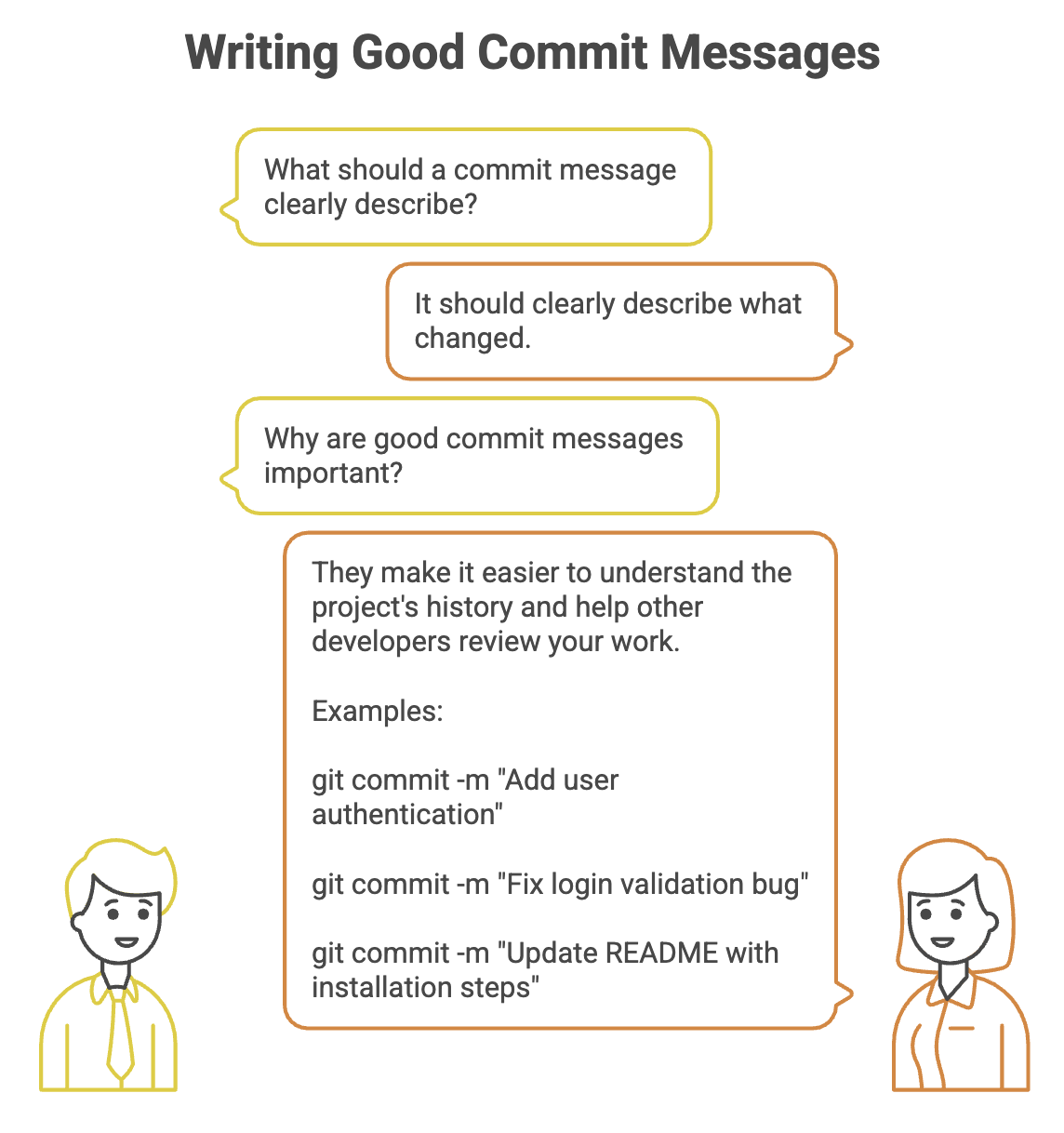
git commit -m "Add login functionality"The -m option lets you provide a meaningful commit message describing what changed.
Good commit messages make it much easier to understand your project's history.
Viewing Commit History
To see all commits in a repository, use:
git logGit displays information such as:
- Commit hash
- Author
- Date
- Commit message
Example:
commit fd914d5...

Author: John Doe

Date: Mon Aug 3

Add login feature
This allows you to review the complete history of your project.
Skipping the Staging Step
Normally, Git requires two commands:
git add
git commit
For already tracked files, Git provides a shortcut:
git commit -a -m "your message"Example:
git commit -a -m "Fix navigation bug"The -a option automatically stages modified tracked files before creating the commit.
Important Limitation
This command does not stage new files.
For newly created files, you must still use:
git addbefore committing.
Viewing Changes with Git Diff
Git allows you to compare changes before committing them.
View Unstaged Changes
git diffShows the difference between:
- Working Directory
- Staging Area
Use it to review modifications that haven't been staged yet.
View Staged Changes
git diff --stagedShows the difference between:
- Staging Area
- Last Commit
This lets you verify exactly what will be included in your next commit.
Understanding File Status
Git assigns different states to files depending on where they are in the workflow.
| Status | Meaning |
|---|---|
| U (Untracked) | Git has never tracked this file before. |
| M (Modified) | The file has changed since the last commit. |
| A (Added) | The file is staged and ready to be committed. |
Understanding these states makes it easier to interpret the output of git status.
Removing a File from Git Tracking
Sometimes you want Git to stop tracking a file but keep it on your computer.
For example:
.env- Configuration files
- Secret keys
- Local settings
Use:
git rm --cached <filename>Example:
git rm --cached .envThis command:
- Removes the file from Git tracking
- Keeps the file on your local system
- Marks the file as untracked
This is commonly used before adding files to .gitignore.
Note: Deleting a file from your project folder does not automatically remove it from Git's tracking history. If you want Git to stop tracking a file while keeping it locally, use
git rm --cached.
Quick Reference
| Command | Purpose |
|---|---|
git init | Initialize a new Git repository |
git init -b main | Initialize a repository with main as the default branch |
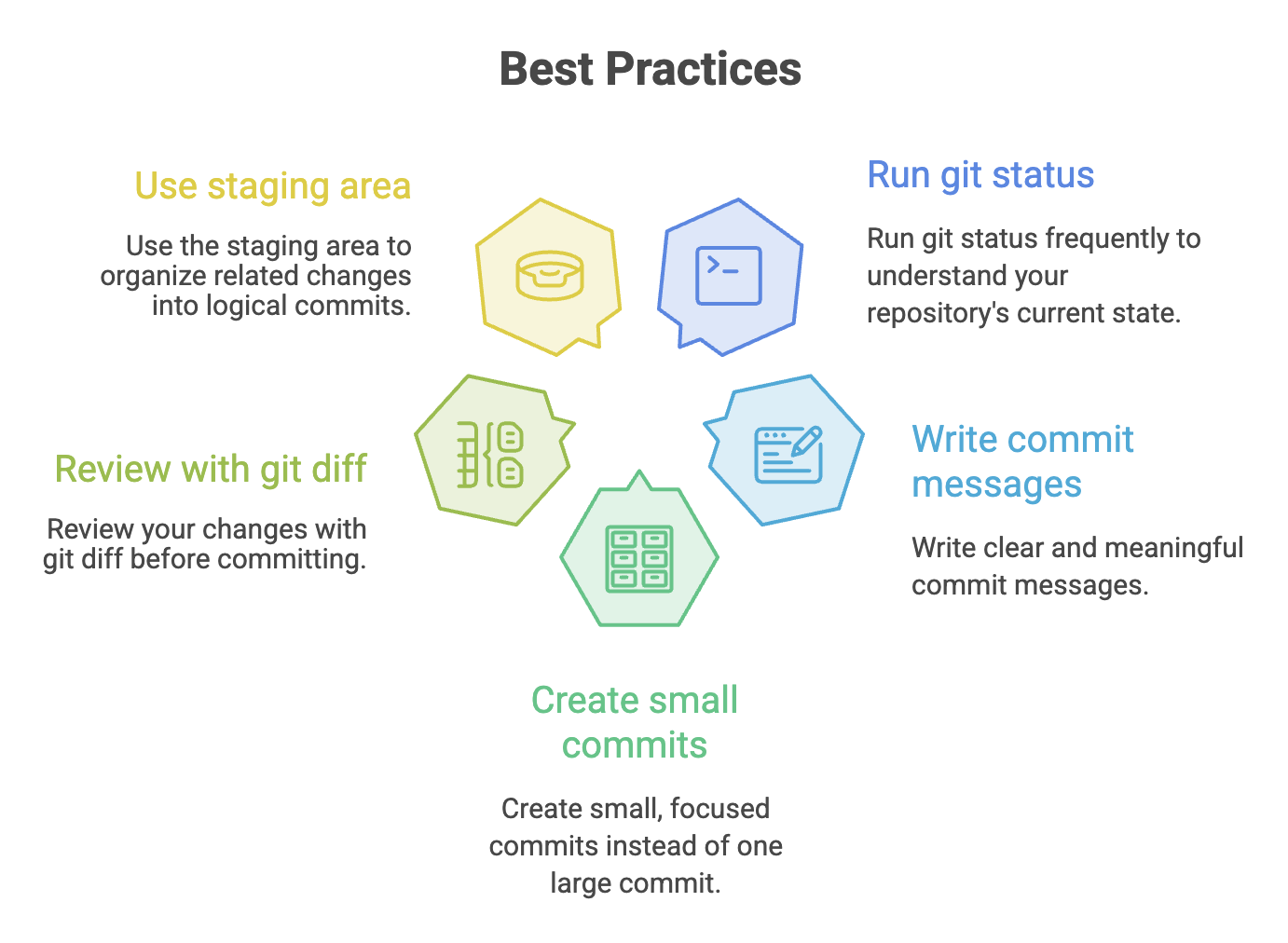
git status | Display the current state of the repository |
git add <file> | Stage a specific file |
git add . | Stage all new and modified files |
git commit -m "message" | Create a commit with a descriptive message |
git commit -a -m "message" | Automatically stage modified tracked files and commit them |
git log | View the complete commit history |
git diff | Show unstaged changes |
git diff --staged | Show staged changes before committing |
git rm --cached <file> | Stop tracking a f |
Written By: Muskan Garg
How is this guide?
Last updated on