
Understanding Git Repository & Workflow
After installing and configuring Git, the next step is understanding how Git organizes, tracks, and stores changes in your project.
Unlike a traditional file system that simply saves the latest version of a file, Git maintains a complete history of every committed change. This allows you to compare versions, restore previous states, and collaborate with other developers confidently.
To understand how Git works, you first need to understand what a Git repository is and how changes move through Git's workflow.
What is a Git Repository?
A Git repository (or simply Git repo) is a project that Git tracks and manages.
Once a project becomes a Git repository, Git starts recording its history, allowing you to save snapshots of your work, track changes over time, and collaborate with others.
A Git repository consists of two main parts:
- Working Directory – The project files you create and modify.
- Git Database (
.git) – A hidden directory where Git stores the project's complete history and metadata.
In simple words,
A Git repository is your project along with the hidden
.gitfolder that enables Git to manage version control.
Understanding Git's Three Stages
Git doesn't immediately save every change you make. Instead, it moves changes through three stages before they become a permanent part of your project's history.
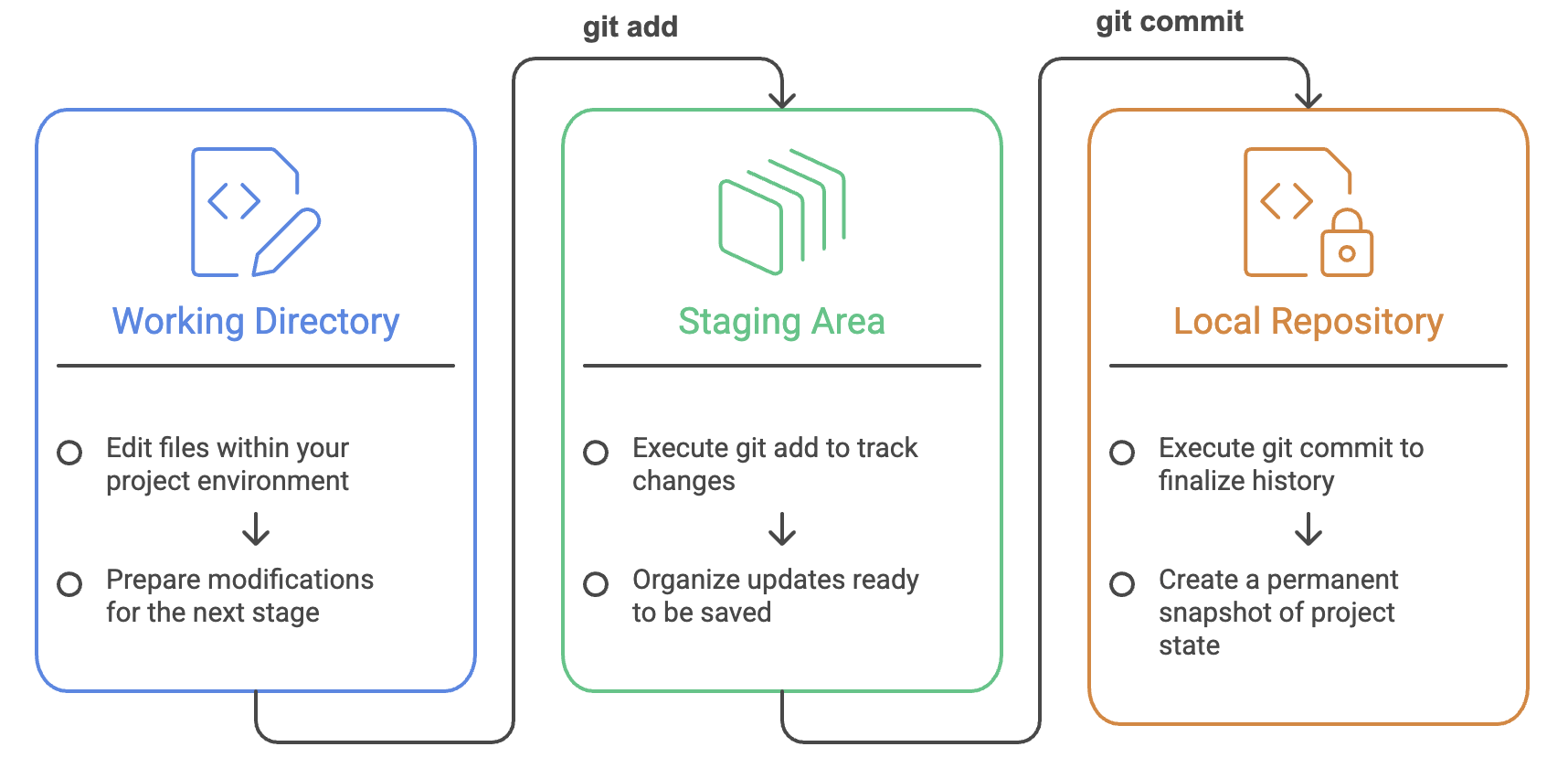
Let's understand each stage in detail.
1. Working Directory
The Working Directory is the project folder where you actively write and modify your code.
Every action you perform starts here, such as:
- Creating new files
- Editing existing files
- Deleting files
- Renaming files
At this stage, Git knows that changes exist, but they are not yet prepared for a commit.
Example
Suppose your project contains:
Calculator/
├── index.html
├── style.css
└── script.js
If you modify script.js, the change exists only in the Working Directory until you explicitly tell Git to track it.
2. Staging Area
The Staging Area (also called the Index) is a temporary holding area where you choose which changes should be included in the next commit.
Instead of committing every change immediately, Git lets you review and organize them before creating a snapshot.
You move changes into the staging area using:
git addWhy is the Staging Area useful?
Imagine you've made two changes:
- Fixed a bug
- Added a new feature
You may want to commit only the bug fix first and save the feature for later.
The staging area allows you to decide exactly what goes into each commit.
3. Local Repository (Commit History)
The Local Repository stores the complete history of your project.
When you commit your staged changes, Git creates a permanent snapshot of the project.
git commitEach commit becomes a version that you can:
- Revisit
- Compare
- Restore
- Share with other developers
Think of each commit as a checkpoint in your project's timeline.
Creating a Git Repository
Before Git can track your project, you need to initialize a repository.
Initialize a New Repository
git initThis command initializes your project as a Git repository by creating a hidden .git directory that Git uses to store all version control information.
Example:
MyProject/
├── .git/
├── index.html
└── app.js
Without this folder, Git cannot track your project.
Example output:
Initialized empty Git repository in /project/.git/Initialize with a Custom Default Branch
Modern repositories usually use main as the default branch.
Instead of creating master, you can directly initialize with:
git init -b mainThis creates the repository with main as the initial branch.
Checking Repository Status
One of the most frequently used Git commands is:
git statusIt shows the current state of your repository.
Specifically, it tells you:
- Which files are modified
- Which files are staged
- Which files are untracked
- Whether your working directory is clean
Example:
modified: app.js

Untracked files:
notes.txt
Since git status provides a complete overview of your repository, it is one of the most frequently used Git commands. Experienced developers often run it before staging files or creating a commit.
Understanding the .git Folder
The most important part of every Git repository is the hidden .git directory. Although you rarely interact with it directly, this folder acts as Git's internal database.
Whenever you execute commands such as:
git commitgit checkoutgit branchgit mergegit log
Git reads information from this folder.
Think of the
.gitfolder as the brain of your repository. Your project files contain the code, while the.gitfolder contains everything Git knows about that code.
What's Inside the .git Folder?
Although Git manages this directory automatically, understanding its contents helps you understand how Git works internally.
| Component | Purpose |
|---|---|
| Objects | Stores commits, files (blobs), directories (trees), and tags. This is where Git keeps the actual history of your project. |
| References (Refs) | Stores pointers to branches, tags, and remote branches. Instead of remembering commit hashes, Git uses references to locate commits. |
| Configuration | Contains repository-specific settings inside the .git/config file, such as remotes and repository preferences. |
| Commit History | Stores every commit created in the repository, including its unique ID, author, timestamp, and snapshot. |
| Branches | Maintains information about all local branches and their latest commits. |
| Metadata | Stores internal information such as the HEAD pointer, staging index, logs, hooks, and other repository metadata required by Git. |
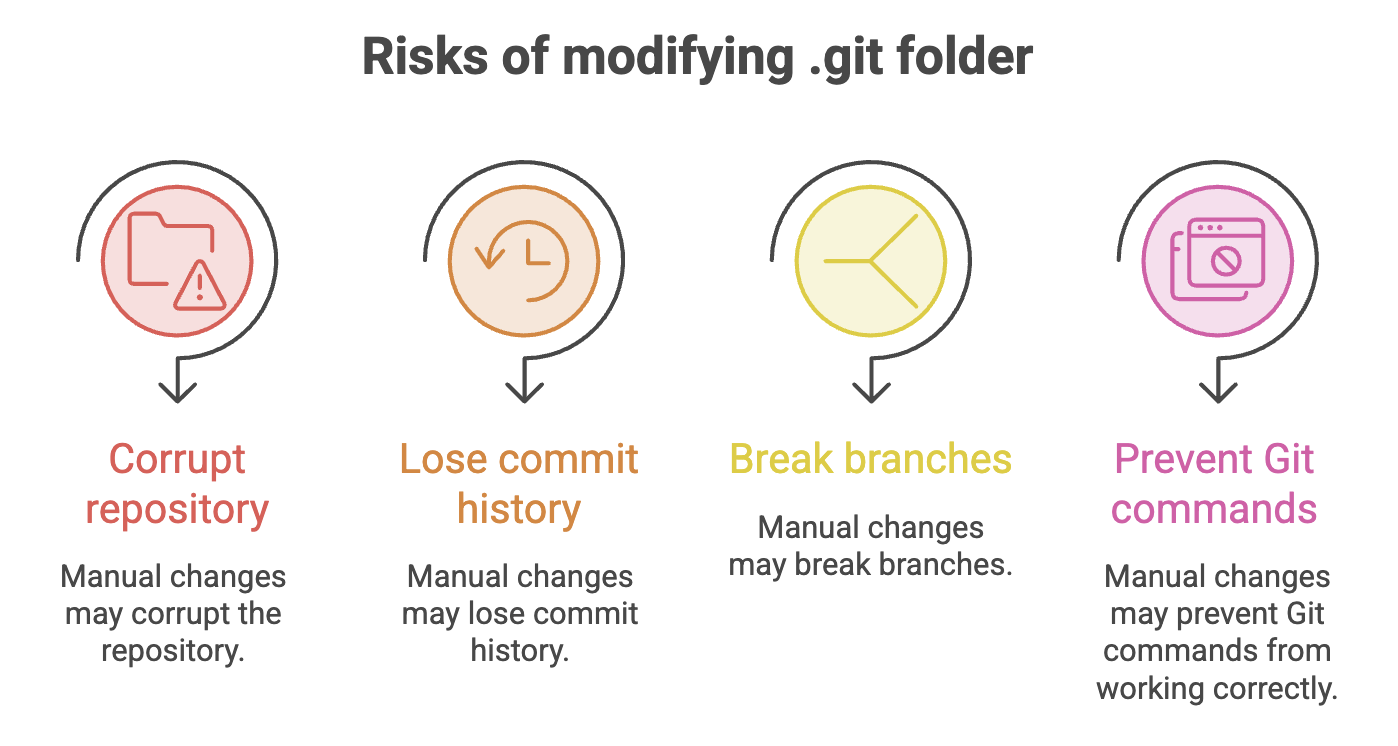
Important: Never modify or delete files inside the
.gitdirectory manually. Git manages this folder automatically, and changing its contents may corrupt your repository or permanently lose project history.
How Git Identifies Changes
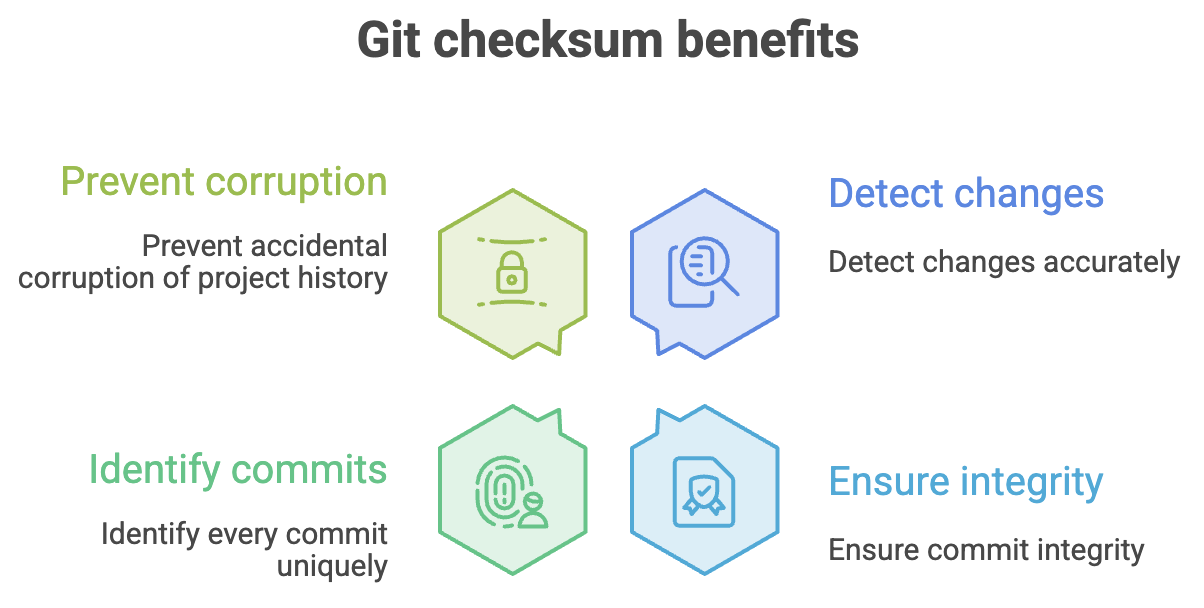
To reliably track every version of a project, Git assigns a unique identifier to every commit. This identifier, known as a checksum, is generated using the SHA-1 hashing algorithm.
Whenever you create a commit, Git generates a 40-character hexadecimal SHA-1 hash that uniquely identifies that snapshot of your project.
- Git's checksum changes whenever the contents of a commit change.
- Even modifying a single character in a file produces a completely different checksum.
Example:
fd914d5319d3aeb39c14c4f7da6501dd666b3ea3Since the full hash is long, Git usually displays only the first seven characters:
fd914d5These first seven characters are normally enough to identify a commit uniquely.
Summary
- A Git repository is a project that Git tracks and manages.
- Running
git initconverts a project into a Git repository by creating the hidden.gitdirectory. - The
.gitfolder stores commits, branches, references, configuration, and all repository metadata. - Git manages changes through three stages:
- Working Directory
- Staging Area
- Local Repository
- The Staging Area allows you to selectively choose which changes should be included in a commit.
- Every commit is uniquely identified using a SHA-1 hash, ensuring reliable version tracking.
- The
git statuscommand provides a quick overview of your repository's current state and is one of the most frequently used Git commands.
Written By: Muskan Garg
How is this guide?
Last updated on