
Running the UI
Overview
The Spring AI UI project is a React-based web application designed to compare responses from multiple AI models simultaneously. It provides a user-friendly interface that communicates with a Spring Boot backend, which handles connections to different Large Language Models (LLMs) through the Spring AI framework.
React UI (Frontend)          Spring Boot Backend          AI Models
   Port: 5173      ------>    Port: 80/8080     ------>   OpenAI
                                                ------>   Anthropic (Claude)
                                                ------>   Ollama (Local)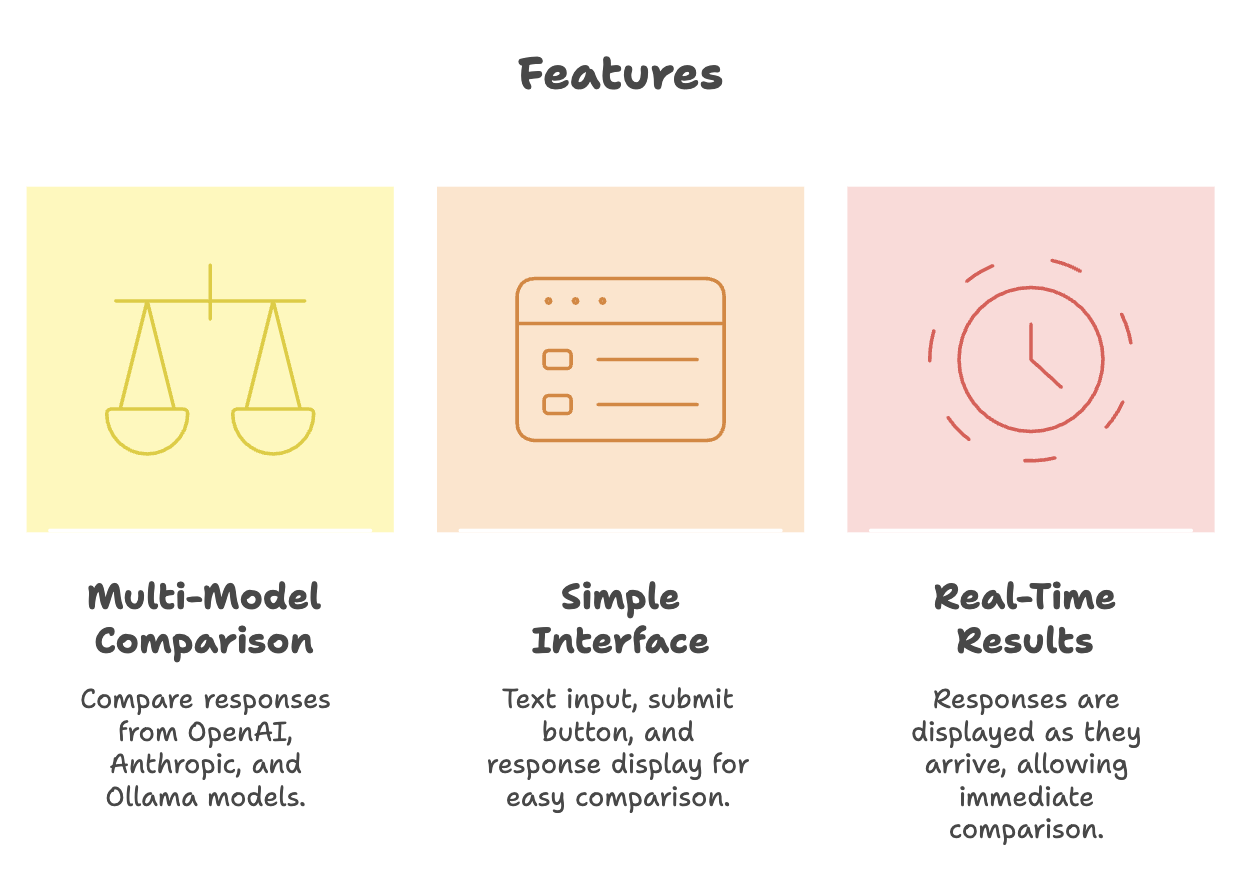
Prerequisites
Before running the UI, ensure you have the following installed:
| Requirement | Purpose | Verification Command |
|---|---|---|
| Node.js | JavaScript runtime for React | node --version |
| npm | Package manager for dependencies | npm --version |
| Git | Version control for cloning repository | git --version |
Note: Ensure your Node.js and npm versions are up-to-date (later than the versions specified in the tutorial).
Project Setup
Step 1: Clone the Repository
git clone <repository-url>
cd llm-comparison-ui
Github UI Link : llm-comparson-ui
Step 2: Install Dependencies
Navigate to the project folder and install required packages:
npm installWhat this does: Downloads all dependencies specified in package.json, including React libraries and required modules.
Step 3: Start the Development Server
Run the React development server:
npm run devExpected Output: The development server starts, typically on http://localhost:5173.
Step 4: Access the Application
Open your browser and navigate to the URL displayed in the terminal (usually http://localhost:5173).
UI Functionality
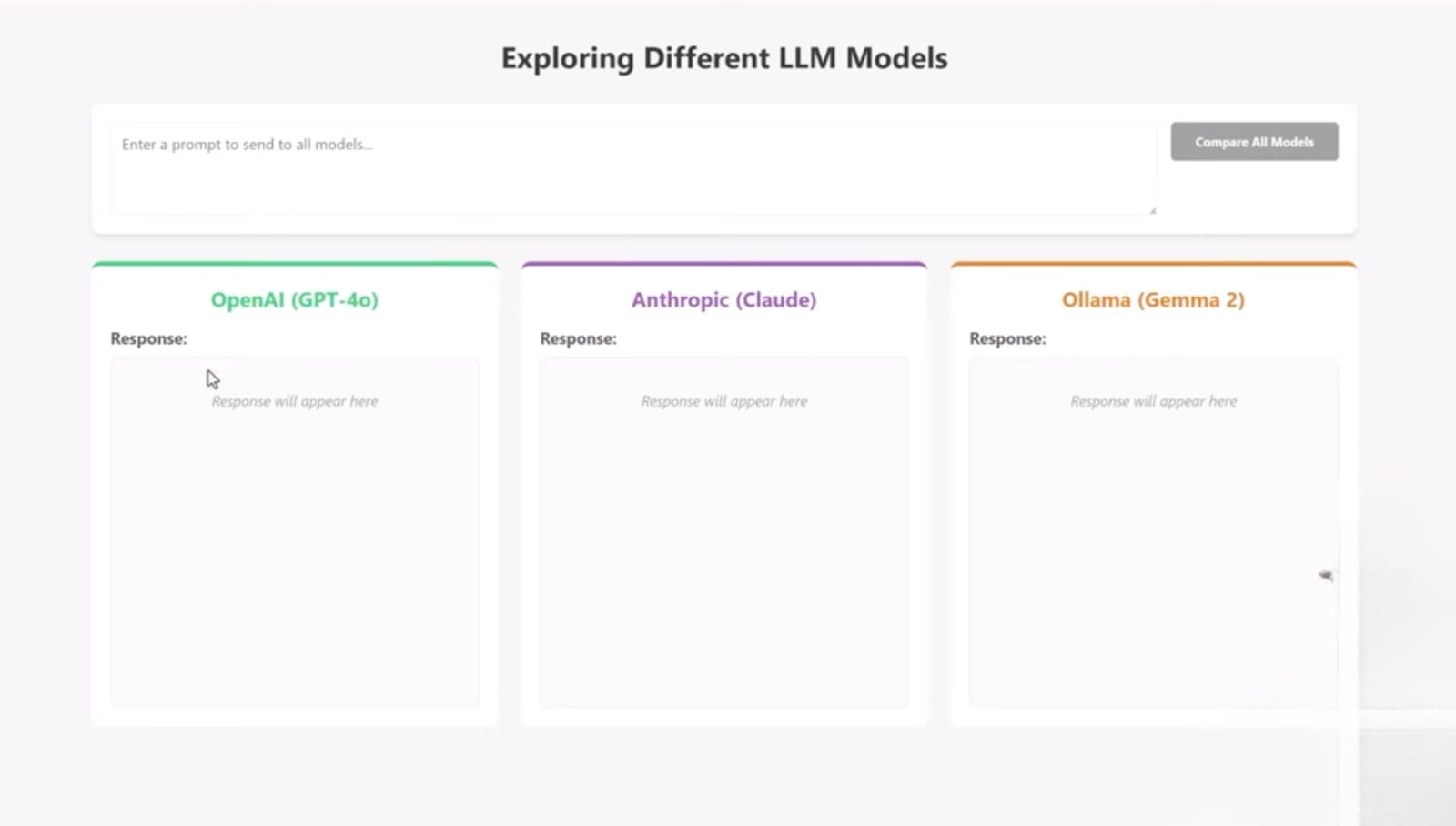
The React UI provides:
1. Input Field
- User enters a prompt
2. Submit Button
- Sends request to backend
3. Compare Models Feature
A “Compare All Models” button:
-
Sends the same prompt to multiple AI models:
- OpenAI
- Anthropic
- Ollama (local model)
4. Display Output
- Responses from each model are displayed on the UI
Project Structure
Key Files and Components
llm-comparison-ui/
├── src/
│   ├── app.jsx          # Main application logic and UI components
│   ├── components/      # Reusable React components
│   └── ...
├── public/
│   └── index.html       # HTML page for component loading
├── package.json         # Project dependencies and scripts
└── README.md
Core Component: app.jsx
Located in the src folder, app.jsx contains:
- UI Building Logic: Constructs the interface elements
- Request Management: Handles communication with the backend
- Model Comparison Logic: Manages requests to multiple AI models
How It Works?
User Interaction Flow
- User Input: Enter a prompt in the text field
- Submit Request: Click the "Compare All Models" button
- Backend Processing: UI sends requests to Spring Boot backend endpoints
- Model Invocation: Backend uses Spring AI to connect with different LLMs
- Response Display: Results from all models are displayed side-by-side
Backend Endpoints
The UI communicates with three different model endpoints:
| Endpoint | Model Provider | URL Pattern |
|---|---|---|
| OpenAI | OpenAI API | http://localhost:80/api/openai |
| Anthropic | Claude Models | http://localhost:80/api/anthropic |
| Ollama | Local Models | http://localhost:80/api/ollama |
Request Handling
When you submit a prompt, the handleSubmit function sends requests to:
- Local:80/api/openai - OpenAI endpoint
- Local:80/api/anthropic - Anthropic (Claude) endpoint
- Local:80/api/ollama - Ollama (local models) endpoint
Each request includes:
- Model Name: Identifies which specific model to use
- Prompt: The user's input text
Common Issues and Troubleshooting
Issue 1: "Site Can't Be Reached" Error
Symptom: Browser displays "This site can't be reached" when accessing the UI.
Cause: React development server is not running.
Solution:
cd llm-comparison-ui
npm install
npm run dev
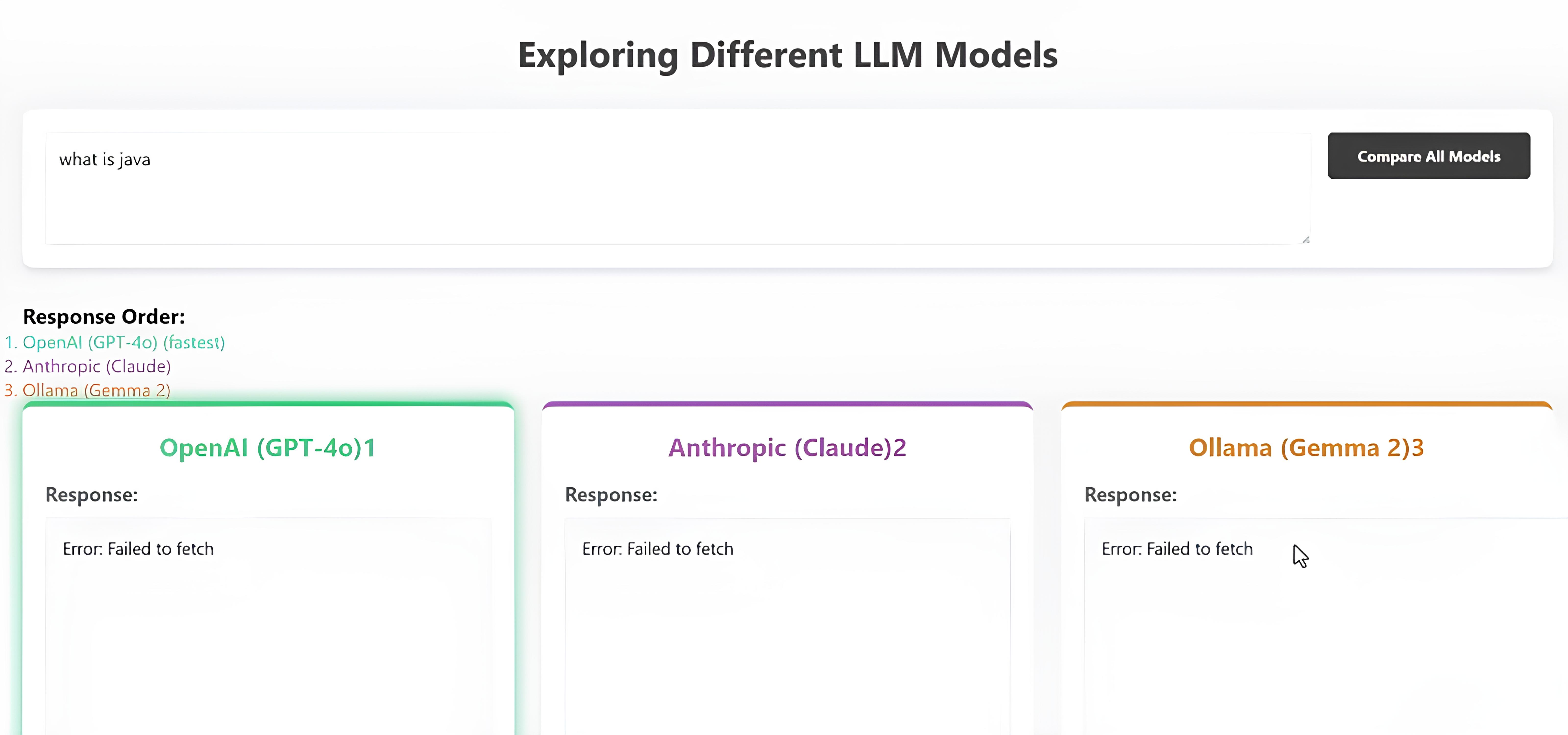
Issue 2: "Failed to Fetch" Error
Symptom: UI loads but displays "fail to fetch" error when submitting prompts.
Cause: Spring Boot backend is not running on the expected port (typically port 80 or 8080).
Solution:
- Ensure the Spring Boot backend application is running
- Verify the backend is listening on the correct port
- Check backend logs for startup errors
- Confirm backend endpoints are accessible
Issue 3: Node.js or npm Not Found
Symptom: Commands not recognized in terminal.
Cause: Node.js and npm are not installed or not in system PATH.
Solution:
- Download and install Node.js from nodejs.org
- Restart your terminal after installation
- Verify installation with
node --versionandnpm --version
Issue 4: Port Already in Use
Symptom: Error message indicating port 5173 is already in use.
Solution:
- Stop the existing process using the port, or
- Modify the port in the Vite configuration
Summary
-
The UI is a pre-built React application that interacts with a Spring Boot backend using Spring AI to send prompts and display AI-generated responses.
-
Setup involves running
npm installandnpm run dev, which installs dependencies and starts the React development server. -
The UI allows users to enter prompts and compare responses from multiple AI models (OpenAI, Anthropic, and Ollama) via backend APIs.
-
Frontend and backend must run together-if the backend is not running, the UI shows errors like “Failed to fetch”.
-
The main logic is handled in
app.jsx, where API calls are made and responses from different models are processed and displayed.
Written By: Muskan Garg
How is this guide?
Last updated on