
OpenAI and Anthropic Keys
Spring AI supports three types of AI model providers, each with different requirements and cost structures. This guide focuses on obtaining API keys for cloud-based services (OpenAI and Anthropic) while providing context on the local alternative (Ollama).
Understanding Your Options
| Provider | Type | Cost | API Key Required | Hardware Requirements | Response Quality |
|---|---|---|---|---|---|
| OpenAI | Cloud | Paid (Pay-per-use) | Yes | Minimal | High |
| Anthropic | Cloud | Paid (Pay-per-use) | Yes | Minimal | High |
| Ollama | Local | Free | No | High (runs locally) | Moderate |
Cost vs Performance Trade-offs
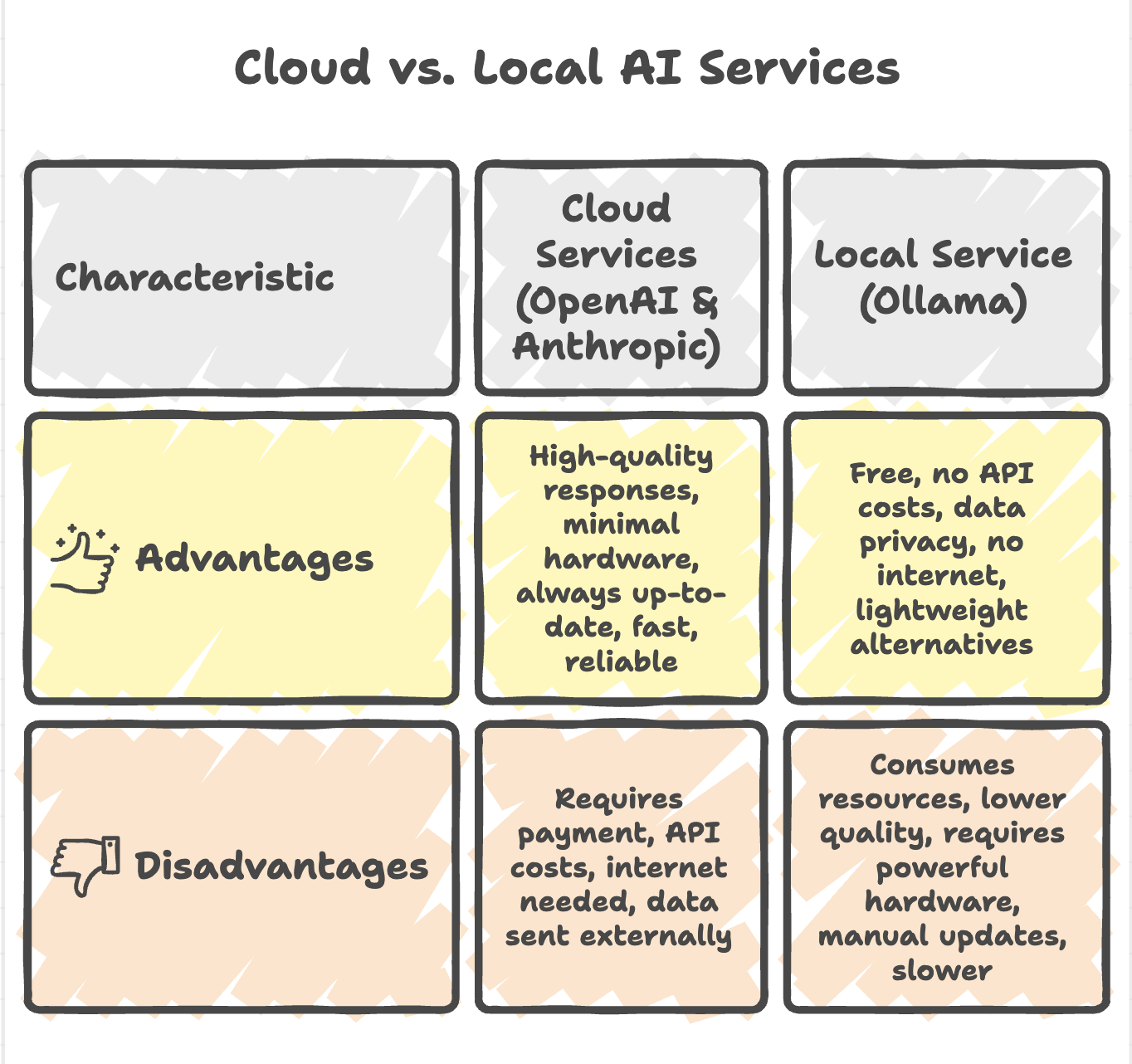
When to Use Which Service?
Use Cloud Services (OpenAI/Anthropic) When:
- Building production applications
- Need high-quality, consistent responses
- Have budget for API costs
- Working with limited local hardware
- Require latest model capabilities
- Need enterprise support
Use Ollama (Local) When:
- Prioritizing cost avoidance
- Working with sensitive/private data
- Developing/testing applications
- No internet connectivity available
- Have powerful local hardware
- Learning and experimentation
Prerequisites
Before obtaining API keys, ensure you have:
- ✅ Valid email address
- ✅ Payment method (credit/debit card) for cloud services
- ✅ Budget for API credits (recommended: $5-10 to start)
- ✅ Secure location to store API keys
OpenAI API Key Setup
Step 1: Create an OpenAI Account
- Navigate to OpenAI Platform
- Click on "Sign Up"
- Complete registration:
- Enter email address
- Create a secure password
- Verify email address
- Complete profile setup
Step 2: Access Dashboard
- Log in to your OpenAI account
- Navigate to OpenAI Dashboard
- You'll see the main dashboard interface
Step 3: Check Billing and Credits
- Click on "Billing" in the left sidebar (or Settings → Billing)
- Verify you have credits:
- New accounts may receive free trial credits
- If no credits available, add payment method
- Add Payment Method (if needed):
- Click "Add payment method"
- Enter credit/debit card details
- Set usage limits (recommended for cost control)
- Purchase Credits (recommended):
- Minimum: $5 for initial testing
- Recommended: $10-20 for project development
- Credits don't expire for active accounts
Step 4: Create API Key
- Navigate to "API Keys" section:
- Click on "API Keys" in left sidebar
- Or go to Settings → API Keys
- Click "Create new secret key" button
- Configure Key Settings:
- Name: Enter descriptive name (e.g., "Spring AI Demo", "Production App")
- Project: Select "Default project" or specific project
- Permissions: Choose appropriate permissions:
- All (for full access)
- Read-only (for monitoring)
- Restricted (custom permissions)
- Recommended: Start with "All" for development
- Click "Create secret key"
Step 5: Save Your API Key
⚠️ CRITICAL: You can only view the API key once!
- Copy the generated key immediately
- Format:
sk-proj-...(starts with sk-) - Length: Long alphanumeric string
- Format:
- Store securely:
- Password manager (recommended)
- Environment variables
- Secure notes application
- Never share or commit to version control
Example API Key Format:
sk-proj-aBcDeFgHiJkLmNoPqRsTuVwXyZ123456789Step 6: Verify API Key (Optional)
Test your API key using curl:
curl https://api.openai.com/v1/models \
  -H "Authorization: Bearer YOUR_API_KEY"
Successful response confirms key is active.
Anthropic API Key Setup
Step 1: Create Anthropic Account
- Navigate to Anthropic Console
- Click on "Sign Up" or "Get Started"
- Complete registration:
- Enter email address
- Create secure password
- Verify email address
- Complete profile information
Step 2: Access Dashboard
- Log in to your Anthropic account
- Navigate to Anthropic Dashboard
- You'll see the main console interface
Step 3: Check Credits
- Go to "Settings" (gear icon or menu)
- Navigate to "Billing" or "Credits" section
- Verify you have credits:
- New accounts may receive trial credits
- Check credit balance
- Add Credits (if needed):
- Click "Add credits" or "Billing"
- Enter payment information
- Purchase credit package
- Recommended: Start with $5-10
Step 4: Create API Key
- Navigate to "API Keys" section:
- Click on "API Keys" in dashboard
- Or go to Settings → API Keys
- Click "Create Key" button
- Configure Key Settings:
- Project: Select "Default project" or create new project
- Name: Enter descriptive name (e.g., "Spring AI Project", "Claude Integration")
- Permissions: Set as needed (usually default is fine)
- Click "Create Key" or "Generate"
Step 5: Save Your API Key
⚠️ CRITICAL: You can only view the API key once!
- Copy the generated key immediately
- Format:
sk-ant-...(starts with sk-ant-) - Length: Long alphanumeric string
- Format:
- Store securely:
- Password manager (recommended)
- Environment variables
- Secure notes application
- Never share or commit to version control
Example API Key Format:
sk-ant-api03-aBcDeFgHiJkLmNoPqRsTuVwXyZ123456789Step 6: Verify API Key (Optional)
Test your Anthropic API key using curl:
curl https://api.anthropic.com/v1/messages \
  -H "x-api-key: YOUR_API_KEY" \
  -H "anthropic-version: 2023-06-01" \
  -H "content-type: application/json" \
  -d '{"model":"claude-3-haiku-20240307","max_tokens":100,"messages":[{"role":"user","content":"Hello"}]}'
Testing API Keys
Test OpenAI Key:
curl https://api.openai.com/v1/chat/completions \
  -H "Content-Type: application/json" \
  -H "Authorization: Bearer $OPENAI_API_KEY" \
  -d '{
    "model": "gpt-3.5-turbo",
    "messages": [{"role": "user", "content": "Hello"}],
    "max_tokens": 50
  }'
Test Anthropic Key:
curl https://api.anthropic.com/v1/messages \
  -H "x-api-key: $ANTHROPIC_API_KEY" \
  -H "anthropic-version: 2023-06-01" \
  -H "content-type: application/json" \
  -d '{
    "model": "claude-3-haiku-20240307",
    "max_tokens": 50,
    "messages": [{"role": "user", "content": "Hello"}]
  }'
Summary
-
Spring AI integrates Java applications with AI models by connecting to either cloud providers (OpenAI, Anthropic) or local models (Ollama).
-
Cloud-based AI services require API keys, account setup, and credits, offering high-quality performance and scalability, but involve usage costs.
-
Local models like Ollama run on your machine without API keys or payment, providing better privacy and cost savings, but requiring strong hardware and offering comparatively lower performance.
-
API keys are critical for authentication and must be handled securely, using environment variables and avoiding exposure in source code or version control systems.
-
Choosing the right AI provider depends on use case priorities such as performance (cloud), cost (local), and data privacy (local vs cloud), while monitoring usage and costs is essential for cloud services.
Written By: Muskan Garg
How is this guide?
Last updated on