
Essential Slash Commands
Master the commands that matter most: memory, permissions, context, compact, clear, btw, model and effort, with clear guidance on when to use each.
Let us go through the commands that you will use almost every day. They fall into four groups: memory and permissions, context management, models and effort, and a few handy extras.
Memory and permissions
/memory
/memoryOpens a menu to edit your user CLAUDE.md, the project CLAUDE.md, and to browse or toggle auto memory. Select a file and it opens in your editor. Make your changes, save, and close the editor to return to Claude Code.
If Claude Code looks frozen after you open a memory file, it is usually waiting for you to close the editor tab or window. Close it and your prompt comes back.
/permissions
/permissionsShows every permission rule and which settings file it comes from. From here you can:
- See the allow rules created when you chose "Yes, and don't ask again"
- Add new allow, ask or deny rules
- Manage additional working directories
On a fresh project this list is almost empty. It fills up as you approve commands.
Context management
This is the most important group. Managing context well saves money and keeps Claude accurate.
What is the context window?
Every time you send a message, Claude does not just see that one message. It sees the whole conversation so far, plus files it has read, command outputs, your CLAUDE.md, loaded skills and Claude Code's own system instructions. All of that together is the context, and every model has a maximum size called the context window.
The latest Claude models support context windows of up to 1 million tokens. That sounds huge, but two things matter:
- Everything in context costs tokens on every request
- Quality drops as the window fills. The official best practices put it simply: when the context is getting full, Claude may start forgetting earlier instructions or making more mistakes
You have probably seen this in a long chat with any AI assistant: after a very long conversation, it starts insisting on things that are simply wrong. That is the same effect.
/context
/contextShows the current context usage as a coloured grid, broken down by category:
| Category | What it is |
|---|---|
| System prompt | Claude Code's built-in instructions |
| System tools | Definitions of the tools Claude can use |
| Memory files | Your CLAUDE.md files and auto memory |
| Skills | Short descriptions of available skills |
| Messages | The actual conversation |
| Free space | What is left |
Even in a fresh session, a part of the window is already used by the system prompt, tools and memory files. That is normal.
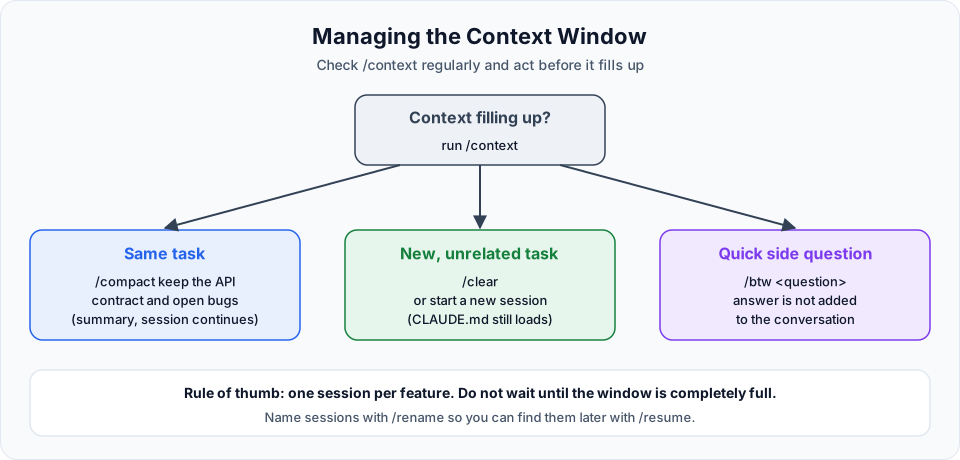
/compact: same task, less context
When you are still working on the same task but the context is getting large, compact it:
/compactClaude summarises the conversation so far and replaces the long history with the summary. The session continues with much more free space.
The risk is that the summary might drop something important. So tell it what to keep:
/compact Keep the API contract decisions, the list of files we changed, and the open bug in task deletion.Claude Code also compacts automatically when the window gets close to full. You can still compact earlier yourself, with your own focus instructions, to stay in control of what is kept.
/clear: new task, fresh start
When you move to a different task, you do not need the old conversation at all:
/clearThis starts a new conversation with an empty context. Your CLAUDE.md still loads, because it is loaded at the start of every conversation. The old conversation is not deleted. You can return to it with /resume.
/btw: side questions that do not pollute context
Want to ask something unrelated, like what a library function does, without adding it to your working conversation?
/btw what is the difference between Pydantic v1 and v2 config?The answer is shown to you but not added to the conversation history.
A simple strategy
| Situation | What to do |
|---|---|
| Starting a new feature | New session, or /clear |
| Same feature, context getting large | /compact with focus instructions |
| Quick unrelated question | /btw |
| Want to know where you stand | /context |
The best habit of all: one session per feature. Break the project into features and give each one its own session.
Models and effort
/model
/model| Model | Best for | Cost |
|---|---|---|
| Haiku | Simple edits, quick lookups, fast answers | Lowest |
| Sonnet | Daily coding work, the balanced choice | Medium |
| Opus | Architecture, planning, hard debugging | Highest |
A practical way to combine them:
- Plan the feature with Opus
- Implement it with Sonnet once the plan and instructions are clear
- Use Haiku for small, well-defined follow-up tasks
There is also a special alias that does this for you:
/model opusplanopusplan uses Opus while you are in plan mode and Sonnet when Claude executes. It does not appear as a separate row in the picker list, so type it directly.
/effort
Inside the /model picker, use the left and right arrow keys to change the effort level, or set it directly:
/effort highThe levels, from least to most thinking:
| Level | Use it for |
|---|---|
low | Short, scoped, latency-sensitive tasks |
medium | Everyday work with lower token use |
high | A good balance of intelligence and token use |
xhigh | Complex coding and long agentic work |
max | The most demanding problems. Highest token use, applies to the current session only |
Not every model supports every level
xhigh is only available on newer models, and Haiku does not support effort at all. If you pick a level the model does not support, Claude Code uses the nearest supported level below it. In the video, max and xhigh were briefly mixed up. The correct order is the one in the table: max is the highest.
Official references
- Commands reference
- Explore the context window
- Best practices: manage context
- Model configuration
- Manage costs effectively
Written By: Shramik Masti
How is this guide?
Last updated on