
Linux Root User, sudo & su
What Is the Root User?
The root user is the superuser account in Linux. It has extensive administrative privileges to manage the system, including installing software, modifying system configurations, managing user accounts, and accessing protected files.
When connecting to a Linux server, such as an Ubuntu EC2 instance, you typically log in as a regular user (for example, ubuntu). This account has limited privileges to help protect the system from accidental or unauthorized changes.
Some administrative operations therefore require elevated privileges.
Understanding Permission Denied
Consider running the following command as a regular user:
apt updateIf the user does not have the required privileges, the command may fail with a permission error.
The apt update command refreshes the local package index, which requires administrative privileges because it updates system-managed package information.
You can run it with sudo instead.
What Is sudo?
sudo allows an authorized user to execute a command with elevated privileges, commonly as the root user.
The name is commonly expanded as Superuser Do.
Syntax
sudo commandExample
sudo apt updateHere is what happens:
sudorequests permission to run the command with elevated privileges.- You may be prompted to enter your own user's password, depending on the system's configuration.
- If authorized, the command executes with the requested privileges.
- Your current login session remains under your regular user account.
Verify your user afterward:
whoamiExample output:
ubuntuKey point: sudo elevates privileges for a command without permanently switching your terminal session to root.
What Is su?
The su command stands for Switch User. It allows you to switch to another user account in the current terminal session.
1. Switch to the Root User
su -This attempts to start a root login shell. On many systems, you must provide the root account's password.
On Ubuntu, the root account is commonly locked for direct password-based login by default. If your account has permission to use sudo, you can start a root shell with:
sudo suAlternatively, the following command is commonly preferred for starting a root login shell:
sudo -i2. Verify the Current User
Use whoami to check which account is active:
whoamiExample output after switching to root:
rootYour terminal prompt may also change, often ending in # instead of $. However, prompt appearance depends on the shell configuration, so use whoami when you need to confirm the current user.
3. Exit the Root Session
When you finish your administrative work, run:
exitThis closes the root shell and returns you to the previous user session.
You can verify this with:
whoamiExample output:
ubuntusudo vs su vs sudo su
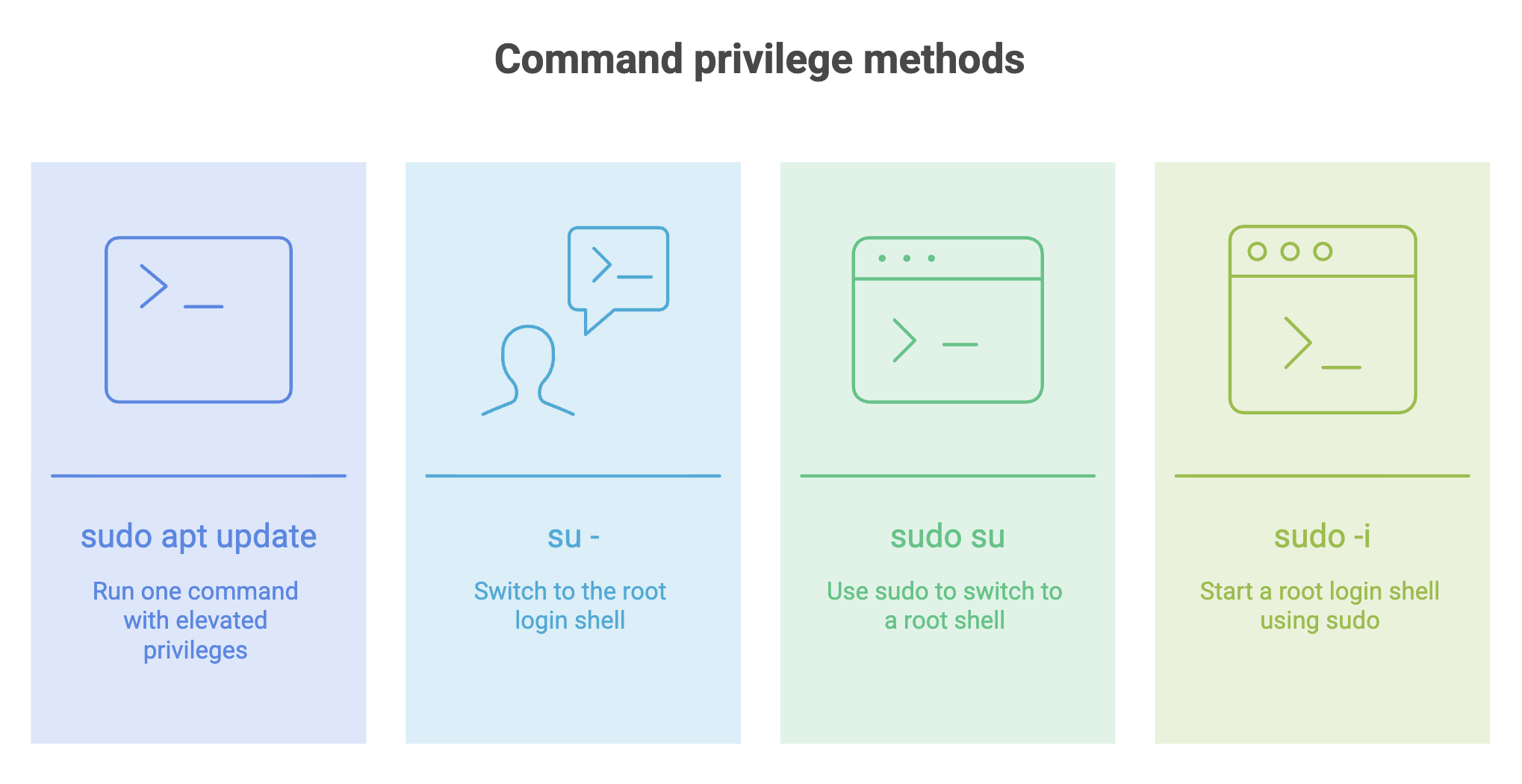
For routine administration, prefer
sudofor individual commands. Use a root shell only when you need to execute several administrative commands and understand the risks.
Best Practices
- Use least privilege: Run commands with elevated privileges only when necessary.
- Prefer
sudofor individual tasks: It reduces the chance of accidentally running unrelated commands as root. - Be careful with destructive commands: Commands executed as root can modify or delete important system files.
- Verify your identity: Run
whoamiif you are unsure which user is active. - Exit when finished: Leave the root shell with
exitas soon as your administrative work is complete.
Summary
- The root user has extensive administrative privileges across the Linux system.
sudoruns an authorized command with elevated privileges while keeping your current user session unchanged.suswitches to another user;su -starts a login shell for that user.sudo suandsudo -ican provide a root shell when the current user is authorized.- Use
whoamito identify the current user andexitto leave a shell session.
Remember: Use sudo for individual administrative commands whenever possible, and avoid remaining in a root shell longer than necessary.
Written By: Muskan Garg
How is this guide?
Last updated on