
Linux File Permissions - Symbolic Mode
Linux is a multi-user operating system where multiple users and applications may access the same system. File permissions control who can read, modify, or execute files and who can access directories.
They help protect sensitive data, prevent unauthorized changes, and maintain control over system resources.
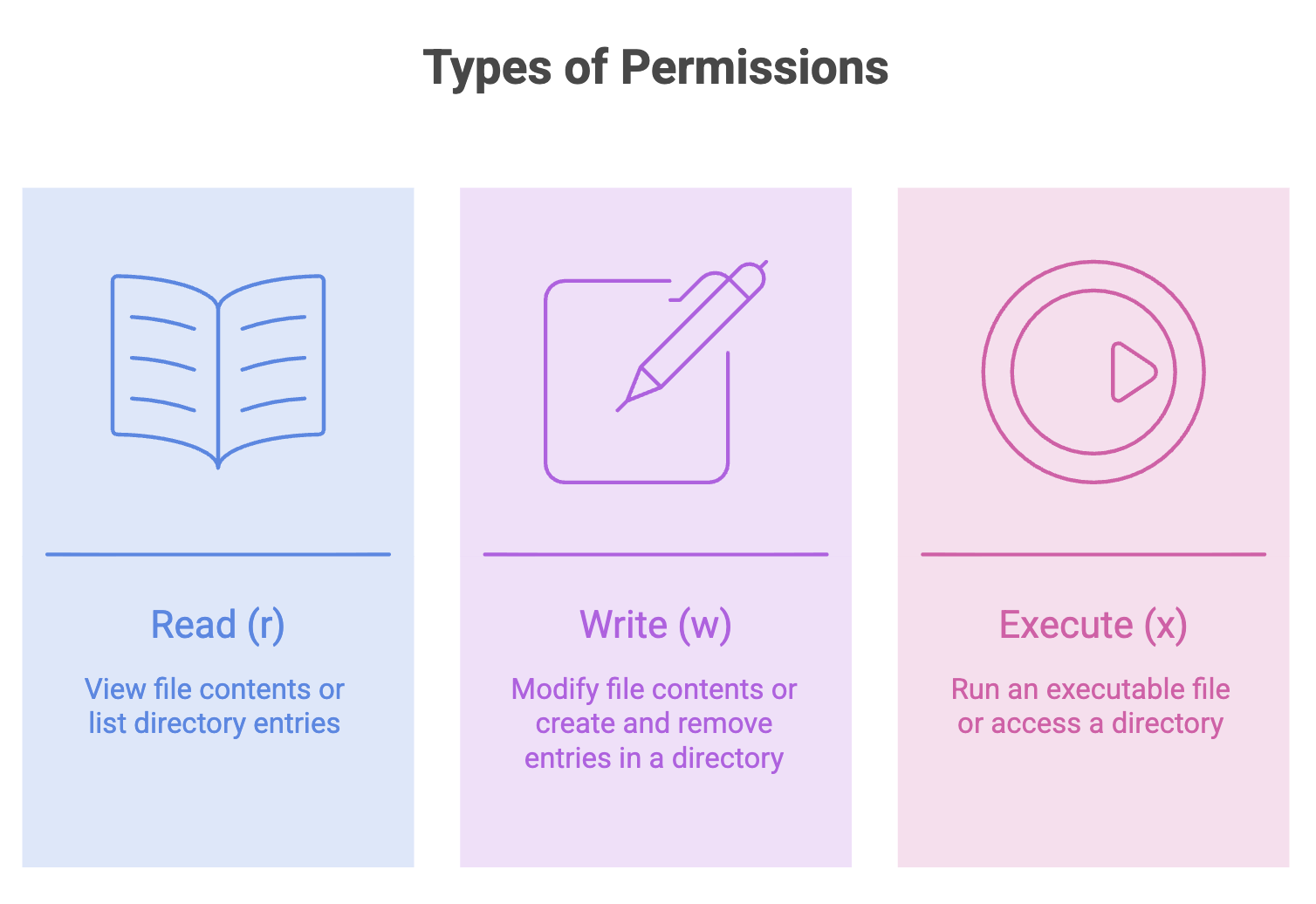
Important: For directories, x means search or traverse permission. It allows a user to access entries inside the directory when the necessary permissions are available.
Categories of Users
Permissions are assigned to three categories:
| Category | Symbol | Description |
|---|---|---|
| Owner (User) | u | The user who owns the file |
| Group | g | Users belonging to the file's associated group |
| Others | o | Everyone who is neither the owner nor a member of the associated group |
Linux evaluates these categories when determining whether a user can perform an operation on a file or directory.
Understanding Permission Strings
Run ls -l to view file permissions and other details.
ls -lExample output:
-rw-rw-r-- 1 ubuntu ubuntu 120 Oct 11 10:30 ai.txtThe permission string is -rw-rw-r--. It contains ten characters.
| Position | Example | Meaning |
|---|---|---|
| 1 | - | File type: - means regular file; d means directory |
| 2–4 | rw- | Owner permissions |
| 5–7 | rw- | Group permissions |
| 8–10 | r-- | Others' permissions |
Let's break it down:
- rw- rw- r--
  │   │   │
  │   │   └── Others: read only
  │   └────── Group: read and write
  └────────── Owner: read and write
The leading character identifies the file type. Other types may use characters such as l for a symbolic link.
More Examples
| Permission String | Owner | Group | Others |
|---|---|---|---|
-rw-rw-r-- | Read, write | Read, write | Read |
-rw-r--r-- | Read, write | Read | Read |
-rwxrw-r-- | Read, write, execute | Read, write | Read |
-rwxrwxrwx | All three | All three | All three |
Changing Permissions with chmod
The chmod command changes file or directory permissions. In this lecture, we use symbolic mode, which lets you add or remove specific permissions without replacing the entire permission set.
Syntax
chmod [who][operator][permissions] filenamewho:u(owner),g(group),o(others), ora(all categories).- Operator :
+adds permissions,-removes them, and=sets the permissions for the specified category. - Permissions :
r(read),w(write),x(execute).
Adding Permissions (+)
1. Add Execute Permission to the Owner
chmod u+x ai.txtAdds execute permission for the owner.
Before: -rw-rw-r--
After:  -rwxrw-r--
2. Add Write Permission to Others
chmod o+w ai.txtAdds write permission for users outside the owner and group categories.
Before: -rwxrw-r--
After:  -rwxrw-rw-
Be careful when granting write permission to others, as it allows those users to modify the file.
3. Add Execute Permission to the Group
chmod g+x aliens.txtAdds execute permission for the file's group.
Before: -rw-rw-r--
After:  -rw-rwxr--
Removing Permissions (-)
1. Remove Execute Permission from the Owner
chmod u-x alien.tfRemoves execute permission from the owner.
Before: -rwxrw-r--
After:  -rw-rw-r--
2. Remove Write Permission from the Group
chmod g-w alien.tfRemoves write permission from the group.
Before: -rw-rw-r--
After:  -rw-r--r--
3. Remove Read Permission from Others
chmod o-r ai.txtRemoves read permission from others while leaving the owner and group permissions unchanged.
Setting Permissions with =
The = operator sets the permissions for a specified category, replacing its previous permission set.
For example:
chmod u=r file.txtThe owner receives read permission only. Any existing owner write or execute permissions are removed.
To give the owner read and write permissions, the group read permission, and others no permissions:
chmod u=rw,g=r,o= file.txtThe resulting permission string is:
-rw-r-----Quick Reference
| Command | Action |
|---|---|
chmod u+x file | Add execute permission to the owner |
chmod u-x file | Remove execute permission from the owner |
chmod g+x file | Add execute permission to the group |
chmod g-w file | Remove write permission from the group |
chmod o+w file | Add write permission for others |
chmod o-r file | Remove read permission from others |
chmod a+r file | Add read permission for all categories |
chmod u=rw,g=r,o= file | Set exact permissions for each category |
Summary
- Linux permissions control access for the owner, group, and others.
- The three basic permissions are read (
r), write (w), and execute (x). - Use
ls -lto inspect permissions. - Use
chmodwith symbolic mode to modify permissions. +adds permissions,-removes permissions, and=replaces permissions for the specified category.- Be cautious when granting write or execute permissions, especially to others.
Remember: File permissions help protect your Linux system. Grant only the access that users and applications actually need.
Written By: Muskan Garg
How is this guide?
Last updated on