
Kubernetes Sidecar Containers
Build a sidecar pod where a busybox app writes logs to a shared emptyDir volume and an nginx sidecar reads them, then rewrite it as a native sidecar using initContainers with restartPolicy Always.
Your application writes log files. Now the operations team wants those logs shipped to a central system, the security team wants a proxy in front of every service, and someone else wants metrics in a standard format. You could change the application code for each request. Or you could leave the application exactly as it is and attach a small helper container next to it that does the extra job. That helper is a sidecar.
The sidecar pattern
The name comes from a motorcycle sidecar. The motorcycle is the main vehicle and does the driving. The sidecar does not drive, but it travels attached to the motorcycle and adds something useful.
In Kubernetes:
- The main container runs the business application: Spring Boot, Node.js, Python, .NET, anything
- The sidecar container runs in the same pod and adds a supporting function: log collection, monitoring, a security proxy, configuration reloading
- The main application does not need to know the sidecar exists. You can add, remove or upgrade the sidecar without touching the application's code or image
Because both containers are in the same pod, they share the pod's network (localhost) and can share volumes. The sidecar pattern is the most common real use of the multi-container pods from the previous lesson.
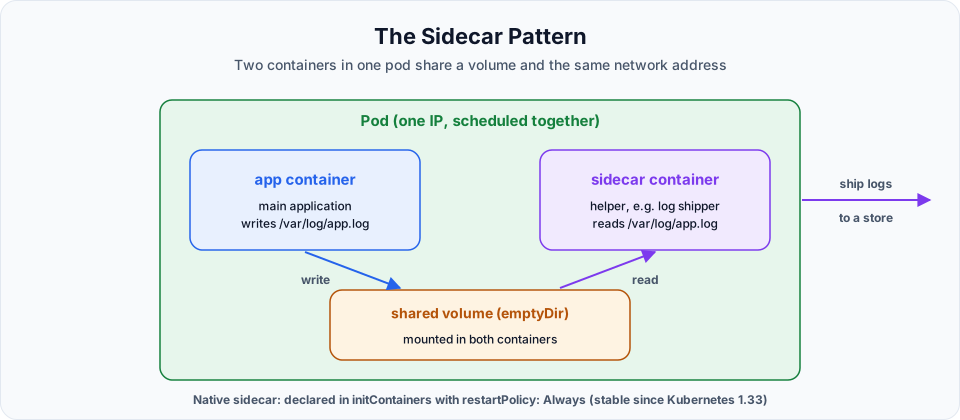
The shared volume: emptyDir
To hand files from one container to another, the demo uses an emptyDir volume:
- It is created empty when the pod is assigned to a node
- Every container that mounts it can read and write the same files, even at different paths
- It lives exactly as long as the pod. When the pod is deleted, the data is deleted too
That makes it perfect for scratch space and for passing files between containers, and wrong for anything you need to keep. Persistent storage comes later in the course with PersistentVolumes.
Step 1: The sidecar pod as shown in the lecture
To keep the demo simple, the "main application" is a busybox shell loop that writes a timestamped log line every 2 seconds, and the "sidecar" is nginx, which can serve the log file over HTTP. In production a log sidecar would forward logs to a central logging system (Fluent Bit, the CloudWatch agent and so on) rather than serve them over HTTP, but the mechanics are the same.
vi sidecar.ymlapiVersion: v1
kind: Pod
metadata:
name: sidecar-logging-pod
labels:
app: sidecar-demo
spec:
volumes:
- name: shared-logs
emptyDir: {}
containers:
- name: log-generator
image: busybox
command:
- sh
- -c
- |
while true; do
echo "$(date +%T) - Hello from telusko app main container" >> /var/log/app.log
sleep 2
done
volumeMounts:
- name: shared-logs
mountPath: /var/log
- name: sidecar-log
image: nginx:alpine
ports:
- containerPort: 80
volumeMounts:
- name: shared-logs
mountPath: /usr/share/nginx/html| Field | Meaning |
|---|---|
spec.volumes | Volumes the pod provides. Defined once, at pod level |
emptyDir: {} | An empty scratch volume with default settings |
command: [sh, -c, |...] | The | starts a YAML multi-line string, so the loop can be written over several lines |
log-generator volumeMounts | Mounts shared-logs at /var/log, so /var/log/app.log lands in the shared volume |
sidecar-log volumeMounts | Mounts the same volume at /usr/share/nginx/html, the folder nginx serves |
nginx:alpine | The small Alpine-based nginx image |
The same volume appears at two different paths in two containers. That is allowed and very common.
Step 2: Run it and look inside the sidecar
kubectl apply -f sidecar.yml
kubectl get pods
NAME READY STATUS RESTARTS AGE
sidecar-logging-pod 2/2 Running 0 20sNow open a shell in the sidecar container, not the one writing the logs:
kubectl exec -it sidecar-logging-pod -c sidecar-log -- shInside it:
ls /usr/share/nginx/html
tail -f /usr/share/nginx/html/app.log
12:37:47 - Hello from telusko app main container
12:37:49 - Hello from telusko app main container
12:37:51 - Hello from telusko app main container
...A new line every 2 seconds. The nginx container never ran that loop. The busybox container wrote the file into the shared volume, and the sidecar reads it. Press Ctrl+C, then exit.
Because nginx serves that folder, you can also fetch the log over HTTP from your EKS home server:
kubectl port-forward pod/sidecar-logging-pod 8080:80
# in a second terminal
curl -s localhost:8080/app.log | tail -3
The modern way: native sidecar containers
In the lecture both containers are listed under containers. That is the classic way to build a sidecar, and it has two known problems:
- Start order is not guaranteed. The app can start and write (or send) data before the sidecar is ready to receive it.
- Shutdown and Jobs. A classic sidecar keeps running after the main container finishes, so a Job with a log-shipping sidecar never completes.
Kubernetes solved this with native sidecar containers, which became stable in Kubernetes 1.33 (the SidecarContainers feature gate is now always on). A native sidecar is declared in initContainers with restartPolicy: Always:
apiVersion: v1
kind: Pod
metadata:
  name: sidecar-native-pod
  labels:
    app: sidecar-demo
spec:
  volumes:
    - name: shared-logs
      emptyDir: {}

  initContainers:
    - name: sidecar-log
      image: nginx:alpine
      restartPolicy: Always        # this line makes it a sidecar
      ports:
        - containerPort: 80
      volumeMounts:
        - name: shared-logs
          mountPath: /usr/share/nginx/html

  containers:
    - name: log-generator
      image: busybox
      command:
        - sh
        - -c
        - |
          while true; do
            echo "$(date +%T) - Hello from telusko app main container" >> /var/log/app.log
            sleep 2
          done
      volumeMounts:
        - name: shared-logs
          mountPath: /var/log
Classic sidecar (in containers) | Native sidecar (initContainers + restartPolicy: Always) | |
|---|---|---|
| Starts | At the same time as the app, in no particular order | Before the app containers, and the app waits until it has started |
| Keeps running | Yes | Yes, for the whole life of the pod, restarted if it crashes |
| Stops | Together with the app, in no particular order | After the app containers, in reverse order, so it can flush the last logs |
| In a Job | Blocks the Job from completing | Does not block completion |
| Kubernetes version | Any | Stable since 1.33. Our EKS cluster (1.34 or later) supports it |
A plain init container (without restartPolicy: Always) is different again: it runs to completion before the app starts and then exits. Use it for one-time setup, such as waiting for a database or downloading a file.
Apply it and check:
kubectl apply -f sidecar-native.yml
kubectl get pod sidecar-native-pod
kubectl exec -it sidecar-native-pod -c sidecar-log -- tail -3 /usr/share/nginx/html/app.log
READY shows 2/2: native sidecars are counted in the ready column. For new work, prefer the native form.
Real sidecars you will meet
| Sidecar | What it does |
|---|---|
| Fluent Bit, Fluentd | Ship application log files to CloudWatch, Elasticsearch or Loki |
| Envoy (Istio, App Mesh) | Service mesh proxy: mTLS, retries, traffic routing |
| CloudWatch agent, OpenTelemetry collector | Collect metrics and traces |
| git-sync, config reloaders | Keep files in a shared volume up to date |
Clean up
kubectl delete -f sidecar.yml
kubectl delete -f sidecar-native.yml
The emptyDir volume and its log file are deleted with the pods. If you are done for the day: eksctl delete cluster --name telusko-learning --region ap-south-1 --wait.
Try It Yourself
- Create
sidecar.yml, exec intosidecar-log, and watch the log grow withtail -f. - Exec into
log-generatorinstead and runls /var/log. Is the file there too? Why? - Delete and recreate the pod. Is the old log content still there? Explain using what you know about emptyDir.
- Create
sidecar-native.yml, runkubectl describe pod sidecar-native-pod, and find the sidecar under Init Containers. Note its state isRunning, unlike a normal init container.
Official references
Written By: Shramik Masti
How is this guide?
Last updated on
Running Multiple Containers in a Single Pod
Run nginx and busybox side by side in one pod, read each container's logs with -c, open a shell inside a specific container, and learn when putting containers together in one pod makes sense.
Running Pods on Every Node: DaemonSets
Learn why a Deployment cannot guarantee a pod on every node, create a DaemonSet that runs one pod per worker node, and see the DaemonSets EKS already runs for networking and kube-proxy.