
Path and Files
Introduction to Java NIO
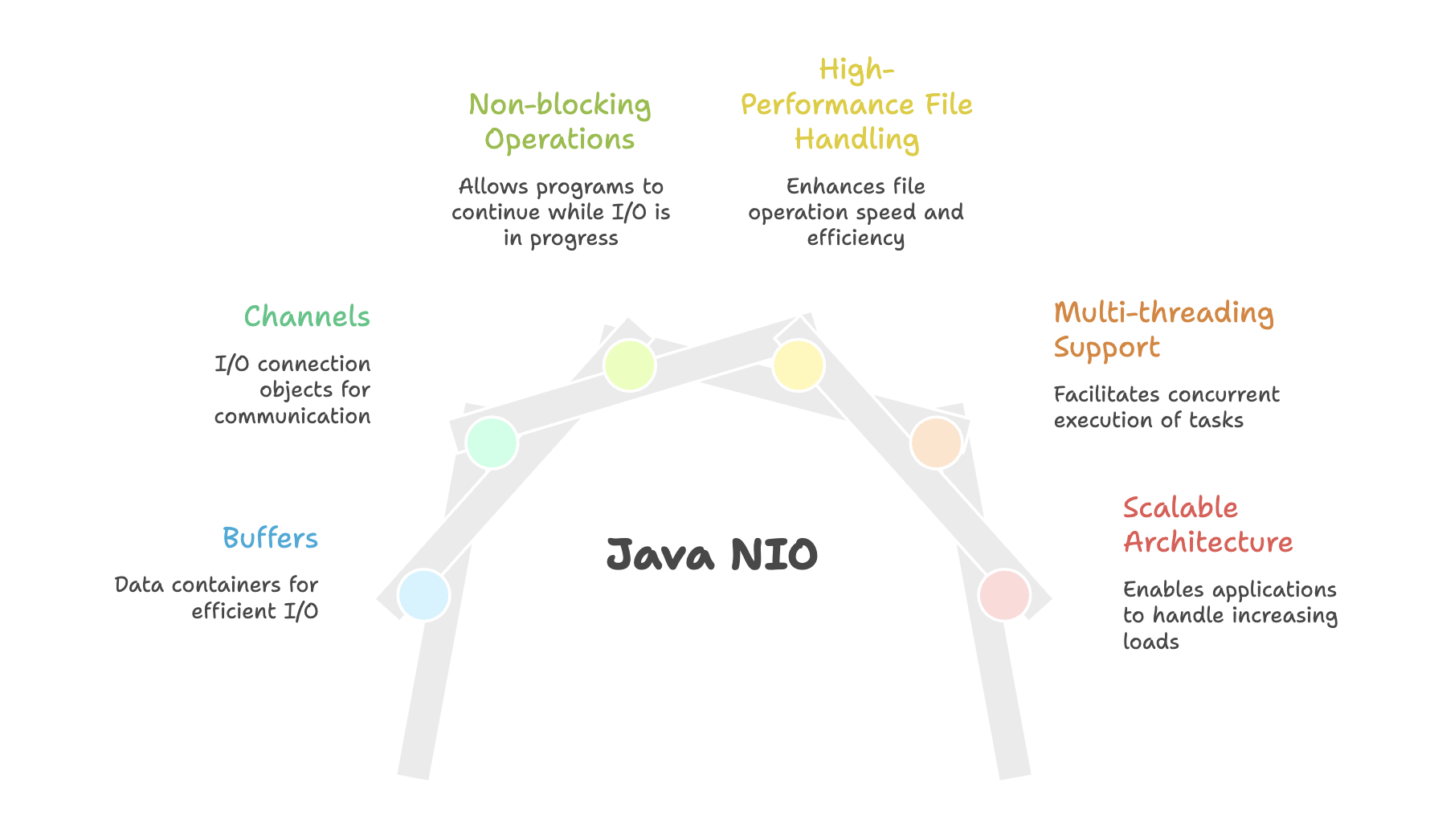
Java NIO (New I/O or Non-blocking I/O) provides a modern, high-performance alternative to the traditional java.io package for file operations.
The java.nio.file package simplifies file and directory manipulation through intuitive classes and methods that enable faster, more efficient I/O operations.
Path Interface
The Path interface represents a file or directory path in the file system. It provides an object-oriented approach to working with file paths.
Creating Path Objects:
import java.nio.file.Path;
import java.nio.file.Paths;

// Create a Path object
Path path = Paths.get("directory/file.txt");
The Paths.get() factory method creates Path objects that represent file or directory locations. These path objects are then passed to various Files class methods for performing operations.
Absolute vs Relative Path
Path absolute = Paths.get("C:/data/file.txt");
Path relative = Paths.get("file.txt");
Files Class
The Files class provides static methods for all file operations including create, read, write, copy, move, and delete operations.
Creating Directories
import java.nio.file.Files;
import java.nio.file.Path;
import java.nio.file.Paths;

Path directoryPath = Paths.get("dataset");

// Check if directory exists before creating
if (!Files.exists(directoryPath)) {
    Files.createDirectory(directoryPath);
        System.out.println("Directory created successfully");
}
Creating Files
Path filePath = Paths.get("dataset/newfile.txt");

// Check if file exists before creating
if (!Files.exists(filePath)) {
    Files.createFile(filePath);
        System.out.println("File created successfully");
}
Reading Files
Java NIO provides two primary methods for reading files, each suited for different use cases:
1. Reading All Lines (Text Files)
The Files.readAllLines(path) method returns a List<String> where each element represents one line from the file. This approach is ideal for text files that need line-by-line processing.
import java.nio.file.Files;
import java.nio.file.Path;
import java.nio.file.Paths;
import java.util.List;

Path filePath = Paths.get("dataset/file.txt");

List<String> lines = Files.readAllLines(filePath);
    // Process each line
    for (String line : lines) {
        System.out.println(line);
    }
2. Reading All Bytes (Binary Data)
The Files.readAllBytes(path) method returns a byte array, making it suitable for binary files or when raw data handling is required.
Path filePath = Paths.get("dataset/file.txt");

byte[] data = Files.readAllBytes(filePath);
String content = new String(data);
System.out.println(content);
Writing to Files
Java NIO supports writing data in two formats: byte arrays and collections of strings.
1. Writing Byte Arrays
Path filePath = Paths.get("dataset/newfile1.txt");
String content = "the coding house";

Files.write(filePath, content.getBytes());
System.out.println("File written successfully");
By default,
Files.write()overwrites existing file content. To preserve existing content, you must explicitly specify the append option.
2. Writing List of Strings
import java.util.Arrays;
import java.util.List;

Path filePath = Paths.get("dataset/output.txt");
List<String> lines = Arrays.asList("Line 1", "Line 2", "Line 3");

Files.write(filePath, lines);
System.out.println("Lines written successfully");
Appending to Files
To add content to an existing file without overwriting, use StandardOpenOption.APPEND:
import java.nio.file.StandardOpenOption;

Path filePath = Paths.get("dataset/newfile1.txt");
String additionalContent = "\nAppended content";

Files.write(filePath, additionalContent.getBytes(), StandardOpenOption.APPEND);
System.out.println("Content appended successfully");
File Management Operations
Copying Files
Java NIO provides exceptional performance for file copy operations. It can copy large files (800+ MB) in just a few seconds.
Path source = Paths.get("source/largefile.mp4");
Path destination = Paths.get("destination/largefile.mp4");

long startTime = System.currentTimeMillis();

Files.copy(source, destination);
long endTime = System.currentTimeMillis();

System.out.println("File copied successfully");
System.out.println("Time taken: " + (endTime - startTime) / 1000 + " seconds");
Moving Files
The Files.move() method relocates files between directories efficiently:
Path source = Paths.get("dataset/oldlocation.txt");
Path destination = Paths.get("newdataset/newlocation.txt");

Files.move(source, destination);
System.out.println("File moved successfully");
Deleting Files
Path filePath = Paths.get("dataset/filetodelete.txt");

Files.delete(filePath);
System.out.println("File deleted successfully");
Performance Advantages
Java NIO demonstrates significant performance improvements over traditional java.io:
- Speed: Copying an 826 MB file takes approximately 3 seconds using
Files.copy() - Efficiency: Optimized for large file operations
- Simplicity: Clean, readable API with fewer lines of code
- Modern Design: Object-oriented approach to file system operations
Summary
- Java NIO provides a modern and improved alternative to the traditional
java.io.FileAPI, offering better flexibility and cleaner file handling. - It simplifies common file operations such as creating, reading, writing, copying, moving, and deleting files and directories with minimal boilerplate code.
- The API is optimized for high performance, making it especially suitable for large file transfers and modern file system operations.
- It supports both text and binary data processing through methods like
readAllLines()andreadAllBytes(), giving developers flexible data handling options. - With proper exception handling and file existence checks, Java NIO ensures safer, more reliable, and platform-consistent file operations.
Written By: Muskan Garg
How is this guide?
Last updated on