
Viewing File Contents
Creating a file is only the beginning. When working with Linux, you'll frequently need to read, inspect, and update the content of files directly from the terminal.
In this lecture, we'll learn how to use cat, tac, rev, head, and tail to work with file contents.
Writing Content with cat
The cat command is primarily used to display file contents, but it can also be used with shell redirection to write content into a file.
Writing or Overwriting a File
Use the > operator with cat:
cat > telusko.txtYou can now type content directly into the terminal:
This is Linux journey.

After this we will learn Bash shell scripting.
Press Ctrl + D when you're finished.
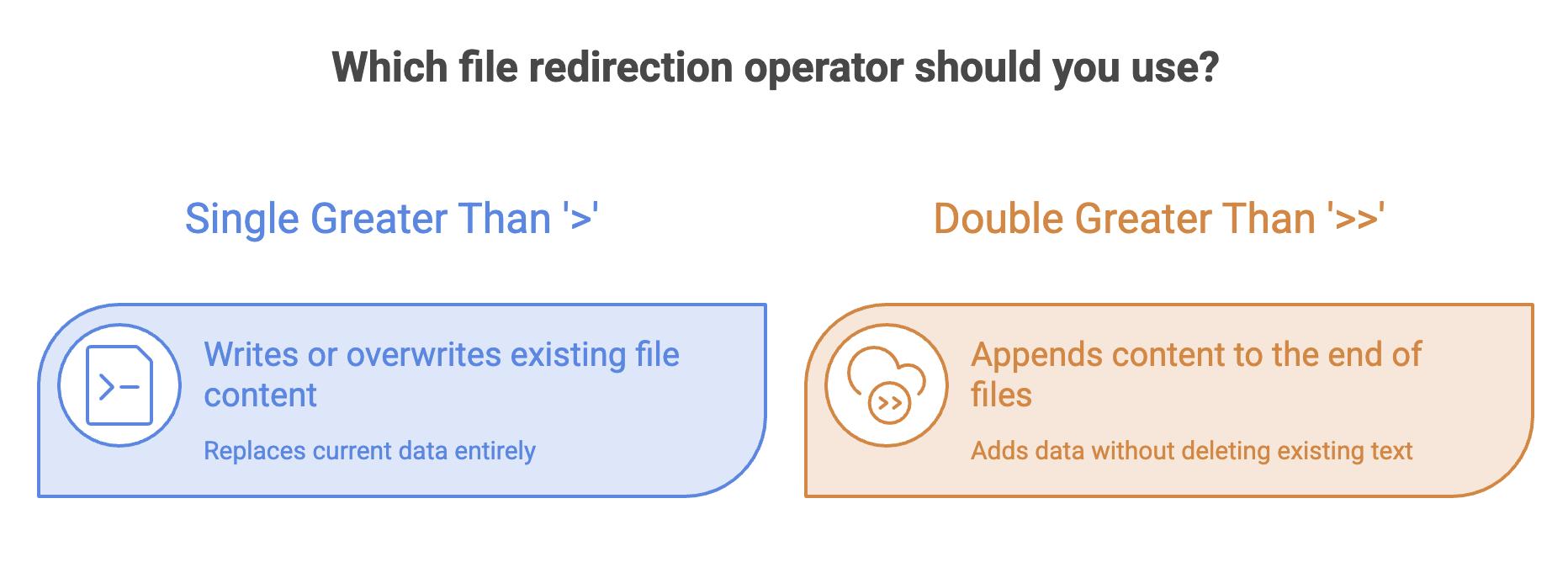
The > operator redirects the typed content into the file.
- If the file doesn't exist, it is created.
- If the file already exists, its previous content is overwritten.
Be careful with
>: using it on an existing file replaces its current content.
Appending Content to a File
To add content without removing what is already there, use >>:
cat >> telusko.txtEnter the additional content:
After which we shall focus on cloud.Press Ctrl + D to finish.
The >> operator adds the new content at the end of the file.
cat - View File Content
The simplest way to display the contents of a file is:
cat telusko.txtIt prints the complete file from the first line to the last.
For a small file, cat is convenient because you can see everything at once.
Display Content with Line Numbers
Use the -n option:
cat -n telusko.txtExample:
     1  This is Linux journey.
     2  After this we will learn Bash shell scripting.
     3  After which we shall focus on cloud.
Line numbers are useful when discussing a particular line or checking the structure of a file.
tac - View Lines in Reverse
The tac command displays the lines of a file from bottom to top.
tac telusko.txtIf the original file contains:
Line 1
Line 2
Line 3
cat displays:
Line 1
Line 2
Line 3
while tac displays:
Line 3
Line 2
Line 1
A simple way to remember it:
taciscatwritten backwards, and it reverses the order of lines.
rev - Reverse Characters
Don't confuse rev with tac.
The rev command reverses the characters within each line.
rev telusko.txtFor example:
Linux
Cloud
becomes:
xuniL
duolC
The order of the lines remains unchanged.
tac vs rev
| Command | What it reverses |
|---|---|
tac | Order of lines |
rev | Characters within each line |
head - View the Beginning of a File
For a large file, displaying everything with cat may not be practical.
The head command displays the first 10 lines by default.
head telusko.txtYou can specify exactly how many lines you want:
head -n 4 telusko.txtThis displays the first four lines.
The general syntax is:
head -n <number> <file>For example:
head -n 5 application.logThis is particularly useful when quickly checking the beginning of a log or configuration file.
tail - View the End of a File
The tail command works in the opposite direction. It displays the last 10 lines by default.
tail telusko.txtTo display a specific number of lines:
tail -n 2 telusko.txtThis shows the last two lines.
The general syntax is:
tail -n <number> <file>For example:
tail -n 5 application.logtail is especially useful when checking the latest entries in log files.
Quick Reference
| Command | Purpose |
|---|---|
cat file | Display the complete file |
cat -n file | Display file with line numbers |
cat > file | Write/overwrite file content |
cat >> file | Append content to a file |
tac file | Display lines in reverse order |
rev file | Reverse characters in each line |
head file | Display first 10 lines |
head -n N file | Display first N lines |
tail file | Display last 10 lines |
tail -n N file | Display last N lines |
Written By: Muskan Garg
How is this guide?
Last updated on